How to Register with CougarWeb at CSCC
Автор: Case Cscc
Загружено: 2015-06-11
Просмотров: 18938
Описание:
Welcome to the Center for Advising, Support and Exploration’s video series on navigating Columbus State Community College’s online systems. The following tutorial will walk you through how to search and register for courses via Cougar Web. Cougar Web is your source for registration, academic records, financial aid, course schedules and more.
To access Cougar Web, go to the Columbus State Community College homepage at www.cscc.edu. Click on the grey box labeled “Cougar Web” at the top right hand side of the page. Next, click the blue box marked “Cougar Web for Students”. On the bottom menu, click “login”. Enter your username and password, then click submit.
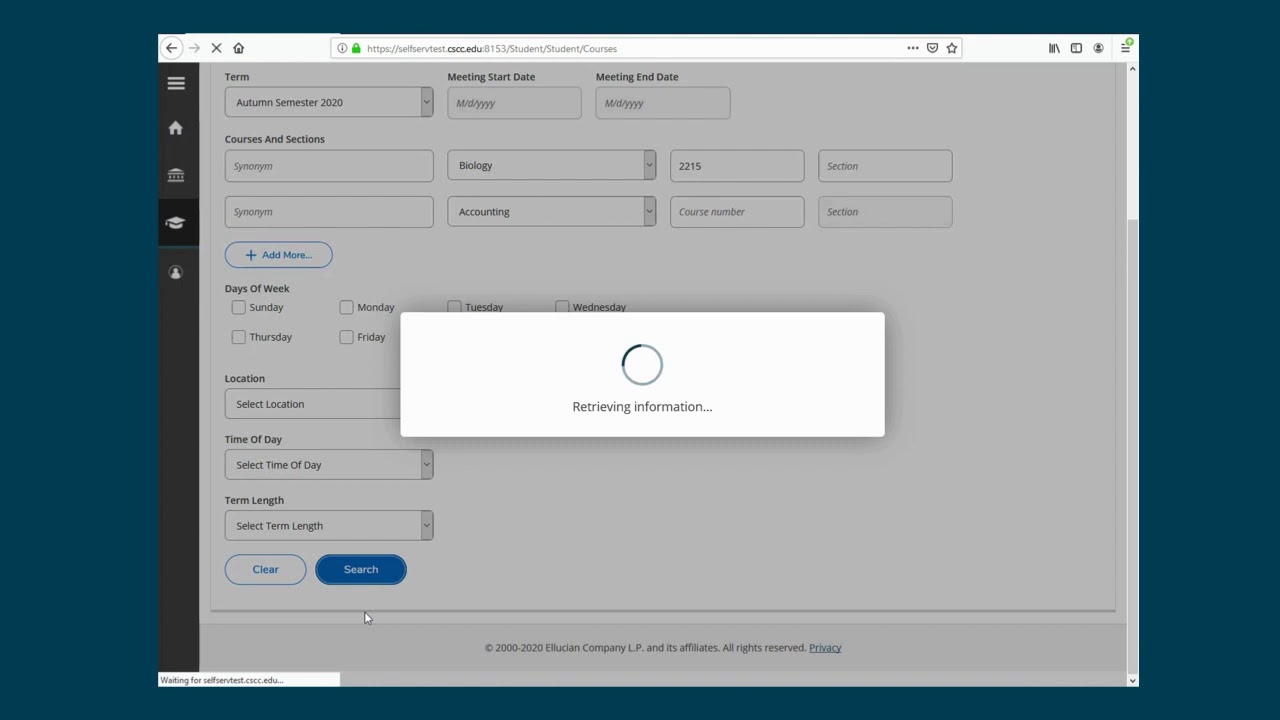
Under the registration heading, click “Search and Register for Course Sections.” On the fourth line, click “Search for My Classes.” Another internet tab will open. Choose the appropriate semester by clicking on one of the blue boxes. Under the Options heading click on “Hide All Locations” then, individually select the locations where you want to take your courses.
Next, in the subject drop down box, choose the subject of the course you wish to register for. In this case, I will choose Columbus State or “COLS”. In the course number field, enter the four digit course number that follows the subject, and click go. Scroll down to view the class offerings. Be sure to pay attention to the location, the number of seats available and the total time of the course. Once you have chosen the section that best fits your schedule, write down or copy the 5 digit synonym number.
After you find the course you wish to take, switch internet tabs back to Cougar Web for students, and click the fifth link, “Express Registration”. Now type or paste your 5 digit synonym number in the top left hand box in the synonym column. Do not fill out any of the other fields listed, you only need the synonym number. Once entered, click submit. You will then be forwarded to the pending registration page, where you should see your newly requested course.
To complete the registration process, under the preferred sections action drop down tab, choose “register”, then Click submit. Your successfully registered course will show up at the bottom of the page.
Congratulations! You have just registered for your first course! To register for more courses, repeat the search and register process you learned earlier in the video.
Повторяем попытку...

Доступные форматы для скачивания:
Скачать видео
-
Информация по загрузке: