How to Print Labels from Canva
Автор: iZoRun
Загружено: 2025-05-14
Просмотров: 1731
Описание:
🏷️ How to Print Labels from Canva
🔔 Thank you for supporting iZoRun! Subscribe to the channel and turn on the bell to never miss inspiring content: https://bit.ly/3tMqwES
Welcome to iZoRun — your source for creative design tips and practical print tutorials! 🎨 In today’s video, you’ll learn how to print labels from Canva, including how to print on Avery templates, how to make mailing labels, and how to fit multiple labels on one page. Whether you're working on product packaging, address labels, or gift tags, this guide has everything you need.
📄 How to Print Labels from Canva – Quick Step-by-Step
If you’ve already created your label design and are ready to print, follow these easy steps:
1. Open your label design in Canva.
2. Click ‘Share’ in the top right corner.
3. Select ‘Download’ from the dropdown menu.
4. Choose ‘PDF Print’ for high-resolution output.
5. (Optional) Check ‘Crop marks and bleed’ to assist with accurate trimming.
6. Click ‘Download’ to save the file to your computer.
7. Open the file and click the Print icon, or press Ctrl + P.
8. Adjust your printer settings (size, quality, paper type) and click ‘Print’.
You’ve now completed the basic process for how to print labels in Canva or how to print labels on Canva for general use!
✉️ How to Print Address or Mailing Labels from Canva
Need to print mailing or return address labels? Here’s how:
• Create or open a standard address label template in Canva.
• Input your name, address, or business details.
• Duplicate the label design multiple times on one page using copy and paste, and align them in a grid.
• Export the design as PDF Print, then print onto label sticker paper.
• Trim manually, or use label sheets designed to match your layout.
This is perfect for users searching how to print address labels from Canva or how to print mailing labels from Canva efficiently.
🧾 How to Print Canva Labels on Avery Paper
For those asking how to print Avery labels from Canva or how to print Canva labels on Avery paper, follow these steps for accurate alignment:
✅ Step 1: Choose the Right Avery Template
• Find the Avery label code (like 5160, 8163, etc.) on your Avery package.
• Go to Avery.com/templates and download a blank PDF template matching your label size.
✅ Step 2: Design in Canva
• In Canva, create a custom size design that matches a single label on the Avery sheet (e.g., 2.625" x 1").
• Design one label and download it as a PNG or PDF.
✅ Step 3: Merge with Avery Template
Option 1 (Basic):
• Open the downloaded Avery PDF template in a PDF editor (e.g., Adobe Acrobat).
• Copy-paste or place your label design into each label slot manually.
Option 2 (Advanced/Automated):
• Use Avery Design & Print Online tool to upload your Canva PNG.
• Automatically populate all label slots with your design.
• Print directly from Avery or download the full sheet for home printing.
This workflow is ideal for anyone looking to print from Canva to Avery labels with accurate spacing.
🖨️ How to Print Multiple Labels on One Page in Canva
If you want to print a full sheet of identical labels directly from Canva:
1. Open your single-label design.
2. Click File Resize and set the dimensions of the full page (e.g., 8.5" x 11").
3. Copy and paste your label design multiple times on the page.
4. Use Canva’s alignment tools (grid, position) to space the labels evenly.
5. Export as PDF Print, then print on sticker paper or standard sheets.
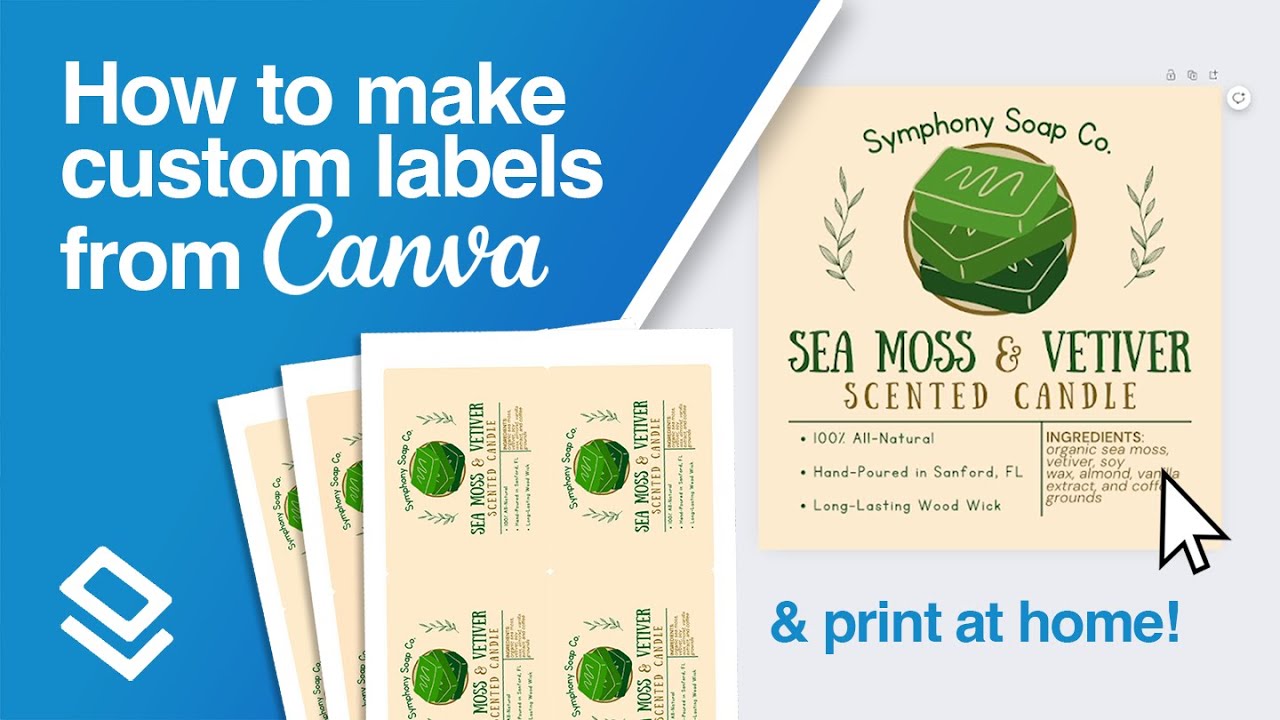
This is especially useful if you’re asking how to print multiple labels on one page in Canva — perfect for handmade products, jars, packaging, or event labels.
🛠️ Tips for Printing Labels in Canva
• Use Sticker Paper: For adhesive labels, use matte or glossy sticker sheets compatible with inkjet or laser printers.
• Enable Bleed: Always check “Crop marks and bleed” if trimming labels by hand.
• Avoid Scaling: In your printer settings, choose “Actual Size” instead of “Fit to Page” to avoid misalignment.
• Test First: Always do a test print on plain paper to check alignment before printing on label sheets.
These tips are perfect for refining your process if you're exploring how to print labels with Canva or trying to create a precise layout for Avery or other label formats.
🎯 Summary: What You’ll Learn in This Video
In this tutorial, you’ll learn:
• How to print labels from Canva quickly and clearly
• How to print address and mailing labels from Canva
• How to print Canva designs on Avery label sheets
• How to print multiple labels per page for efficient use
• Pro tips for getting clean, accurate prints at home or professionally
Whether you're preparing packaging for your Etsy shop, organizing items, or printing holiday labels, Canva gives you the flexibility to design and print beautiful labels with ease.
Hashtags:
#CanvaLabels #PrintLabelsFromCanva #CanvaTutorial #LabelPrinting #AveryLabels
💬 Want a walkthrough on aligning Canva designs perfectly with specific Avery codes? Leave a comment and we’ll help!
Повторяем попытку...
Доступные форматы для скачивания:
Скачать видео
-
Информация по загрузке: