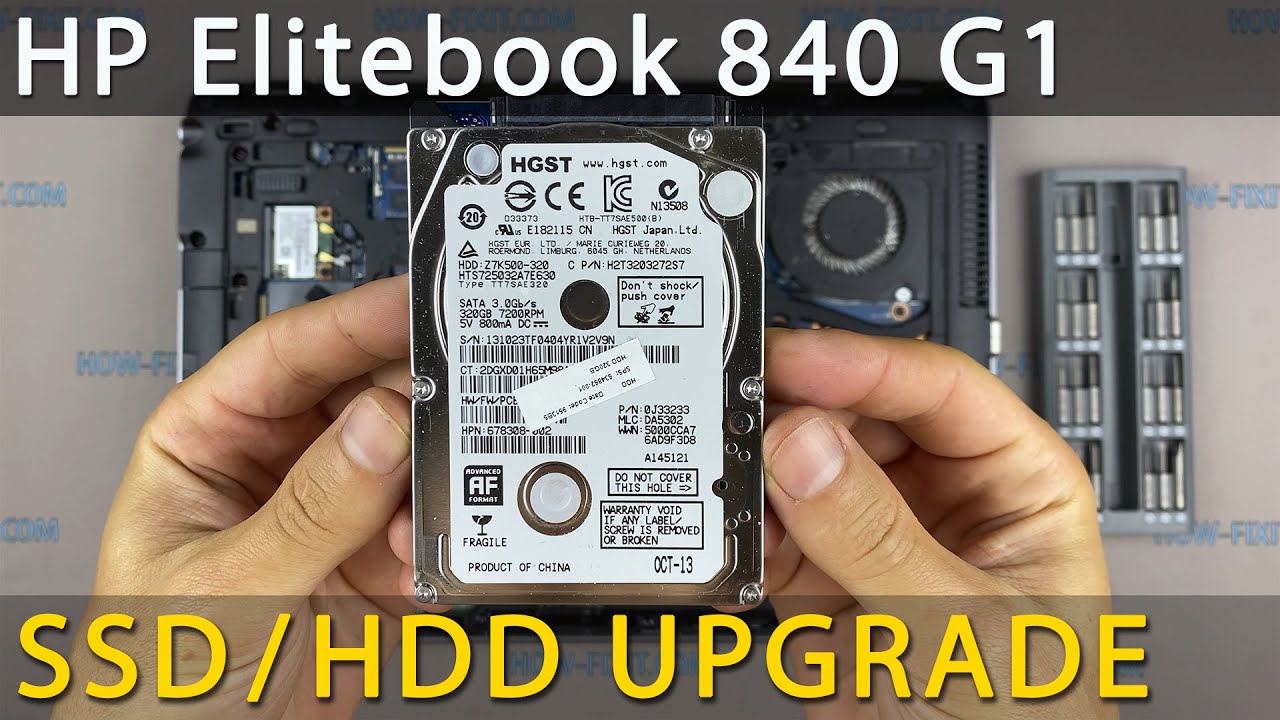
HP Elitebook 840 G1 Hard Drive Replacement – Fast & Easy SSD Upgrade
Автор: How-FixIT
Загружено: 2021-06-28
Просмотров: 33787
Описание:
Learn how to upgrade your HP Elitebook 840 G1 by replacing your hard drive with a larger HDD or a faster SSD for better performance and storage!
Buy tools and best SSD on AMAZON:
Screwdriver Set: https://hfixt.com/spro
Pry Tool Kit: https://hfixt.com/pryt
Magnetic Mat: https://hfixt.com/mat
Tweezers: https://hfixt.com/tzrs
SSD: https://hfixt.com/ssd
Buy tools and SSD on AliExpress:
SSD: https://hfixt.com/ssda
Screwdriver set: https://hfixt.com/alis
Pry Tool Kit: https://hfixt.com/alit
Tweezers set: https://hfixt.com/altz
Magnetic Mat: https://hfixt.com/amat
📌*Useful links*
Explaining Storage Devices: • SSD vs HDD vs NVMe vs SATA vs mSATA vs M2:...
MIGRATE (Clone) HDD to SSD: • How to Clone Windows to SSD or HDD for Fre...
Windows Installation Guides: • Windows 11 Clean Install From USB: Complet...
DIY repair guides: https://how-fixit.com
📱Follow us for more tech tips and guides!
TikTok: / howfixit
Instagram: / howfixit
Facebook: / howfixit
X: https://x.com/howfixit
DESCRIPTION
Upgrade your hard drive to a larger HDD or faster SSD on your HP Elitebook 840 G1 laptop to improve performance. In this step-by-step guide, I’ll show you how to replace your laptop’s HDD with a high-speed SSD or install a larger hard drive for more storage.
This tutorial is compatible with HP Elitebook 840 G1 and potentially other models of this laptop series.
You'll need a Phillips #1 screwdriver, plastic pry tools, and a magnetic mat to keep your screws organized. The process involves safely opening the laptop, removing the existing hard drive, and installing a new SSD or HDD. I’ll also explain how to ensure your system recognizes the new drive and how to reinstall or clone your operating system for a seamless transition.
Check out the links above for recommended SSDs, HDDs, and the best tools for the job. If you're unsure whether you need an SSD, HDD, or M.2 drive, watch the comparison video in the useful links section.
Have any questions? Drop them in the comments, and I’ll help you out. Don’t forget to like, share, and subscribe to HowFixit for more DIY tech guides!
Key Takeaways:
✅ Learn how to upgrade your HP Elitebook 840 G1 laptop storage.
✅ Replace your HDD with a faster SSD for improved performance.
✅ Step-by-step instructions for safely opening your laptop.
✅ How to reinstall or clone your OS after installing a new drive.
✅ Troubleshooting tips to ensure the new SSD is recognized.
🌟 Frequently Asked Questions (FAQs):
Question: Can I upgrade my HP Elitebook 840 G1 laptop’s hard drive myself?
Answer: Yes! This tutorial walks you through the entire process step by step.
Question: What is the maximum SSD size for the HP Elitebook 840 G1 laptop?
Answer: There is no limit on the maximum size of SSD or HDD, but there are Windows limitations. If your Windows is 64-bit and the GPT file system - you can install a drive of any size.
Question: What should I do if my laptop doesn’t detect the new SSD?
Answer: Check BIOS settings, ensure the drive is properly connected, and update firmware if needed.
Question: How do I transfer my data to the new SSD?
Answer: You can clone your existing OS or do a fresh installation—watch the linked video for details.
AFFILIATE PROGRAM
We are a participant in the Amazon Services LLC Associates Program, an affiliate advertising program designed to provide a means for us to earn fees by linking to Amazon and affiliated sites.
#howfixit #laptopupgrade #diy #techguide
Повторяем попытку...
Доступные форматы для скачивания:
Скачать видео
-
Информация по загрузке: