How to Load Magisk on the Galaxy Note 10 & S10 Series Smartphones
Автор: Explaining Android
Загружено: 2022-02-04
Просмотров: 8663
Описание:
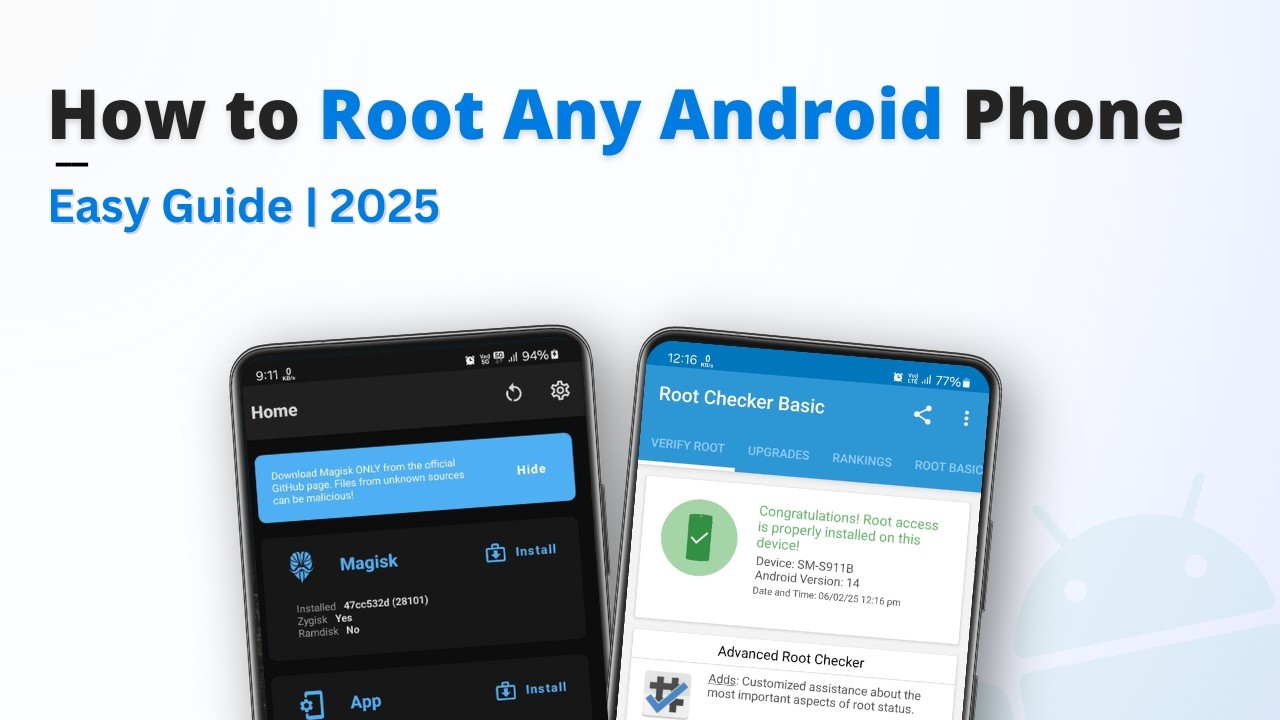
As long as you have followed my previous tutorial showing you how to root the phones, this is how you can load Magisk at boot.
~~~~~
Hi! Don't forget to hit the "Thanks" button on this video, if you can, and join our channel community here - / @explainingandroid
Video Description
~~~~~~~~~~~~~~~~~
Yesterday I did a video showing you how to root the Galaxy Note 10 series after it has been updated to Android 12 and its OneUI 4.0 firmware. Sadly, I'm still seeing people ask why they aren't seeing Magisk loaded when they reboot the phone. Even though Magisk is still installed properly, some people think that just because it wasn't loaded that it means it wasn't installed properly.
So in this video today, I want to show you how to load Magisk at boot when using the Galaxy Note 10, Galaxy S10, and any other devices Samsung ships that doesn't come with the RAM disk feature.
The missing RAM disk is the reason why these few devices refuse to boot with Magisk loaded into the system. See, with these devices the Magisk dev needed to install the root binaries into the Recovery partition. This has resulted in us having to boot into Recovery Mode before booting over into the Android OS.
Taking this a step further, I believe it was the Android 12 update that recently required some Samsung smartphones and tablets to require a connected USB cable in order to access the Recovery Mode. I use the USB cable that's connected to my PC but I've seen others use a USB cable that's connected to their earbuds or headphones.
I have tried a USB cable connected to a wall charger and it does not trigger the requirement here. So use a USB cable connected to your PC or one from your set of earbuds.
Let me give you a demonstration of what happens when you DO NOT boot into Recovery Mode first.
So that's how we load up Magisk on the handful of Samsung devices that do not ship with a RAM disk. Remember, we need to use that USB cable and the button combination each time we want to load Magisk
Full Tutorial
~~~~~~~~~~~~~~~~~
1. Intro [00:00]
2. Connect a USB cable to the Samsung Galaxy device [01:31]
3. Power down the smartphone or tablet [03:41]
4. Press and hold the button combination as instructed [03:58]
5. And let it go on that "3rd" step of the boot process [05:18]
6. Check to make sure Magisk was loaded [06:46]
As an Amazon associate, I may earn a commission on sales from the links below.
The Gear I Use
~~~~~~~~~~~~~~~~~
5W "Slow" Charger - https://amzn.to/2OaUMV8
Fast Charger - https://amzn.to/3rtBsC6
MicroUSB Cable - https://amzn.to/38dkpeM
USB-C Cable - https://amzn.to/2OqlTvi
TPU Cases - https://amzn.to/38g9b9w
Повторяем попытку...

Доступные форматы для скачивания:
Скачать видео
-
Информация по загрузке: