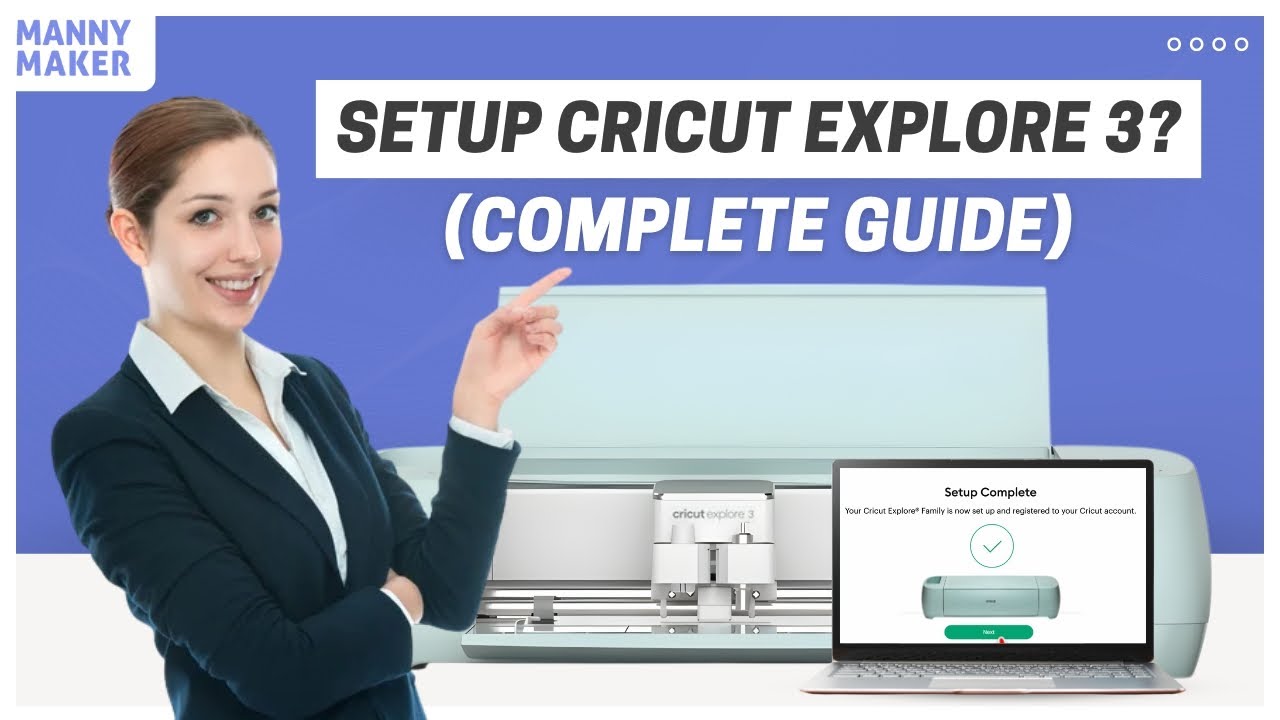
How to Setup Cricut Explore 3? (Easy Tutorial!)
Автор: Manny Maker
Загружено: 2026-01-21
Просмотров: 15
Описание:
Got a new 'Cricut Explore 3' and don’t know where to start the setup? Don’t worry, we’ll cover the full process to set up your cutting machine in this video tutorial. Through this guide, you’ll learn everything step by step to get your Cricut machine running. So, get ready with your Cricut Explore 3, computer (Windows or Mac), USB cable, and a stable internet connection to download the Cricut Design Space app.
Step 1: Unbox your Cricut Explore 3 and remove all the packaging materials. Double-check that you’ve got all the accessories that came with your machine.
Step 2: Find a flat, stable spot for your Cricut somewhere close to a power outlet.
Step 3: Grab a power cord and plug it into the back of your machine, then connect the other end to a power outlet.
Step 4: Open an internet browser and search for design.cricut.com/setup to download the Cricut Design Space.
Step 5: Follow the steps on your screen to download and install it on your computer.
Step 6: Once the installation is complete, open the Cricut Design Space and click on Product Setup.
Step 7: The browser will take you to the Cricut ID creation page. Fill in the required information and click the Create Cricut ID button.
Step 8: After signing in, you’ll see a notification pop-up at the top of your browser, where you can click on Open to launch the Cricut app.
Step 9: Select the first option to set up your machine and click on Continue.
Step 10: Select your specific machine model and click on Continue.
Step 11: You’ll see a series of on-screen prompts; just click on the right arrow to move through them.
Step 12: Select your preferred connection type and click on Continue, then select Continue once more to proceed.
Step 13: Grab the USB cable that came with your machine and connect one end to the USB port on your machine and the other end to your computer.
Step 14: Press the Open button on the left side of your machine to lift the lid, then remove any packaging materials and tape from inside.
Step 15: Press the power button to turn on your machine.
Step 16: Head back to your computer and follow the remaining on-screen steps to finish your setup.
How to Setup Cricut Explore 3? (Complete Setup)
0:00 Title and introduction
0:30 Unbox your Cricut Explore 3 machine
0:55 Download and install Cricut Design Space
1:20 Create a Cricut account
2:02 Connect your machine to your computer
2:25 Turn on the Cricut Explore 3
Learn more about Cricut machines and their setup by visiting our official website at https://mannymaker.com/.
If you want to grow as a DIY enthusiast, join our Crafters Community, where you’ll learn from professionals. Click on this link to join today: / @mannymaker117 .
Facing any problems with your machine setup? Contact our experts at these numbers:
US/Canada: +1 786 866 5932
UK: +44 203 983 0480
Our team will assist you throughout the 'Cricut machine setup' process.
If you learned 'How to Setup the Cricut Explore 3', please like and share our video.
Also, subscribe to our channel so you don’t miss any of our latest videos.
#howtosetupcricutexplore3 #howto #setup #cricutexplore3 #cricutsetup #setupnewcricutexplore3 #cricutexplore3 #cricutsetuppage #easysetup #designcricutsetup #cricutexploreair2 #cricutmachinesetupinstaructions #cricuttutorial #diyprojects #craftingwithcricut #cricuttips #cricutcrafts #howtocricut #cricutbeginner #cricutdesignspace #cricuthacks #learning #craftingcommunity #cricutideas #homecrafts #cricutlove #diyprojects #cricutdiy #cricutcrafting #unitedstates #mannymaker
Повторяем попытку...
Доступные форматы для скачивания:
Скачать видео
-
Информация по загрузке: