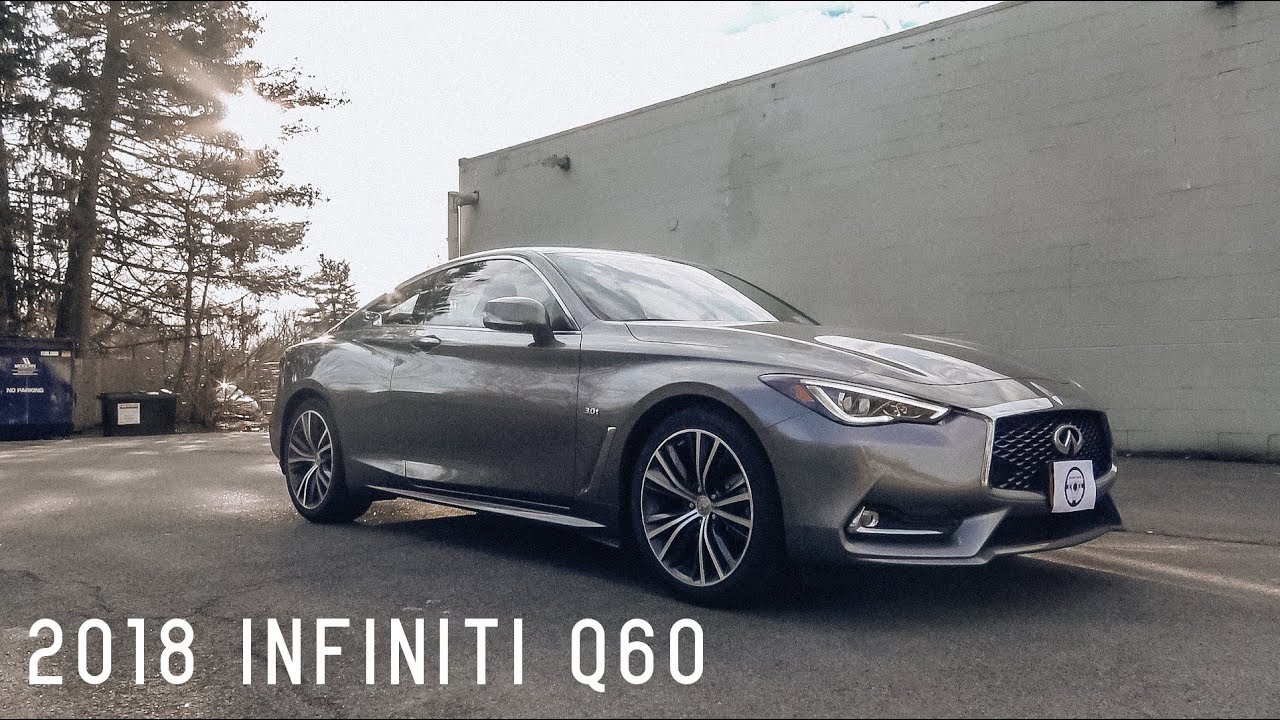
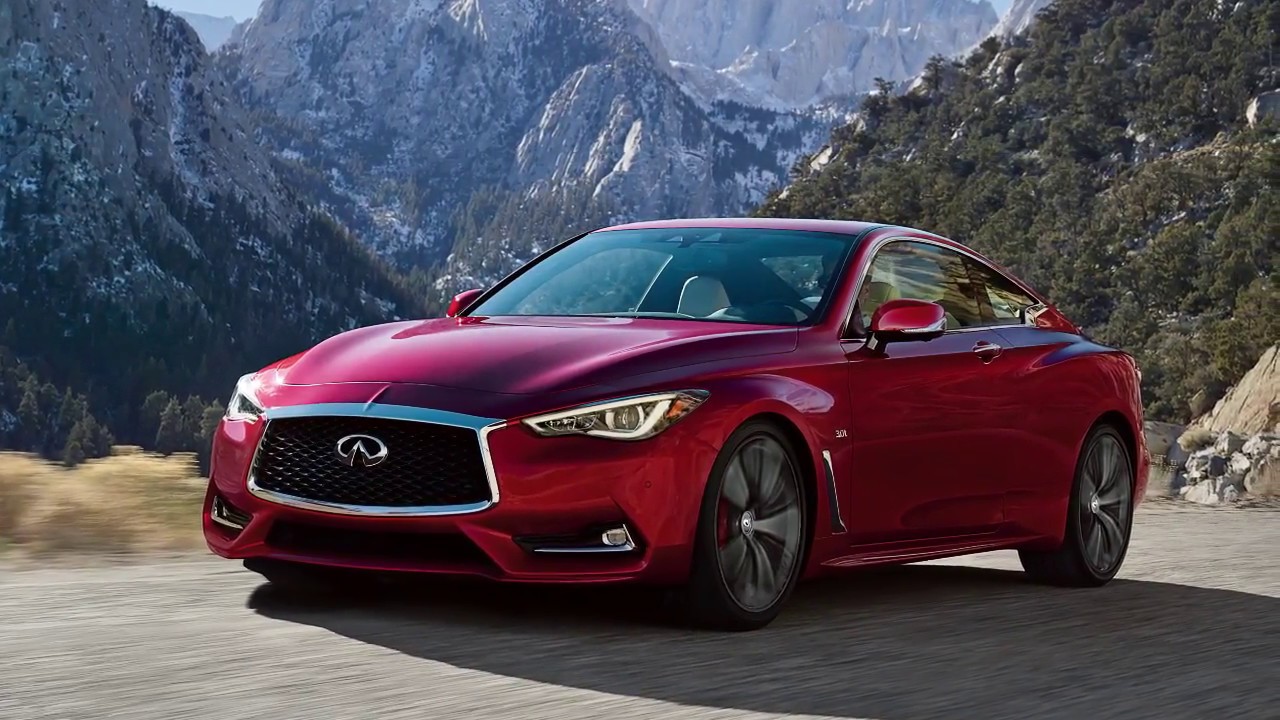
2018 INFINITI Q60 - Map/Voice Button (if so equipped)
Автор: INFINITI USA
Загружено: 2017-10-02
Просмотров: 657
Описание:
"This video is copyrighted material of Nissan North America, Inc. and should not be copied, edited, or reproduced without the permission of Nissan.
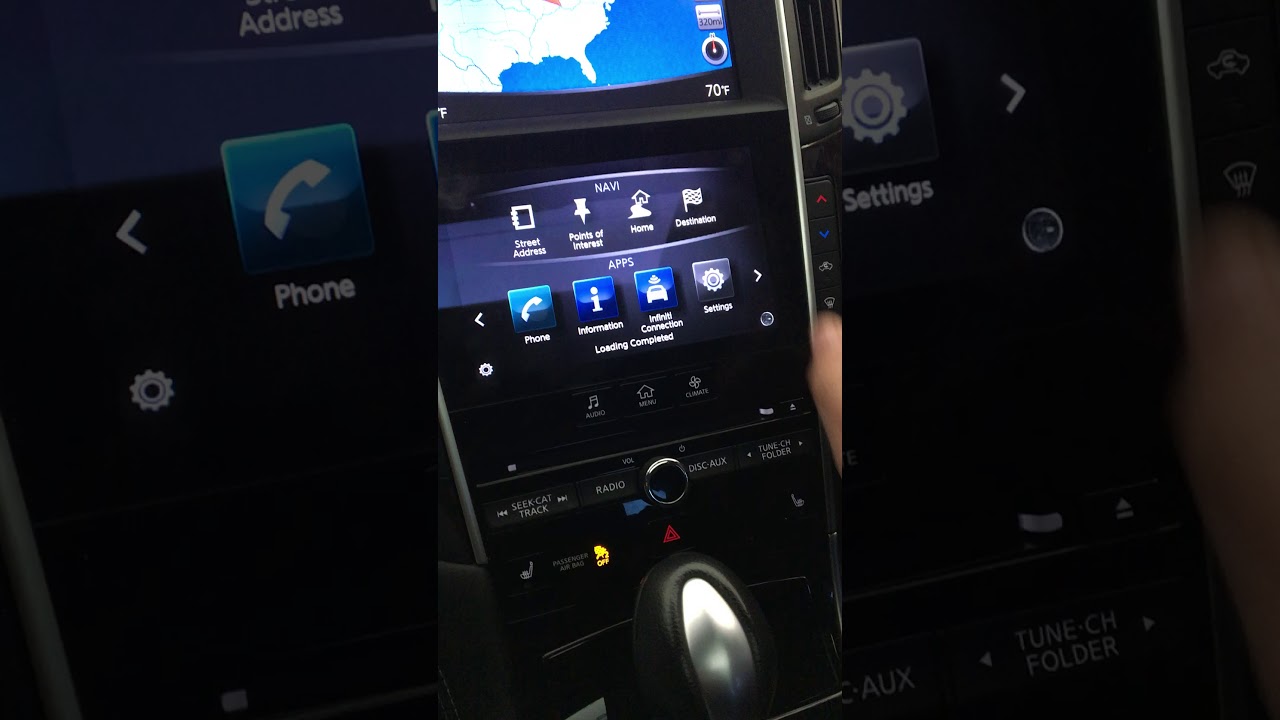
The MAP/VOICE button is located next to the INFINITI Controller on the center console.
To display a map of the current location on the upper touch screen display, press and release the MAP/VOICE button.
Maps can be displayed in 2D view, which shows a map in the two dimensional form that is similar to a road map, or in BIRDVIEW, a three-dimensional map that makes a route more recognizable because it elevates the landmarks and provides a panoramic view over a long distance.
To switch between map views, touch this key on the upper touch screen display.
There are multiple ways to move around a map that is shown on the upper touch screen display.
Touching the screen and releasing re-centers the map at the touched location. When in 3D mode, this also displays touch icons for rotating the map view.
Touching and holding the map screen in all map views scrolls the map in the direction that is touched.
The INFINITI Controller can be used in 2D mode to move the map by sliding the controller in any direction.
In 3D mode, sliding the INFINITI Controller up or down moves the map view forward or backward and sliding the INFINITI Controller left or right rotates the map view.
For quicker moving of the map screen, you can touch and then drag a map in any direction, regardless of view mode. Additionally, you can use a quick swiping gesture to engage a faster scroll of the map.
To zoom in or out, touch this scale indicator on the right side of the map screen or turn the INFINITI controller left or right. You can also zoom the map by touching
the screen with a “pinch out” motion to zoom in or a “pinch in” motion to zoom out.
With the current map location shown on the upper touch screen display, press and release the MAP/VOICE button to show the DISPLAY VIEW BAR. You can use the touchscreen or INFINITI controller to select an item in the DISPLAY VIEW BAR.
Select from a variety of split screen map views, or touch the right arrow to scroll for additional options to display on the left side of the split screen view, including:
● FULL MAP, to view the map in full screen mode,
● SPLIT MAP, to choose from a variety of split map view options,
● INTERSECTION, which displays a map of the upcoming intersection on the left side of the split screen view,
● TURN LIST, to view a list of turns on the current route,
● WHERE AM I?, to show information about the current vehicle location,
● TURN-BY-TURN, which displays turn information for the current route guidance,
● FUEL ECONOMY, for information such as the average fuel economy and distance to empty, and
● ECO DRIVE REPORT, to see a breakdown of how economically the vehicle is being driven.
Some DISPLAY VIEW BAR options can only be selected after touching the arrow icon to scroll for additional options.
Please see your INFINITI InTouch™ Owner’s Manual for important safety information, system limitations, and additional operating and feature information.
"
Повторяем попытку...

Доступные форматы для скачивания:
Скачать видео
-
Информация по загрузке: