ycliper

Популярное

Музыка Кино и Анимация Автомобили Животные Спорт Путешествия Игры Юмор

Интересные видео

2025 Сериалы Трейлеры Новости Как сделать Видеоуроки Diy своими руками

Топ запросов

смотреть а4 schoolboy runaway турецкий сериал смотреть мультфильмы эдисон
Скачать

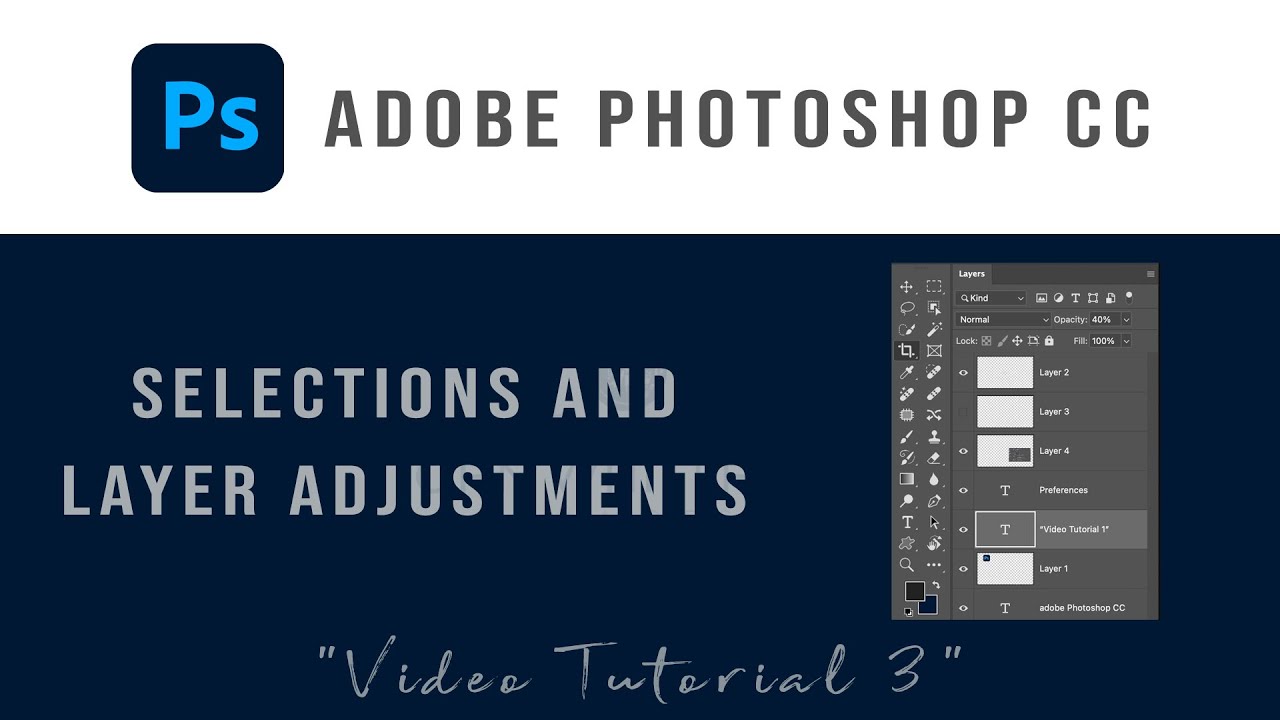
Learn Adobe Photoshop 2024 in Steps. Selection Tools and Non-Destructive Adjustment Layers

Автор: John Whitehead Images

Загружено: 2024-01-13

Просмотров: 3063

Описание: Learn Adobe Photoshop 2024 in Steps. Selection Tools and Non-Destructive Adjustment Layers
We will take a look at the main selections tools including the lasso tool, the object selection tool, and the quick selection tool.
In Photoshop you can edit destructively and non-destructive methods. I will show you both but main we will focus on non-destructive because it will allow you more control during the process.
We will put the selection tools and layer adjustments together to create a selective layer adjustment.
Selection tools in Adobe Photoshop are essential tools that allow users to isolate and work with specific areas of an image. These tools help in making precise and controlled adjustments, edits, or enhancements to the selected portions. Here are some common selection tools in Photoshop:

1. *Marquee Selection Tools:*
*Rectangular Marquee Tool (M):* Creates a rectangular selection.
*Elliptical Marquee Tool (M):* Creates an elliptical (oval) selection.

2. *Lasso Selection Tools:*
*Lasso Tool (L):* Allows freehand drawing of selections.
*Polygonal Lasso Tool (L):* Creates selections by clicking points to form straight lines.
*Magnetic Lasso Tool (L):* Snaps to the edges of defined areas in the image.

3. *Magic Wand Tool (W):*
Selects areas of similar color with a single click. The Tolerance setting determines color sensitivity.

4. *Selection Brush Tool (W):*
Paints a selection over an area using a brush. Useful for making precise selections.

5. *Quick Selection Tool (W):*
Automatically selects similar tones and textures when dragged across an image. Can be refined with the Refine Edge option.

6. *Pen Tool (P):*
Creates paths that can be converted to selections. Useful for precise and complex selections.

7. *Selection Options:*
*Add to Selection (+):* Adds to the existing selection.
*Subtract from Selection (-):* Removes from the existing selection.
*Intersect with Selection (∩):* Retains only the overlapping area of selections.

8. *Select and Mask:*
Allows for refining and adjusting selections with options for feathering, smoothing, and edge refinement.

These selection tools provide users with flexibility and control when working with images in Photoshop. Depending on the complexity of the selection needed, users can choose the most appropriate tool for their specific editing requirements.

Watch and Learn From My Videos in one Location. Visit my Website!!!
https://www.johnwhiteheadimages.com/

Follow me on Twitter:   / imageswhitehead  
Instagram:   / learndigitalphotography  
Facebook Group:   / learnadobephotoshopandlightroom  

#PhotoshopTutorial #Photoshop #Learnphotoshop #freePhotoshop #learn Lightroom, Lightroom tutorials,

Не удается загрузить Youtube-плеер. Проверьте блокировку Youtube в вашей сети.
Повторяем попытку...
Learn Adobe Photoshop 2024 in Steps.  Selection Tools and Non-Destructive Adjustment Layers

Поделиться в:

Доступные форматы для скачивания:

Скачать видео

  • Информация по загрузке:

Скачать аудио

Похожие видео

Изучите Adobe Photoshop 2024 шаг за шагом. Корректирующие слои с использованием белой или чёрной ...

Изучите Adobe Photoshop 2024 шаг за шагом. Корректирующие слои с использованием белой или чёрной ...

Adobe Photoshop Set Up-Preferences, Toolbars, Color, & Windows

Adobe Photoshop Set Up-Preferences, Toolbars, Color, & Windows

SAVING PHOTOGRAPHS THE CORRECT WAY!!

SAVING PHOTOGRAPHS THE CORRECT WAY!!

Как я перестал обрабатывать фото вручную — экшены + Stream Deck

Как я перестал обрабатывать фото вручную — экшены + Stream Deck

Как улучшить качество изображения | Нейросети апскейлеры | Метод AI + Photoshop подробная инструкция

Как улучшить качество изображения | Нейросети апскейлеры | Метод AI + Photoshop подробная инструкция

How to use Selection tools in Photoshop 2024

How to use Selection tools in Photoshop 2024

Learn Adobe Photoshop 2024 in Steps.  PREFERENCES

Learn Adobe Photoshop 2024 in Steps. PREFERENCES

Как настроить рабочее пространство Photoshop для фотографии.

Как настроить рабочее пространство Photoshop для фотографии.

Photoshop для начинающих — 2024 — Урок 7 — Слои (Часть 1)

Photoshop для начинающих — 2024 — Урок 7 — Слои (Часть 1)

Первые инструменты для изучения в Photoshop

Первые инструменты для изучения в Photoshop

ПРЕВОСХОДНЫЙ дизайн рекламы манипуляции продуктом ✅🔥 Полный урок по Photoshop

ПРЕВОСХОДНЫЙ дизайн рекламы манипуляции продуктом ✅🔥 Полный урок по Photoshop

37 Creative Ways To Use Photoshop AI + Generative Fill

37 Creative Ways To Use Photoshop AI + Generative Fill

Learn Adobe Photoshop 2024 in Steps.  CUSTOM TOOLBARS AND WORKSPACES

Learn Adobe Photoshop 2024 in Steps. CUSTOM TOOLBARS AND WORKSPACES

Кривые в Photoshop — ЛУЧШИЙ инструмент редактирования, который фотографы НЕ используют

Кривые в Photoshop — ЛУЧШИЙ инструмент редактирования, который фотографы НЕ используют

ОБНОВЛЕНО Выделение в 1 КЛИК в Photoshop

ОБНОВЛЕНО Выделение в 1 КЛИК в Photoshop

Photoshop COMPOSITES, смешивание фотографий и добавление элементов (урок для начинающих)

Photoshop COMPOSITES, смешивание фотографий и добавление элементов (урок для начинающих)

Adjustment Layers And Layer Masks In Adobe Photoshop

Adjustment Layers And Layer Masks In Adobe Photoshop

Путин резко меняет тактику / Впервые применено секретное оружие

Путин резко меняет тактику / Впервые применено секретное оружие

Secret Buttons for Precise Hair Selection in Photoshop!

Secret Buttons for Precise Hair Selection in Photoshop!

An Essential Photoshop Skill – SELECTIONS

An Essential Photoshop Skill – SELECTIONS

© 2025 ycliper. Все права защищены.


  • Контакты
  • О нас
  • Политика конфиденциальности


Контакты для правообладателей: [email protected]