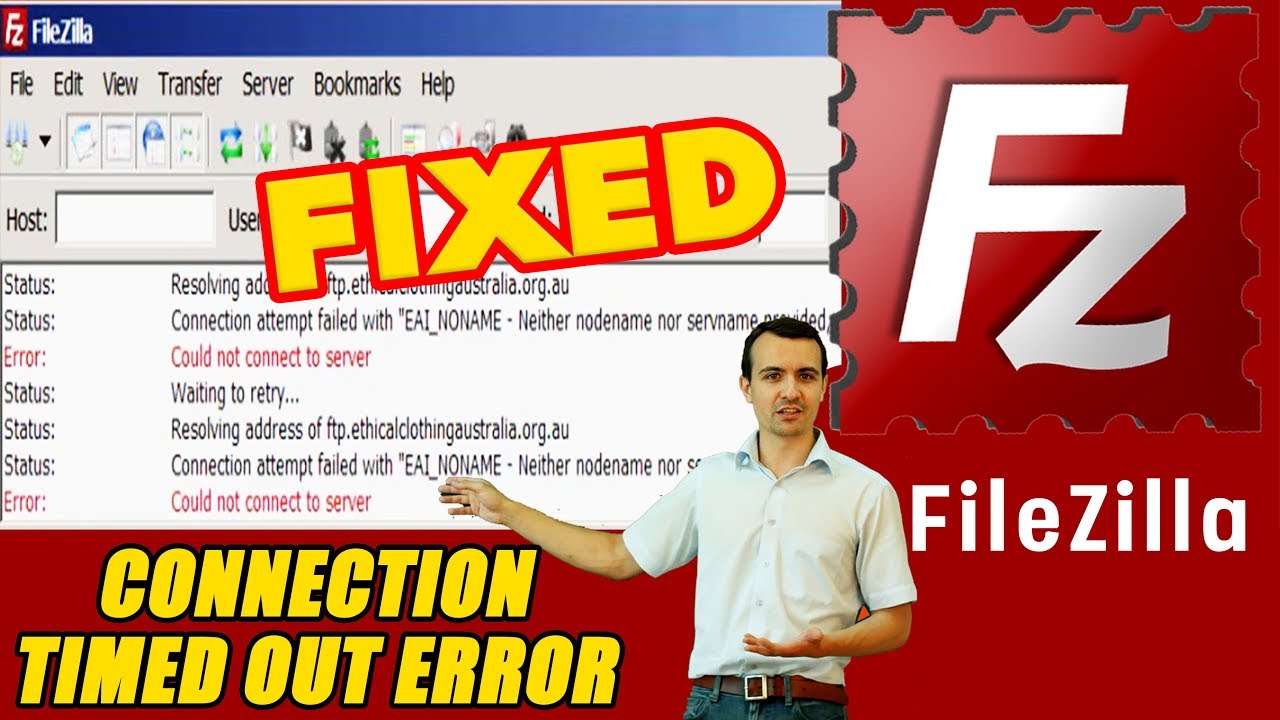
How to Fix- FileZilla Connection Refused TimeOut Error After 20 Seconds [Step by Step]☑️
Автор: Red Server Host
Загружено: 2019-08-19
Просмотров: 41160
Описание:
Today in this video you will learn about how to solve- FileZilla Connection Refused TimeOut Error After 20 Seconds (Step by Step)
If you are facing a problem of Connection timed out after 20 seconds of inactivity in Filezilla then here is a solution for you in this video. Watch this Video till end that will surely help you to solve your problem.
To resolve FTP connection timeout error you need to do some customization settings in your FileZilla Application.
======================================================
Please follow step by step procedure to Resolve FTP timeout error in FilleZilla Application:
======================================================
First you need to create FTP account.
Open FileZilla Application. Go to Edit Menu then Click on Settings.
Click on FTP from left panel directory. In that Transfer, mode must be Active & check out the Allow Fall back to another transfer mode on failure.
Now Click on Active Mode from left panel directory. In this check out the Limit local ports used by FileZilla. Set Lowest available port as 50000 and Highest available port 66000.
Now Click on passive Mode from left panel directory. In this checkout radio button Fall back to active mode.
Open the Site Manager and click on New Site and set name. Click on General and feel hostname, port 21, the protocol must be FTP-File Transfer Protocol. Encryption must use Only use plain FTP (insecure). Logon on type must be Normal and username and password of FTP account.
Last important setting is transferred setting. In that must check the Active radio button and check out a Limit number of simultaneous connections. A maximum number of connections set to 1.
Click on OK to save all the configured settings.
For more information about Redserverhost Hosting and the services we provide see here:
https://redserverhost.com
👉Don't Forget! SUBSCRIBE for more interesting Tips!
If you enjoyed this video, please consider following us on Facebook and Twitter.
Facebook Page- / redserverhost
Twitter Page- / redserverhost.com
Thanks for watching my Video. Please Like Share and Subscribe to My Channel
Повторяем попытку...
Доступные форматы для скачивания:
Скачать видео
-
Информация по загрузке: