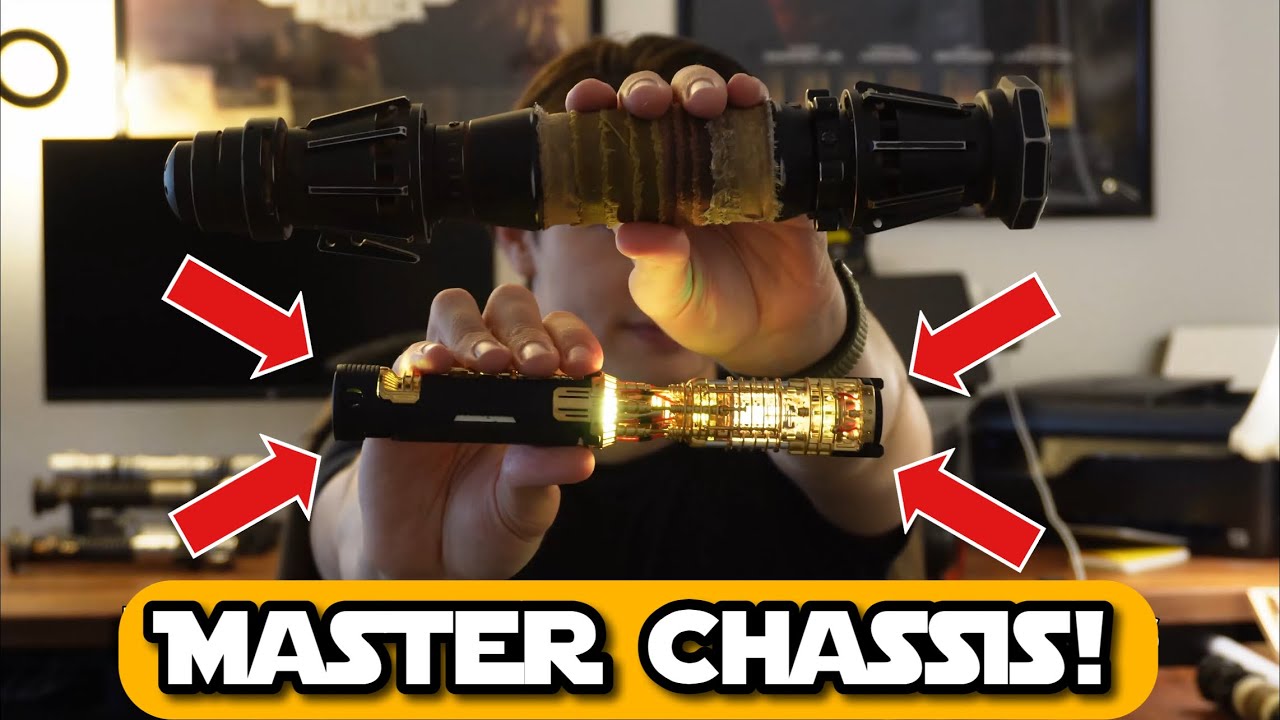
Rey Scavenger | MASTER Chassis | #5
Автор: Avery Castillo
Загружено: 2025-10-10
Просмотров: 523
Описание:
My website: https://averycastillo.com
~~~~~~~~~~~~~~~~~~~~~~~~~~~~~~~~~~~~~~~~~~
Have lightsaber or business inquiries? Hit me up on Instagram or Email me from my website. In the meantime, check out my social medias!
Instagram:
/ official.averycastillo
TikTok:
/ averycastillo
Cheaper saber options if you can’t afford a commission:
https://www.imperialworkshop.com/?ref...
Use Discount Code: AVERY for $5 off your order
~~~~~~~~~~~~~~~~~~~~~~~~~~~~~~~~~~~~~~~~~~
— TIMESTAMPS —
00:00 - Intro
00:21 - The Hilt
01:48 - IMPORTANT: Emitter Petals
04:37 - Blade Retention Screw Location
05:27 - The Master Chassis: Upgrades and Features
09:19 - About The Install
13:13 - Operating The Saber
17:53 - Sound Bank Selection
19:47 - System Menu - Volume
21:38 - Accessing the SD Card
22:59 - Magnetic Sensor Info
24:19 - Putting The Chassis In The Hilt
27:58 - Important: The Cog Wheel Switch
29:50 - Putting In The Blade
30:58 - The Fonts, Blade Profiles, and "Font Gest"
37:16 - Quick Color Change
37:52 - Final Thoughts
39:34 - The Heat Shrink Decorations
40:08 - The End!
~~~~~~~~~~~~~~~~~~~~~~~~~~~~~~~~~~~~~~~~~~
— For The Owner —
Here is all of the info needed to customize the lightsaber, and things to keep in mind about the operations:
Follow all instructions and tips from this video.
DON’T duel with this saber, because the emitter mechanism and petals are fragile. It is meant to be a show piece, and limit to light blade hits to be safe.
Be careful when putting in or removing the blade, keeping the petals in mind.
To put in and take out the chassis, align the two screws at the bottom of the handle with the guide channels on the chassis. Always do it smoothly and gently.
Keep track of the emitter petal mechanism screws, and make sure to tighten them relatively frequently as they get loosened. Use a small screwdriver or sharp tweezers to tighten.
If removing the entire emitter assembly to tighten all the petal screws (as per what is shown in KRSaber’s tips and tricks video) don’t over tighten the screws. That stops the mechanism from functioning smoothly. Tighten until you barely feel resistance, adjust as necessary.
Battery orientation: negative towards the speaker and positive towards the crystal.
SD card is where all the fonts and customization settings are stored, you can access it by just pressing down the card until you hear it click, and then pulling it out of the SD Card slot on the board.
Make sure to use a 90 degree Micro USB
All accent pixels are set up on LS2, so control it using the “pixies” folder.
The motor speed can be adjusting using “color channel 4” in the colors file.
That about covers everything I can think of in terms of how to operate the saber itself, here are some resources to help with customizing and managing your lightsaber. Hope this all helps!
~~~~~~~~~~~~~~~~~~~~~~~~~~~~~~~~~~~~~~~~~~
— Customization Resources —
KRSabers Tips and Tricks (Rey Scavenger):
• 'Tips and Tricks' Guide For Rey Skywalker ...
Plecterlabs Website:
https://www.plecterlabs.com
CrystalFocus Customization Website:
https://crystalfocus.net
CFX Single Button Quick Interaction Guide (Controls and Such):
https://www.plecterlabs.com/Media/Doc...
CFX Manuals:
https://www.plecterlabs.com/shop/arti...
Firmware Updates:
https://www.plecterlabs.com/shop/arti...
GraFX Tutorial: (You’ll need to adapt it to PIXIES)
• Crystal focus 10 (CFX) lightsaber GraFx tu...
~~~~~~~~~~~~~~~~~~~~~~~~~~~~~~~~~~~~~~~~~~
— Disclaimers —
Music in this video is used with the permission of Closed On Sunday:
/ closedonsunday
Product or Affiliate links in this description may earn Avery Castillo a commission, at no extra cost to you.
Повторяем попытку...
Доступные форматы для скачивания:
Скачать видео
-
Информация по загрузке:




![A Guide to the Separatist’s Greatest Vehicular Creations of the Clone Wars [Volume 1]](https://image.4k-video.ru/id-video/dsmVpjsqBkI)


