ycliper

Популярное

Музыка Кино и Анимация Автомобили Животные Спорт Путешествия Игры Юмор

Интересные видео

2025 Сериалы Трейлеры Новости Как сделать Видеоуроки Diy своими руками

Топ запросов

смотреть а4 schoolboy runaway турецкий сериал смотреть мультфильмы эдисон
Скачать

Excel Magic Trick 1446: Power Query Count & Extract Customer Names for 8 Sales Coupon Groups

Excel

Microsoft Excel

Excel 2016

Highline College

Mike Girvin

excelisfun

Excel Magic Trick

Power Query functions

Bill Szysz

Bill Szysz Power Query Poet

Power Query Master

Count Customers in Each Coupon Group

Power Query to Group Customer Names

Extract Customer Names

Power Query Group By

Group By to Get all records

Left Outer Merge

Left Outer Join

Power Query Pivot

Table.Group

Record.ToList Function

List.RemoveLastN Function

Table.FromColumns

List.Distinct

Автор: excelisfun

Загружено: 2017-07-06

Просмотров: 12070

Описание: Download File:
Start File: https://excelisfun.net/files/EMT1446S...
Finished File: https://excelisfun.net/files/EMT1446F...
Entire page with all Excel Files for All Videos: https://excelisfun.net
See how to use Power Query to analyze a group of customers who have been given coupons to three stores. Our goal is to count how many customers used coupons in one of eight coupon groups (all combinations of the three store coupons from the Coupon Redemption Table) and then extract the customer names in each group. Learn about many Power Query features and functions.
This trick comes from Bill Szysz, Power Query Master, at YouTube.
The data and goals are:
1) Each customer was given coupons to go to Wegmans, Publix, Trader Joe's.
2) We have a list of Stores names.
3) We have a list of transactions for the coupon redemptions that lists purchases, customer name and store
4) Goal 1: Count Customers who visited a given set of stores.
5) Goal 2: List Customers who visited a given set of stores.
Topics:
1. (00:13) Introduction & Problem Introduction
2. (02:35) Import From Excel Table
3. (04:01) Left Outer Merge or Left Outer Join
4. (06:47) Reference another Query in Power Query
5. (07:24) Filter to show null
6. (07:49) Group By Feature to aggregate and to list all matching records for Customers who went to Zero Stores. Use Count Rows and All Rows.
7. (09:28) Edit Table.Group Function to show just the column and convert to a list rather than a table (Change table type to list type in Group By action).
8. (10:07) Underscore character in Power Query = All items in Row
9. (11:15) Start Code for final report
10. (11:40) Filter out nulls to avoid errors from inconsistent data type in column.
11. (12:06) Remove Duplicates
12. (12:25) Steps to get three columns, one for each Store and then list the stores that each customer visited: 1) Duplicate Column then Pivot.
13. Pivot Features to get a record for each Customer containing the store names that they visited
14. (14:00) Group By to Count Customers in each Coupon Group and List of Customers in Each group using Count Rows and All Rows.
15. (15:40) Second Time we Edit Table.Group Function to show just the column and convert to a list rather than a table (Change table type to list type in Group By action).
16. (16:02) Append Earlier Query to current query so that the count and list of customers that visited no stores is listed in the final report.
17. (16:34) Edit Previous Query to update current query.
18. (17:26) Add Custom Column to Convert the Record to a List. This lists created for each row will be the columns in the final report. In this step see the Power Query Functions: Record.ToList, List.RemoveLastN. Also see how join the record to a columns and add a null row.
19. (20:40) Create a column that represents the Field Names (Column Names / Headers) in the final Table/Report. See how to add a column as an Index and then add a Prefix.
20. (21:31) Edit M Code using Advanced Editor and add a line of code that uses the Table.FromColumns Function to combine the Columns and Headers into a table.
21. (24:19) Check Query Report by adding store to transaction table
22. ( Edit Code to remove hard coded values by using the List.Distinct Power Query Function
23. (26:35) Look at Previous Steps in the Power Query Editor to check if the edited code will be correctly reflected and to verify if all stores are listed.
24. (26:08) Summary


Related Videos:
Excel Magic Trick 1444: Logical Formulas: Count & Extract Customer Names for 8 Sales Coupon Groups
Excel Magic Trick 1444 Part 2: Count Customer Names for 8 Sales Coupon Groups
Excel Magic Trick 1445: Single Cell Array Formula: Count Customer Names for 8 Sales Coupon Groups
Excel Magic Trick 1446: Power Query Count & Extract Customer Names for 8 Sales Coupon Groups
Excel Magic Trick 1447: DAX Formulas to Count Customers in 8 Sales Coupon Groups & List Store Names

Не удается загрузить Youtube-плеер. Проверьте блокировку Youtube в вашей сети.
Повторяем попытку...
Excel Magic Trick 1446: Power Query Count & Extract Customer Names for 8 Sales Coupon Groups

Поделиться в:

Доступные форматы для скачивания:

Скачать видео

  • Информация по загрузке:

Скачать аудио

Похожие видео

MSPTDA 07: Power Query: 6 Types of Joins, 6 Types of Merges: 9 Examples

MSPTDA 07: Power Query: 6 Types of Joins, 6 Types of Merges: 9 Examples

Параметры Power Query | Добавьте гибкости в свои запросы | Excel Off The Grid

Параметры Power Query | Добавьте гибкости в свои запросы | Excel Off The Grid

Smart Engineers Are Moving Away From Github, Here's Why...

Smart Engineers Are Moving Away From Github, Here's Why...

7 СПОСОБОВ изменения расположения источника данных в Power Query | Excel Off The Grid

7 СПОСОБОВ изменения расположения источника данных в Power Query | Excel Off The Grid

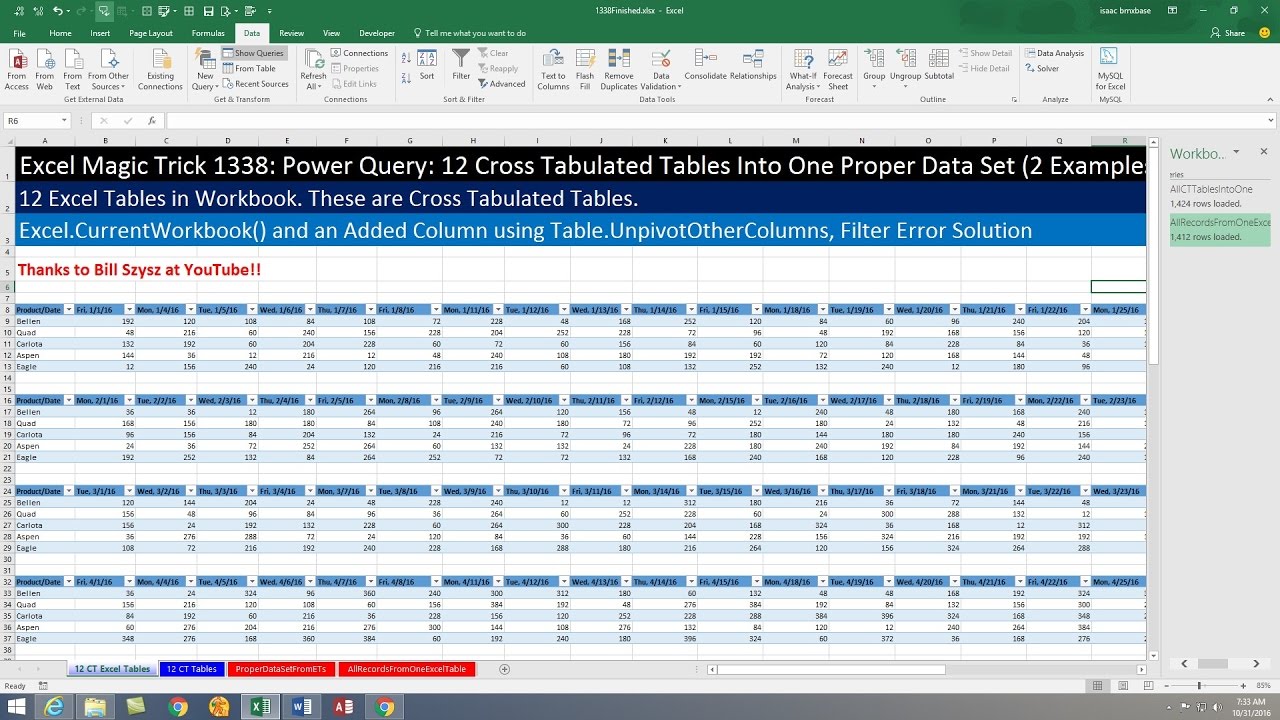
Excel Magic Trick 1338: Power Query: Unpivot 12 Cross Tabulated Tables into One Proper Data Set

Excel Magic Trick 1338: Power Query: Unpivot 12 Cross Tabulated Tables into One Proper Data Set

Power Query — более быстрые и простые параметры

Power Query — более быстрые и простые параметры

Two-Way Lookup in Power Query? M Code for Exact & Approximate Match Lookup. Excel Magic Trick 1554

Two-Way Lookup in Power Query? M Code for Exact & Approximate Match Lookup. Excel Magic Trick 1554

Power Query Append / Combine Tables: 3 Amazing Methods. Excel Magic Trick #1714.

Power Query Append / Combine Tables: 3 Amazing Methods. Excel Magic Trick #1714.

MSPTDA 08: Power Query Group By feature & Table.Group Function (5 Examples)

MSPTDA 08: Power Query Group By feature & Table.Group Function (5 Examples)

Filter Data with Multiple Criteria using Power Query

Filter Data with Multiple Criteria using Power Query

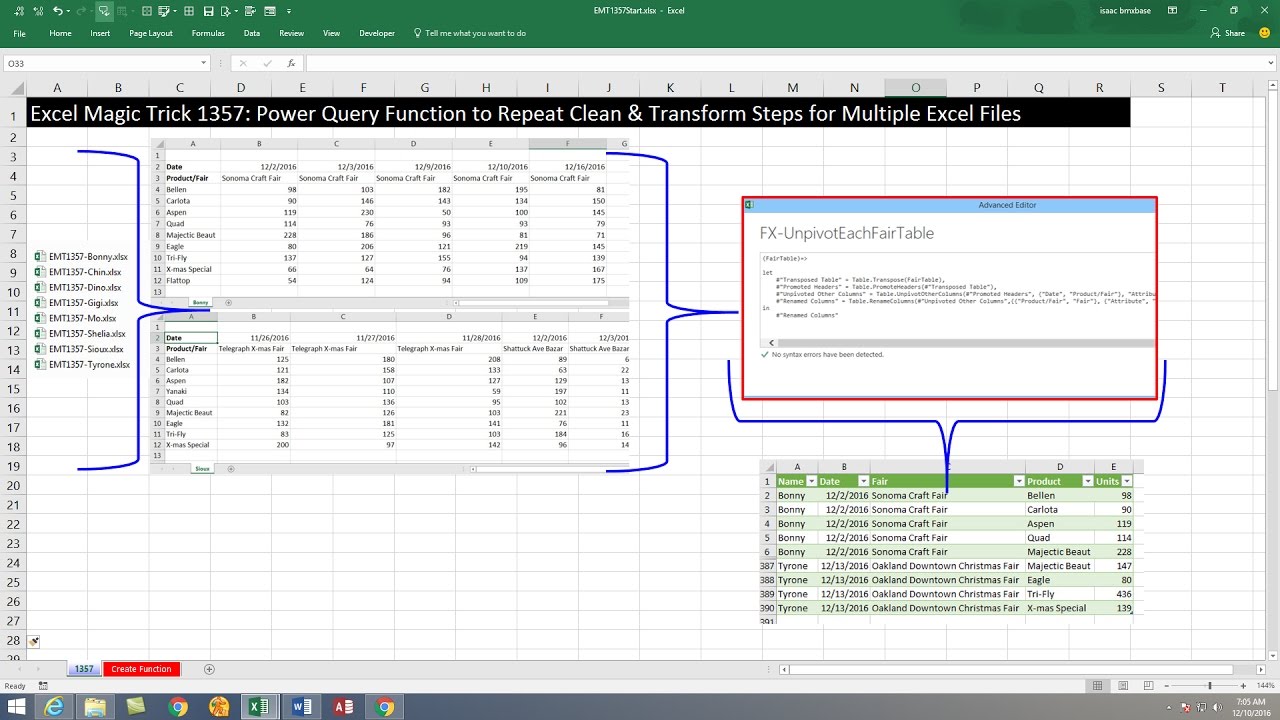
Волшебный трюк Excel 1357: функция Power Query для повторения шагов очистки и преобразования для ...

Волшебный трюк Excel 1357: функция Power Query для повторения шагов очистки и преобразования для ...

Переименование столбцов в Power Query при изменении имён | Excel Off The Grid

Переименование столбцов в Power Query при изменении имён | Excel Off The Grid

Power Query Running Count Based on Row Condition – Excel Magic Trick 1588

Power Query Running Count Based on Row Condition – Excel Magic Trick 1588

Параметр запроса Excel Power Query из значения ячейки (с использованием именованного диапазона ил...

Параметр запроса Excel Power Query из значения ячейки (с использованием именованного диапазона ил...

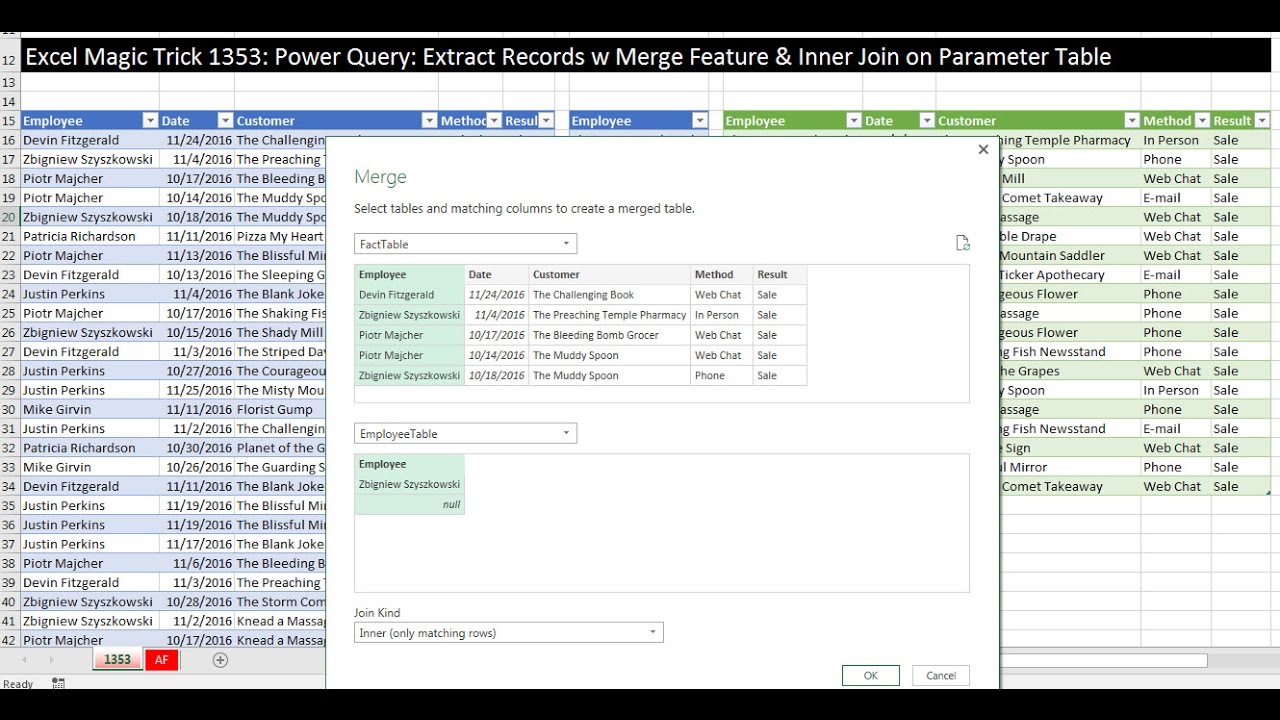
Excel Magic Trick 1353: Power Query: Extract Records w Merge Feature & Inner Join on Parameter Table

Excel Magic Trick 1353: Power Query: Extract Records w Merge Feature & Inner Join on Parameter Table

Excel Magic Trick 1420: Ranking in Power Query: Sort, Grouping, Indexes and Custom Columns

Excel Magic Trick 1420: Ranking in Power Query: Sort, Grouping, Indexes and Custom Columns

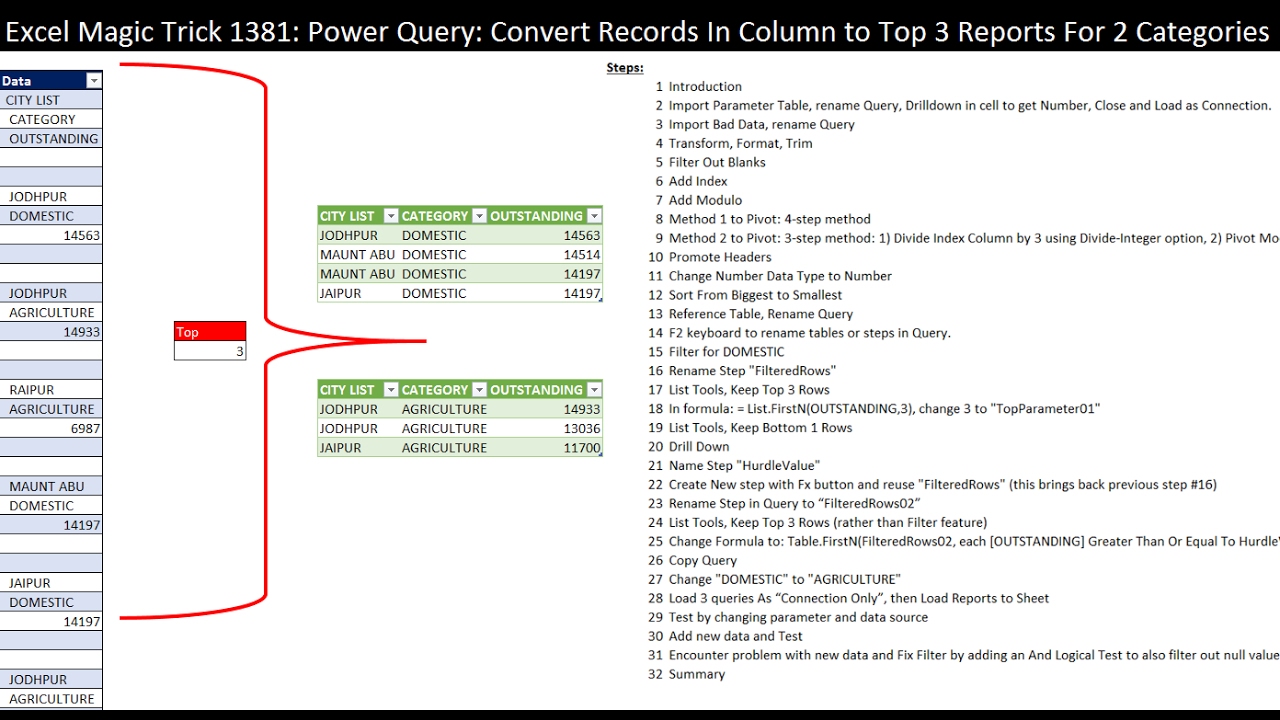
Excel Magic Trick 1381: Power Query: Records In Column into Table then Two Different Top 3 Reports

Excel Magic Trick 1381: Power Query: Records In Column into Table then Two Different Top 3 Reports

Running Total in Column, Power Query, DAX or Worksheet Formula? Excel Magic Trick 1553

Running Total in Column, Power Query, DAX or Worksheet Formula? Excel Magic Trick 1553

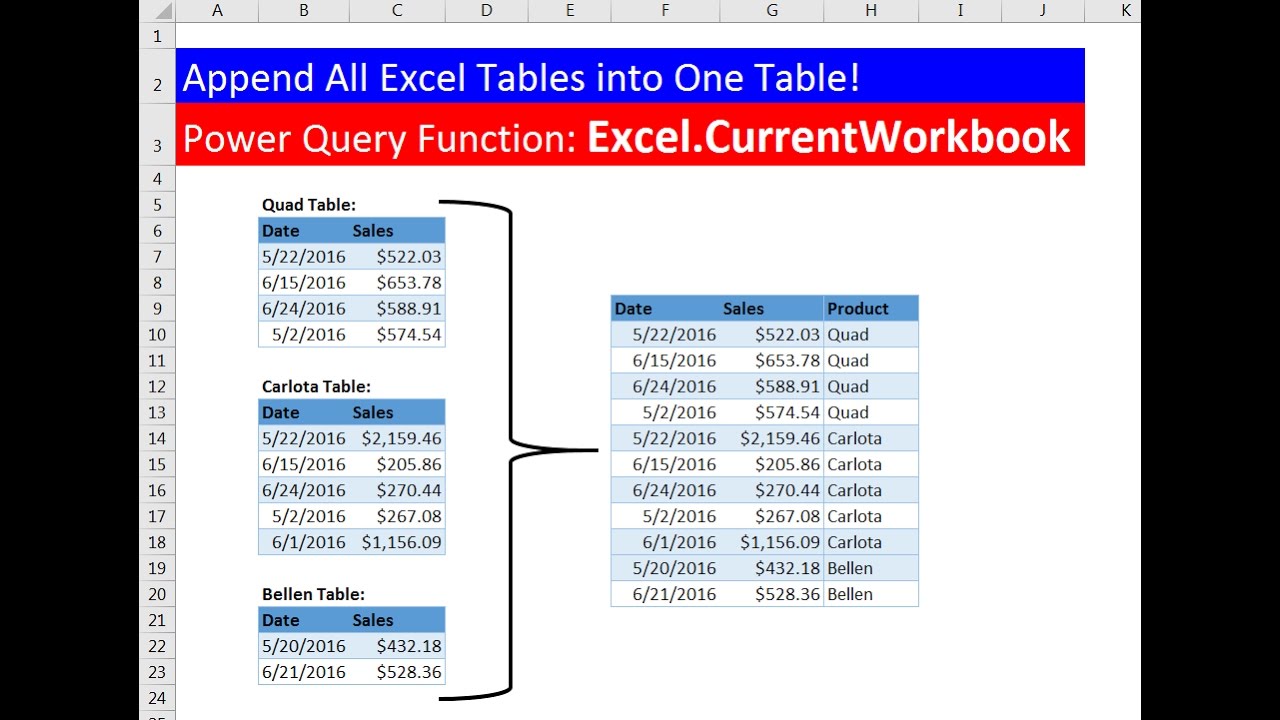
Excel Magic Trick 1330: Append All Excel Tables in Current Workbook: Power Query (Get & Transform)

Excel Magic Trick 1330: Append All Excel Tables in Current Workbook: Power Query (Get & Transform)

How to use Microsoft Power Query

How to use Microsoft Power Query

© 2025 ycliper. Все права защищены.


  • Контакты
  • О нас
  • Политика конфиденциальности


Контакты для правообладателей: [email protected]