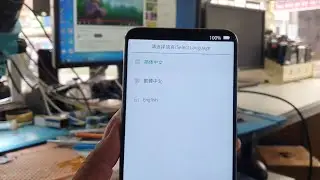
Oppo Reno 2 auto recovery mode fix easyJet box Plus programming successful done ✅
Автор: MOBILE WORLD
Загружено: 2025-03-14
Просмотров: 2048
Описание:
OPPO RENO 2 AUTO RECOVERY MODE FIX EASYJET BOX PLUS PROGRAMMING SUCCESSFUL DONE 👍✅💯
"All Mobile Dead Solution | Mobile World 2627 | Dead Boot Repair, CPU & eMMC Reballing Fixed"
TikTok
https://www.tiktok.com/@mobileworld26...
YouTube
/ @mobileworld2627
Facebook
/ 1bkummuxc6 Whatsapp contact 03468029004
Visit Shop for More:
https://goo.gl/maps/ti7oDUG1MKnDt9919...
Noor Zaman Repairing, Shop#38, 1st Floor, RR Mobile Market, Quaidabad Bus Stop, Landhi, Karachi
#OppoReno2 #AutoRecoveryMode #EasyJetBoxPlus #
ooks like you are looking for a solution to fix the Oppo Reno 2 stuck in Auto Recovery Mode and successfully program it using the EasyJet Box Plus. Here’s a step-by-step guide to achieving that:
Fixing Oppo Reno 2 Auto Recovery Mode with EasyJet Box Plus
Requirements:
✔️ EasyJet Box Plus installed on a PC
✔️ Oppo Reno 2 device
✔️ Compatible USB cable
✔️ Required firmware files (if needed)
Steps to Fix Auto Recovery Mode:
Connect Device to PC
Power off the Oppo Reno 2.
Hold Volume Up + Volume Down while connecting it to the PC using a USB cable.
Open EasyJet Box Plus
Launch the EasyJet Box Plus software on your computer.
Select the correct brand & model (Oppo Reno 2).
Detect Device
Click on "Detect Device" to ensure the phone is recognized.
Select Repair Option
Choose "Exit Recovery Mode" or "Flash Mode" depending on the issue.
If a firmware issue is suspected, select the correct firmware file and proceed with flashing.
Start Process
Click "Start" to begin the repair or flashing process.
Wait for the process to complete.
Successful Fix Confirmation
Once done, the software will show "Operation Successful" or "Done ✅".
Disconnect the phone and restart it.
Повторяем попытку...

Доступные форматы для скачивания:
Скачать видео
-
Информация по загрузке: