How To Enable Assistive Touch On Screen Button On iPhone | Turn ON Assistive Touch On Screen Button
Автор: WebPro Education
Загружено: 2023-06-21
Просмотров: 22117
Описание:
Learn how to enable Assistive Touch on your iPhone. Turn on Assistive Touch, the on-screen button feature on your own iPhone.
Assistive Touch is a powerful accessibility feature that provides a convenient way to access common functions on your iPhone without using the physical buttons. Whether you have difficulty pressing buttons or simply want to customize your device's controls, this feature can greatly enhance your user experience.
Our step-by-step guide will walk you through the entire process of enabling Assistive Touch on your iPhone. We'll cover everything from locating the settings menu to customizing the on-screen button to suit your preferences. You'll learn how to perform gestures, access shortcuts, control volume, lock your screen, and much more using Assistive Touch.
No matter which iPhone model you own, whether it's the latest iPhone 13, the previous generation iPhone 12, or even an older model like the iPhone SE, this tutorial is applicable to all devices running iOS.
To Enable Assistive Touch On Screen Button On Your iPhone:
Turn ON Assistive Touch On Screen Button:
Step 1: To begin, unlock your iPhone and locate the Settings app, which can typically be found on your home screen. Tap on the Settings icon to open the application.
Step 2: Within the Settings app, scroll down and find the "Accessibility" option. Tap on it to access the Accessibility menu, which contains various features designed to assist users with different needs.
Step 3: Once you're in the Accessibility menu, look for the "Touch" category and tap on it. Here, you'll find the "Assistive Touch" option. Tap on it to enter the Assistive Touch settings.
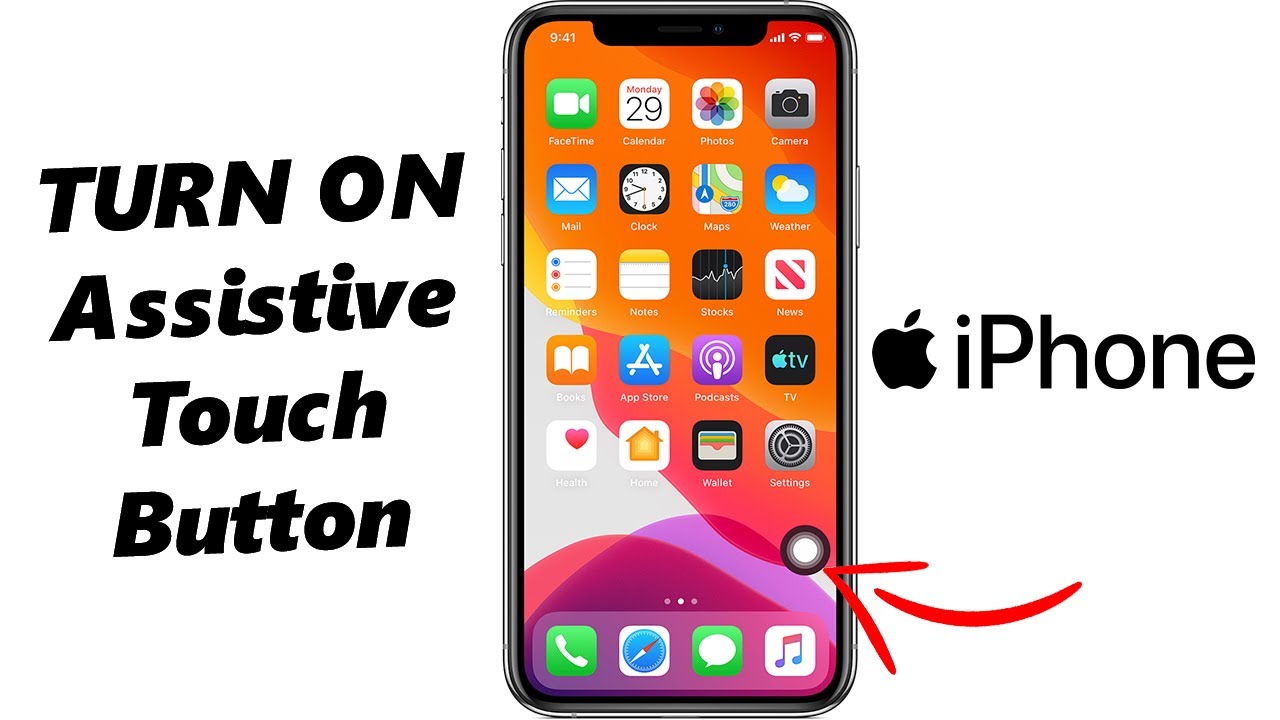
Step 4: In the Assistive Touch settings, you'll find a toggle switch located at the top of the screen. By default, it should be set to the "Off" position. Tap on the switch to turn Assistive Touch on. You'll notice a virtual on-screen button appear, usually in the form of a small circle.
Now that you have enabled Assistive Touch, you can customize its functionality to suit your preferences. This allows you to create a personalized menu that provides quick access to frequently used features and functions.
How To Customize The Assistive Touch Button Menu On iPhone - • How To Customize The Assistive Touch Butto...
How To Change Visibility (Opacity) Of Assistive Touch Button On iPhone - • How To Change Visibility Of Assistive Touc...
Step 5: Assistive Touch offers a wide range of features that can greatly enhance your iPhone experience. By tapping on the virtual on-screen button, you can access options such as control gestures, Siri, notifications, volume control, screen rotation, and more. Take some time to explore these features and discover how they can make using your iPhone more convenient and accessible.
Galaxy S23 Ultra DUAL SIM 256GB 8GB Phantom Black: https://amzn.to/3IneO8x
Galaxy S23 Ultra DUAL SIM 256GB 8GB Green: https://bit.ly/3xagLyr
----My Gear for YouTube videos----
Main Camera (iPhone 13 pro): https://amzn.to/3GZztve
Tripod: https://amzn.to/35acqRa
Cell Phone Tripod Adapter: https://amzn.to/3v3wFuI
Lights: https://amzn.to/3vkoGK7
As full disclosure, I use affiliate links on this channel and purchasing through these links earns me a small commission. The price you pay will be the same!
Website: https://www.webproeducation.org
Facebook: / webproeducation.org
Twitter: / webpro_e
Instagram: / webproeducation
Повторяем попытку...
Доступные форматы для скачивания:
Скачать видео
-
Информация по загрузке: