Learn after effects - how to cut an element out of a video clip with the Roto Brush tool
Автор: mosa al khamran
Загружено: 2020-05-14
Просмотров: 218
Описание:
Learn after effects
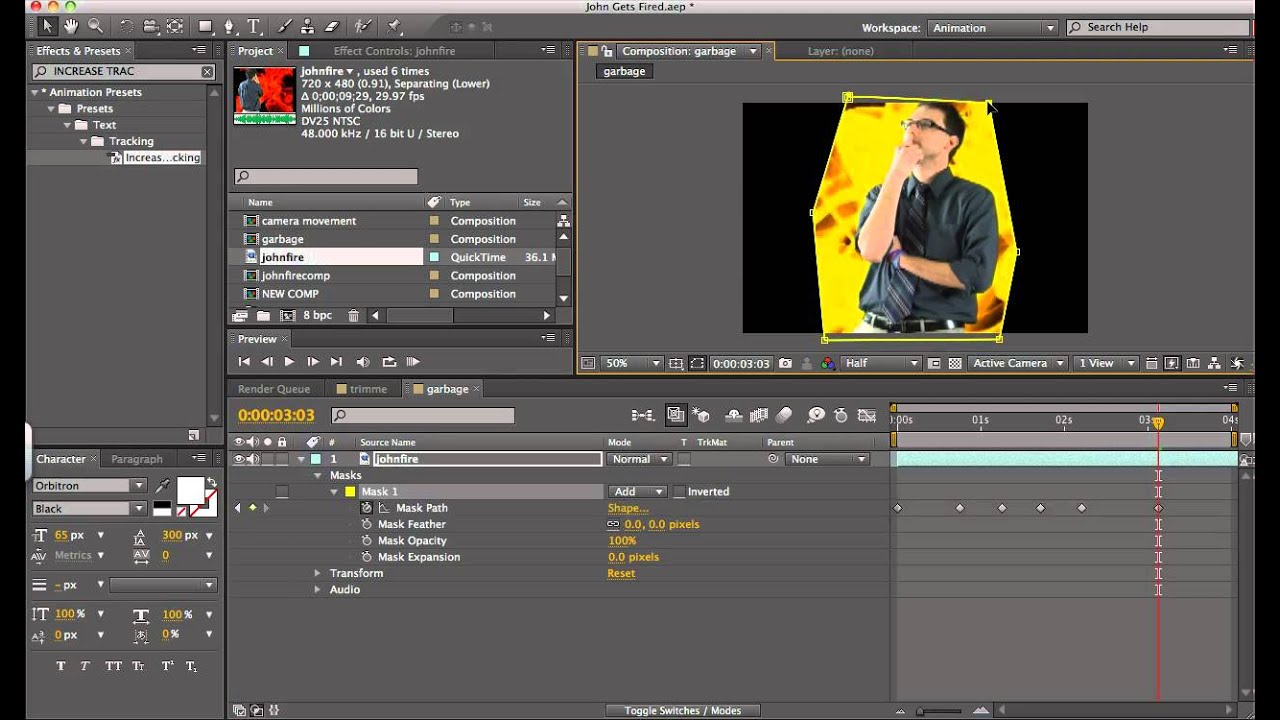
What you learned: How to isolate an element from its background with the Roto Brush tool
Create a Roto Brush selection
Make sure the resolution and fast preview options are set to Full quality.
Double-click the video layer in the Timeline panel to open it in the Layer panel.
Select the Roto Brush tool from the Tools panel.
Paint inside the object you want to isolate.
Change the duration of the span to set the duration for the Roto Brush.
Press Alt (Windows) or Option (MacOS) and paint over areas of a selection to remove those areas from the selection.
Press the Spacebar to start and stop the analysis, and make changes to the selection as needed.
Adjust the Roto Brush Matte options in the Effect Controls panel to fine-tune the selection.
Tip: Use the 1 and 2 keys on your keyboard to move up and down the timeline a single frame at a time. Once you have a satisfactory Roto Brush selection, press the Freeze button in the Layer panel to save it.
------------ Sample files to practice with (ZIP, 17 MB) ------------------
https://learndownload.adobe.com/pub/l...
Повторяем попытку...

Доступные форматы для скачивания:
Скачать видео
-
Информация по загрузке: