How to update your organization details, logo and branding
Автор: DociShield
Загружено: 2026-10-17
Просмотров: 2
Описание:
Admins update organization details in DociShield under Organization settings. Business details holds the name, address, phone, email and website.
How to do it:
1. Open Workspace: Select your avatar at the top right, then Workspace under Organization.
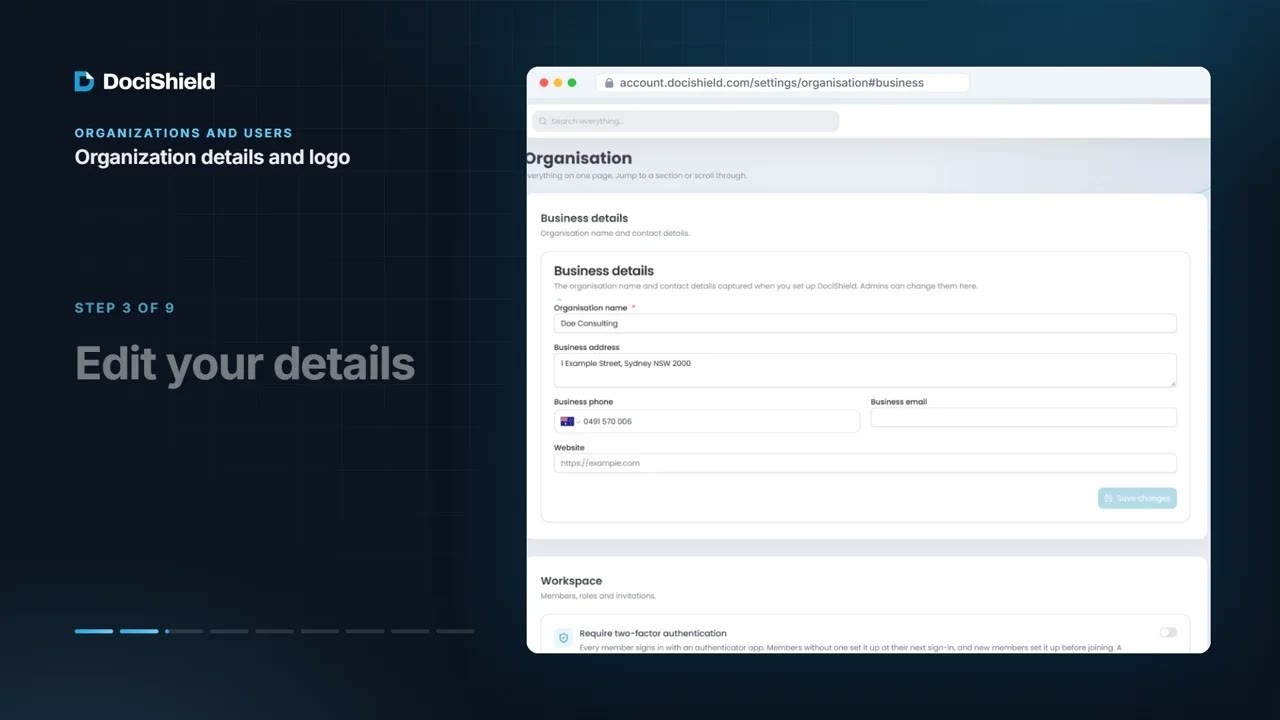
2. Select Business details: Under Quick Navigation. It is the first section of the Organization page.
3. Edit your details: Organization name is required, 2 to 100 characters. Address, phone, email and website are optional.
4. Select Save changes: Wait for “Organization updated successfully”. The button stays unavailable until you change something.
5. Go to Branding: Select it under Quick Navigation, or choose Branding in the account menu.
6. Upload your Organization Logo: Select Upload Logo and choose a PNG or JPG up to 2 MB; 256 by 256 pixels is recommended. SVG files are refused.
7. Add a Watermark Logo: A separate image, tiled across protected document pages: PNG, JPG or JPEG up to 2 MB. A transparent PNG works best.
8. Select Save Changes: It saves both logos and Organization Name, the same name as in Business details.
9. See where they appear: Changes apply to everyone once saved; colleagues may need to refresh the page.
Chapters:
0:00 Intro and step 1: Open Workspace
0:11 Steps 2 and 3: Select Business details; Edit your details
0:21 Steps 4 to 6: Select Save changes; Go to Branding; Upload your Organization Logo
0:34 Steps 7 and 8: Add a Watermark Logo; Select Save Changes
0:44 Step 9: See where they appear
Full guide: https://docishield.com/documentation/...
Find more DociShield tutorials on this channel.
#DociShield #OrganizationsAndUsers #Tutorial
Повторяем попытку...
Доступные форматы для скачивания:
Скачать видео
-
Информация по загрузке: