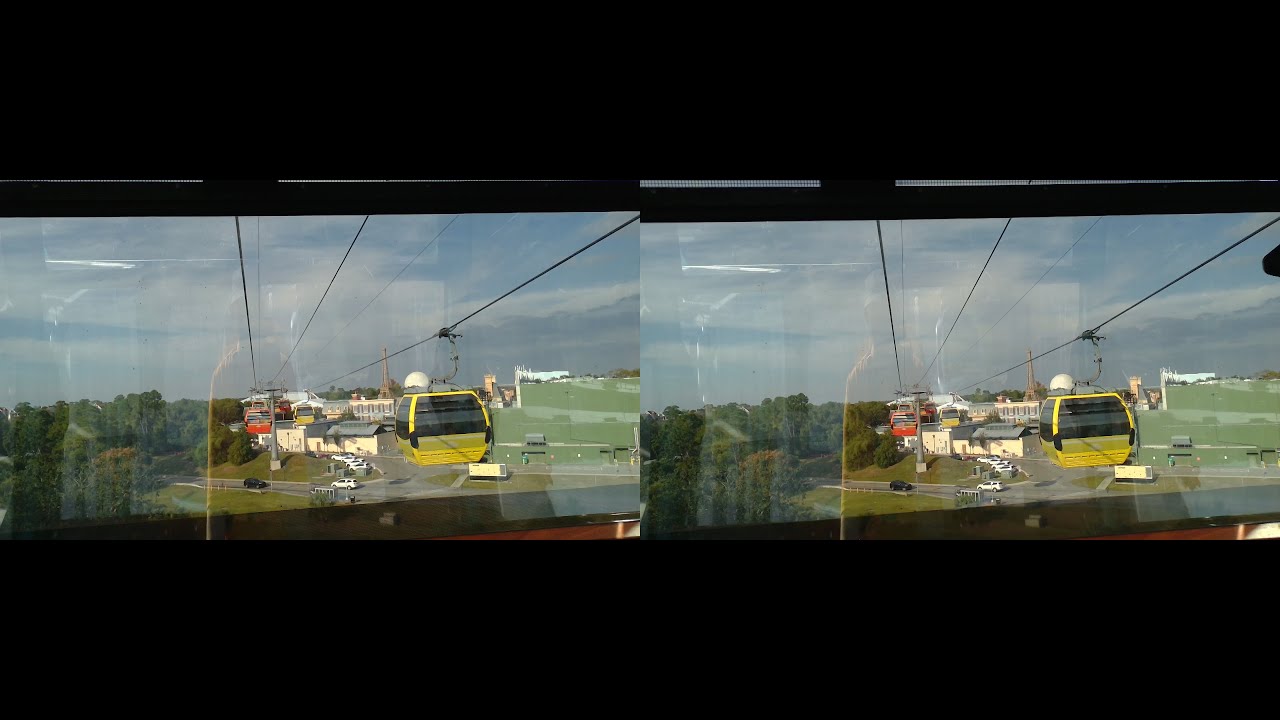
Disney Skyliner | Pop Century Resort to EPCOT | 3D | Disney World | 11/21/25
Автор: Walking With The Mouse
Загружено: 2026-01-02
Просмотров: 235
Описание:
Filmed on November 21st 2025
Disney Skyliner | Pop Century Resort to EPCOT
3D Best with VR Headset
Here is the 3D experience of Disney Skyliner from Pop Century Resort to EPCOT
Travel by Aerial Gondola at Walt Disney World Resort
An Innovative Twist on Flight
Discover the Disney Skyliner
Disney Skyliner gondolas stretch over the tops of trees and buildings with Epcot in the background
Cruise around Walt Disney World Resort in style—riding incredible aerial gondolas!
Glide across the sky and add an extra dash of pixie dust to your day. This grand, state-of-the-art gondola system conveniently connects Disney’s Hollywood Studios and the International Gateway at EPCOT to the following Disney Resort hotels:
• Disney’s Art of Animation Resort
• Disney’s Caribbean Beach Resort
• Disney’s Pop Century Resort
• Disney’s Riviera Resort
Guests will enjoy a fun way to travel to EPCOT and Disney’s Hollywood Studios.
Plus, the Disney Skyliner station at International Gateway at EPCOT is conveniently located just a short stroll away from Disney’s BoardWalk entertainment district, Disney’s Yacht Club Resort, Disney’s Beach Club Resort and Disney’s BoardWalk Inn.
How to view in 3D...
1. With a VR Headset (Meta Quest, PSVR, etc.)
Open the YouTube VR app (or browser in headset).
Search for the 3D SBS video.
In the video settings, select 3D → Side-by-Side.
The headset will merge the two images into proper 3D depth.
2. On a 3D TV or Projector
Make sure your TV/projector supports SBS 3D mode.
Play the YouTube video and select side-by-side format (most 3D uploads are SBS).
On your TV, go to the 3D settings menu and choose SBS (Side-by-Side).
Put on your 3D glasses (active shutter or passive polarized depending on your TV).
3. With Google Cardboard / Phone VR
Use the YouTube mobile app.
Open the SBS 3D video.
Tap the Cardboard icon (goggles symbol).
Insert your phone into a Google Cardboard or similar headset.
4. Samsung Galaxy XR
Put on your Galaxy XR and launch the YouTube app.
In YouTube, search for content labeled “3D”
Adjust your viewing environment: you can resize the screen (make it large like a theatre), optionally dim the surrounding real-room passthrough if you want full immersion.
For best effect: pick videos of high resolution, ensure your headset is comfortable and your fit is good (so the 3D effect works properly).
Повторяем попытку...
Доступные форматы для скачивания:
Скачать видео
-
Информация по загрузке:


![Disney Skyliner Walt Disney World POV Summer 2025 [4K POV]](https://image.4k-video.ru/id-video/cMovBhSDzu4)