Routing Kontakt Player's Output Channels to FL Studio 20's Mixer Channels [TUTORIAL]
Автор: Double R Studio - Home Studio -
Загружено: 2021-01-16
Просмотров: 17750
Описание:
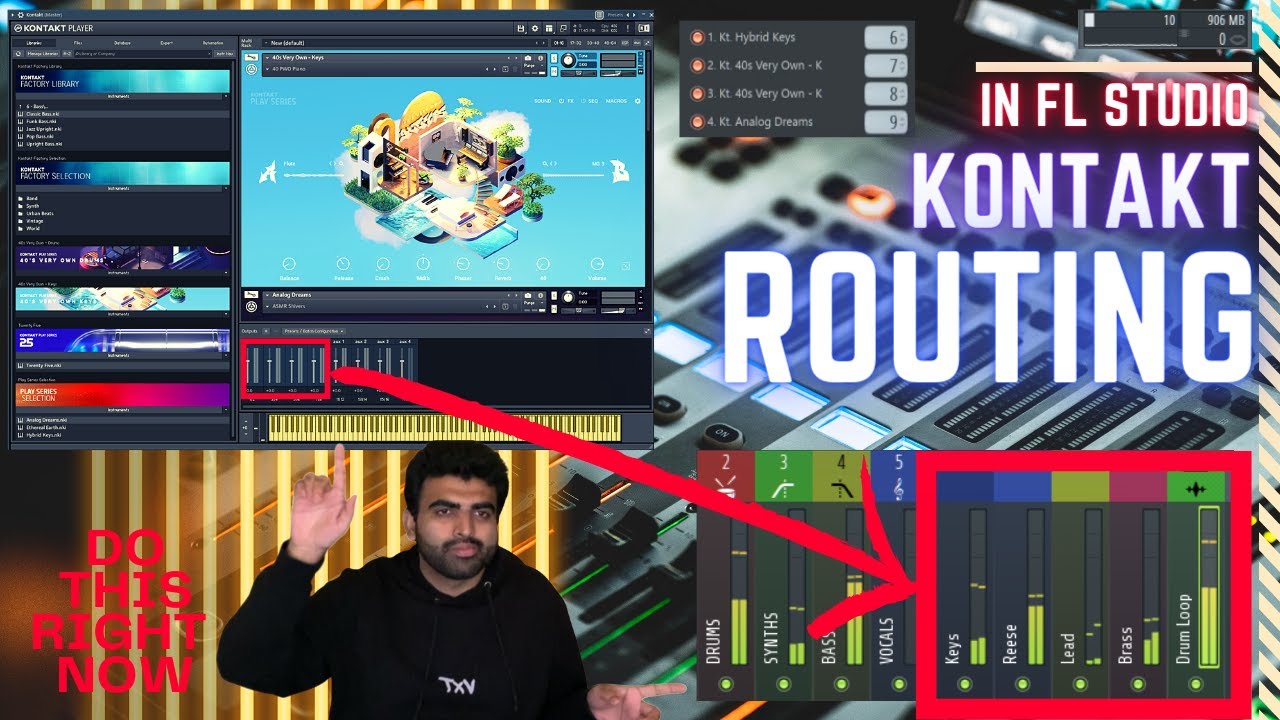
Stuck on how to route your Kontakt Instruments to your FL Studio Mixer Channel? This video should help with that!
For more music related content, head to:
@officialamorbeats on Instagram
Music used in video:
Tokio Hotel - Boy Don't Cry (Rock Version) [INSTRUMENTAL] by AlienTHeam - https:// • Tokio Hotel - Boy Don't Cry (Rock Version)
=========================================
WRITTEN TUTORIAL:
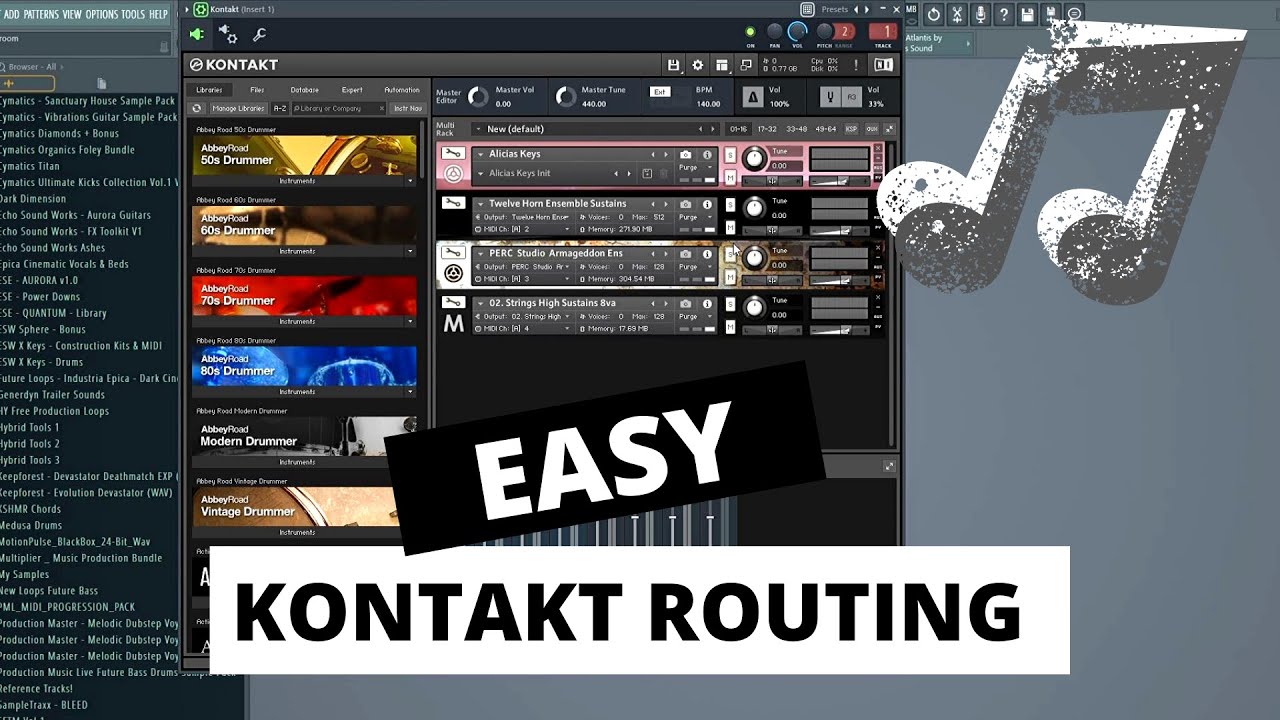
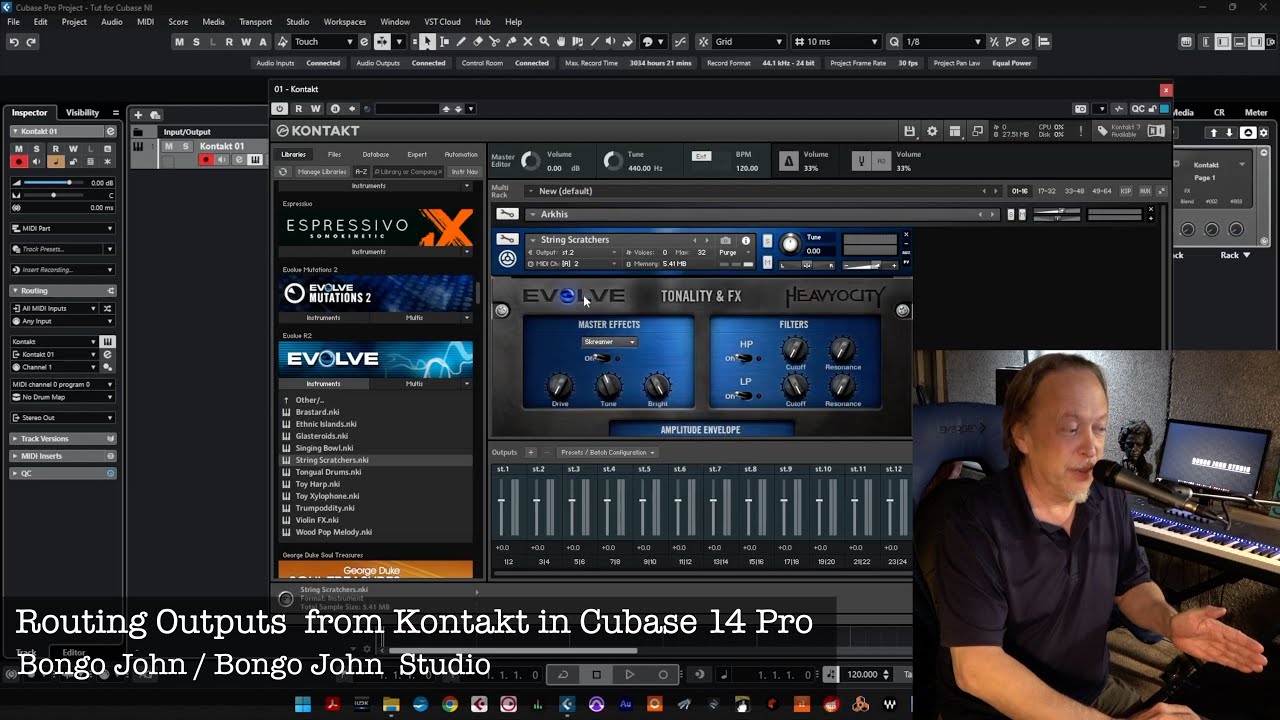
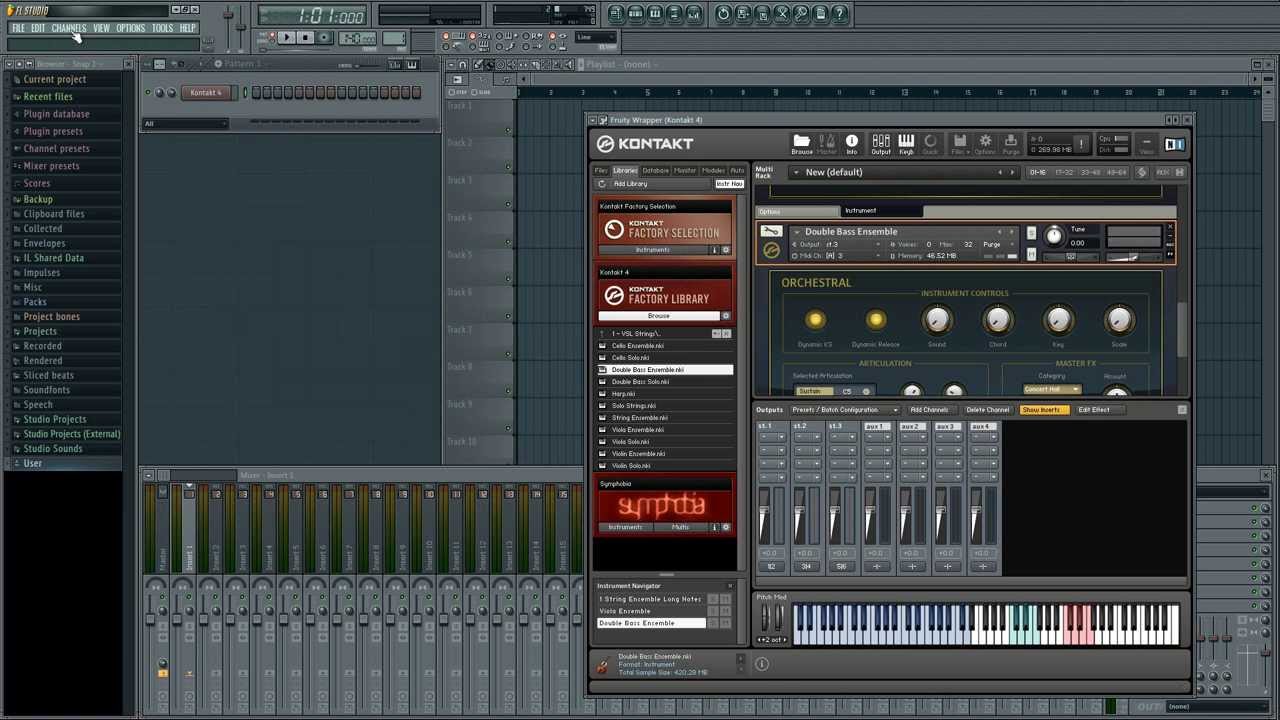
1. Make sure your Output Faders are visible by selecting/checking the "Outputs" option from the viewport button (Third button at the top of the Kontakt Player's VST) -- MAKE SURE TO DESELECT/UNCHECK "Quickload" FROM THIS DROPDOWN MENU AS WELL!
2. Once you're able to view the Output Channel Faders, click the '+' button located at the top of the Output Viewport Window at the bottom of the Kontakt Player's VST. Here you'll get a menu window.
3. Select the Quantity of channels you're going to add/replace for routing into FL Studio's Mixer Channels (I suggest 18 to cover most Kontakt Instruments).
You'll also need to make sure that you have "Kt. st. 1 [1]" selected in the Soundcard/Host output dropdown menu and that "Ascending output assignment" is CHECKED.
Also be sure to check: "Delete existing channels before creating new ones" AND "Make this your default configuration" to make sure you'll have the right amount of Output Channels as well as keeping those Output Channels whenever you load up the Kontakt Player VST.
4. From here all you need to do is load your Kontakt Instrument of choice and route the Instruments Outputs to the corresponding Kontakt Player's Output Channels you just created.
5. From there you want to head to the "VST Wrapper Settings" tab and click on the "Processing" sub-tab. From there you want to click on "Auto map outputs". This will route the Kontakt Player's Output Channels to your FL Studio Mixer Channels in ascending order starting from the Channel that the VST Wrapper is located in.
6.Create something MAGICAL!..... I believe in you.
Повторяем попытку...
![Routing Kontakt Player's Output Channels to FL Studio 20's Mixer Channels [TUTORIAL]](https://imager.clipsaver.ru/D5Wrbxp6ClQ/max.jpg)
Доступные форматы для скачивания:
Скачать видео
-
Информация по загрузке: