How to Bypass Use Setup Cartridges Message in HP Printer?
Автор: Bilal's Workshop - Technologist and Vlogger
Загружено: 2022-01-27
Просмотров: 140886
Описание:
Subscribe To My Channel https://www.youtube.com/@bilalkhalid/...
Thank You!
Bilal's Workshop - Technologist and Vlogger
@BilalKhalid
https://bilalk.com/bilal/
How to Bypass Use Setup Cartridges Message in HP Printer?
This method may apply to various models by HP i.e.
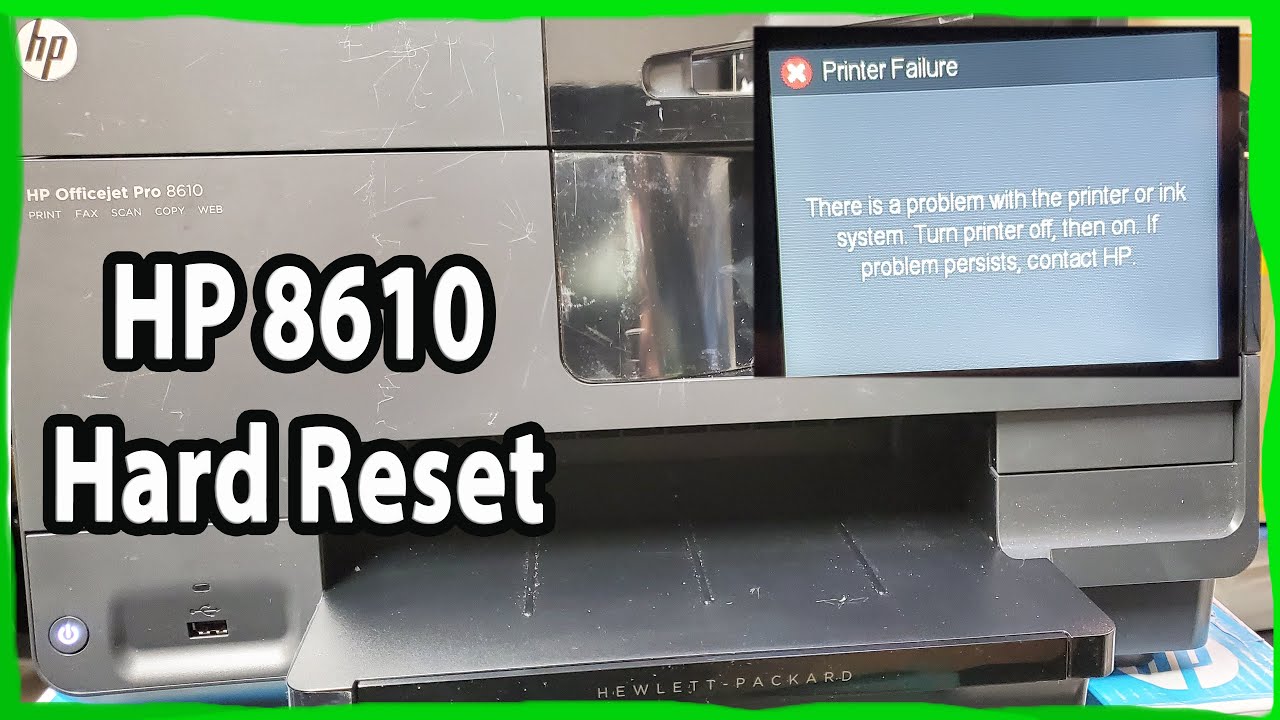
HP Officejet Pro 6978
HP Officejet Pro 6950
HP OfficeJet Pro 6962
HP OfficeJet Pro 6968
HP OfficeJet Pro 6950
HP OfficeJet Pro 6830
HP OfficeJet Pro 6970
HP OfficeJet Pro 6978
HP OfficeJet Pro 9015
HP OfficeJet Pro 7720
HP OfficeJet Pro 7740
HP OfficeJet Pro 8035
HP OfficeJet Pro 8023
HP OfficeJet Pro 8024
HP OfficeJet Pro 8025
HP OfficeJet Pro 8028
HP OfficeJet Pro 8210
HP OfficeJet Pro 8710
HP OfficeJet Pro 8715
HP OfficeJet Pro 9015
HP Photosmart 5520 by pressing: Back, Home, Back, X, back to access the support menu
How to Bypass Use Setup Cartridges Message in HP Printer?
Step 1: Press the back button on the display four times.
Step 2: Click on Support Menu
Step 3: Configuration Menu
Step 4: Trade at OOBE
Step 5: Enable Trade at OOBE and restart your machine
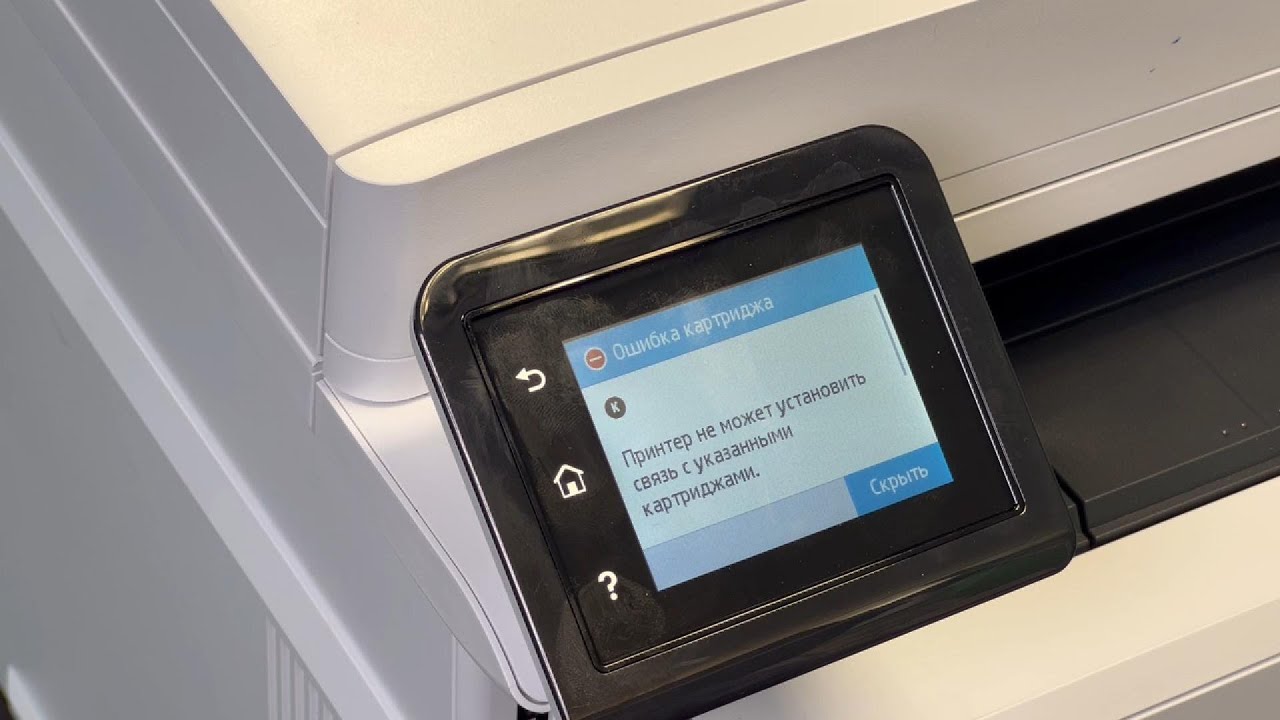
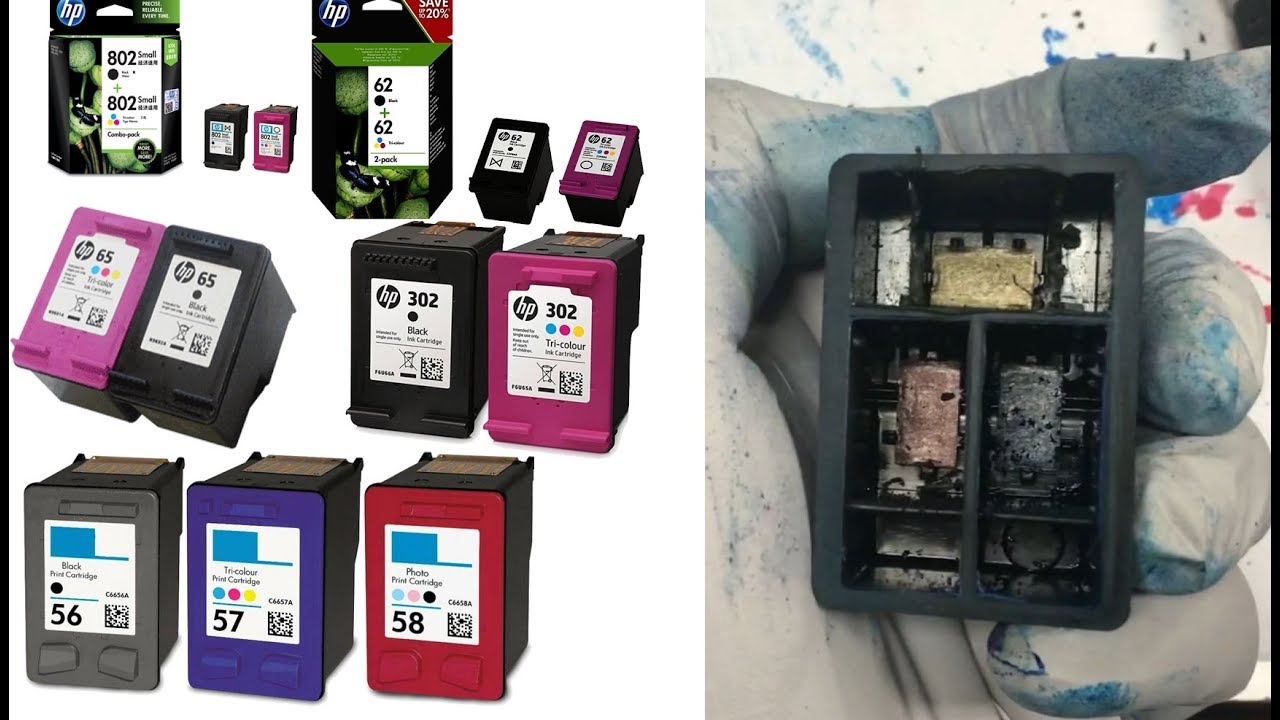
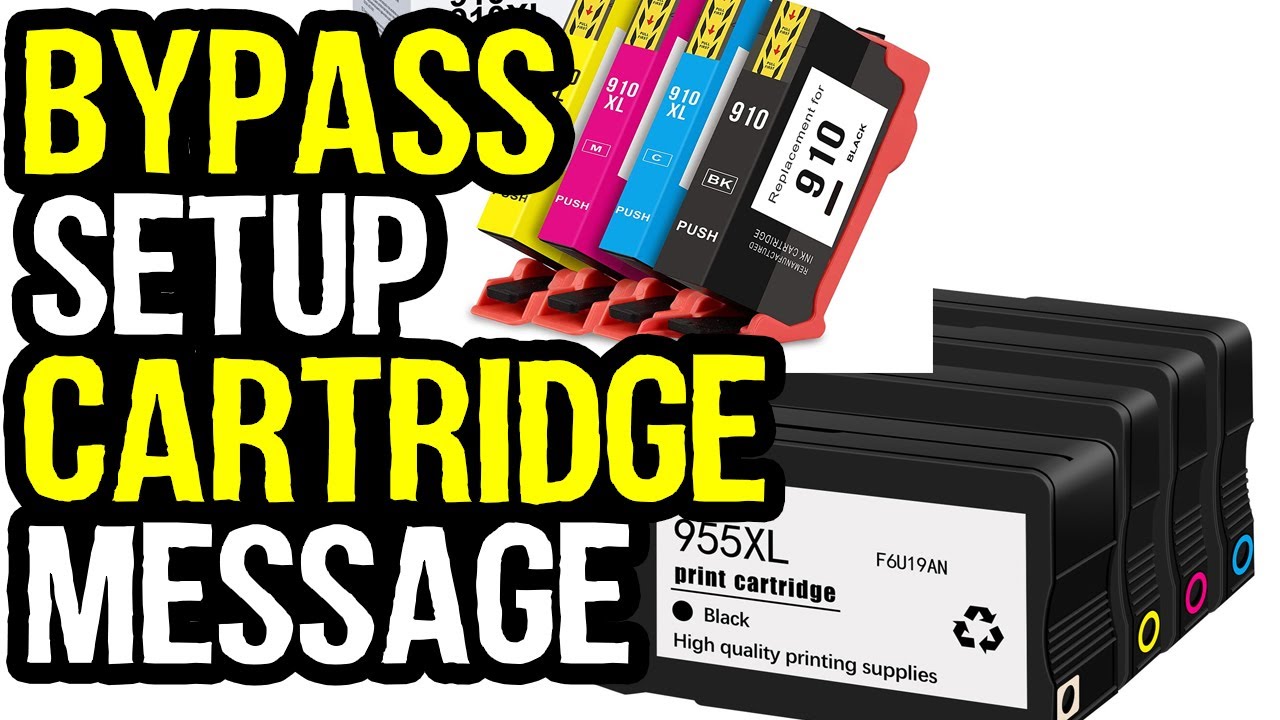
You may find a message "Bypass Use Setup Cartridges" on many HP printers when you buy a printer from a returns lot or from the display outlets with box and original setup accessories, there is a good chance someone returned the printer without setup cartridges. Then, the printer will not work unless you put the SETUP cartridges that came with printer are not installed. Well, this is how to clear that message and let your printer do the printing with standard HP or remanufactured cartridges.
Please note that in rare cases, the Support Menu might not appear, which is not a big issue. Just remove the ink cartridges from printer then restart printer and try pressing return key four times, if that doesn't work install your used or standard ink cartridges and try again.
#HP
#SetupCartridge
#OfficeJet .
====================================================================
#bilalkhalid #hp #canon #epson
For other helpful videos go to / bilalkhalid
/ @bilalsworkshopksa
Continue the Conversation:
TIKTOK: / ans_bk_
INSTAGRAM: / ans_ibk
FACEBOOK: / bilallkhalidd
LINKEDIN: / bilallkhalidd
X: https://x.com/i_bk86
SUBSCRIBE to Bilal's Workshop - Technologist and Vlogger: https://www.youtube.com/c/bilalkhalid...
About Bilal:
I am an IT professional who graduated with a Bachelor of Science in Information Technology. I am keenly interested in helping people troubleshoot and fix common issues with their printers and computers.
But that's not all - I am also a solo traveler and love exploring new destinations, cultures, and experiences. Through my Travel Vlogs, I take my viewers along on my adventures, sharing tips and insights into some of the most beautiful and unique destinations worldwide.
My channel has something for everyone. I hope my content inspires and educates you, and I look forward to sharing my knowledge and experiences with you.
For Business Enquires:
[email protected]
[email protected]
Disclaimer:
All content in this video is the original work of the creator and is protected by copyright. Unauthorized reproduction, copying, or distribution of this material on any platform is strictly prohibited.
The techniques demonstrated are based on my personal experience with printer repairs. While I strive to provide accurate and helpful guidance, I am not responsible for any damage or loss that may occur to your device as a result of following these methods. Viewer discretion is advised, and professional consultation is recommended for any equipment issues. Thank you for your understanding and support.
© Bilal's Workshop - Technologist and Vlogger, 2025. All rights reserved.
Повторяем попытку...
Доступные форматы для скачивания:
Скачать видео
-
Информация по загрузке: