CheckPoint Mobile Access + CryptoPhoto Demo
Автор: Chris Drake
Загружено: 2017-05-20
Просмотров: 701
Описание:
Demonstrates the CryptoPhoto web console integration with checkpoint VPN blade. In this video, you will see:
1. Menu integration, where users can reach the CryptoPhoto settings.
2. Enrollment wizard; the first time users open our settings, the system walks them through the easy process of getting the companion app on their device and an appropriate CryptoPhoto token into the app. Our system detects the users device type (iOS/Android/WindowsPhone/Blackberry) to automatically select the correct store (note also: the store step is skipped if the app is already installed)
*. Note that this demo is using an android emulator for ease of recording both screens at once - normal enrollment is by SMS or QR code (any QR scanner works); our system offers 5 enrollment selections to guarantee that all users can sucessfully enroll (the 5th method, not shown in this demo, is fully automatic when a user is using a mobile web browser on their mobile device already)
3. After the enrollment, you then see the administration panel - this is where users can enroll secondary devices, remove lost tokens, get physical backup tokens, and view their usage history and reports.
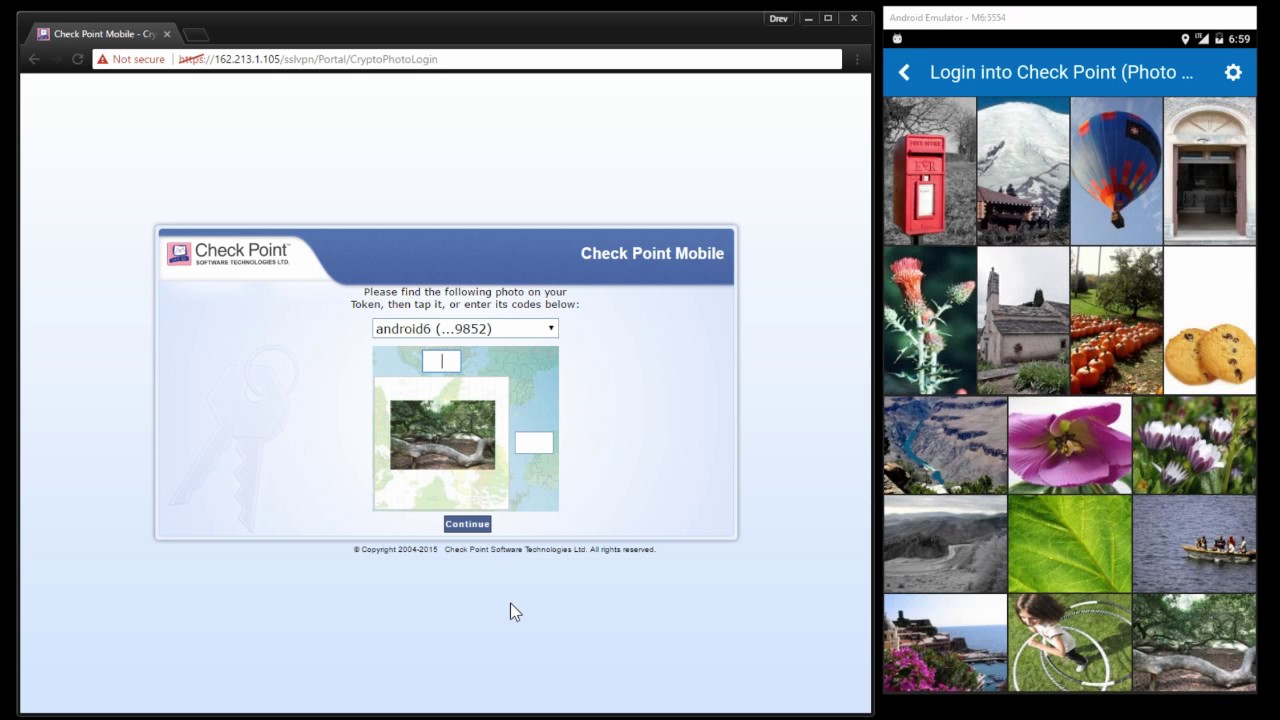
4. We then log out, and log back in to demonstrate our photo-matching mutual-authentication protection.
Why is it important to match a photo? This is fast and easy to do, but VERY hard to get your head around understanding the significance: mutual authentication means TWO DIRECTIONS. The photo display on the PC is the OPPOSITE direction to all existing authentication - it is the genuine checkpoint device "logging in" to the brain of the operator. The operator KNOWS it is the genuine device, because the only thing in the world that knows what random photos exist on the operators phone, IS the genuine device (we block image theft/interference too in case you're wondering). The second direction occurs when the user taps on the matching photo on their phone: this sends the signed authentication OTP request directly to the correct pre-determine appliance (blocking code theft).
5. It is really fast, so we do a second login to show you it again so you have time to try and take it in! Notice the second login is a different photo.
To recap: CryptoPhoto does MUTUAL (2-Way) authentication, and also uses OTP codes in BOTH directions:
A) A random photographic OTP to log in to the humans brain, followed by
B) A digitally signed OTP sent when the user taps the matching photo to the authentic appliance.
The purpose of the mutual step is to prevent operators from being phished, scammed, tricked by fake websites or spoofs, being victim to MitM attacks or rogue wifi etc. This security is LoA3 strength; that's 2 assurance levels stronger than 2FA.
CryptoPhoto integrates at 4 points - two separate web integrations, the console SSH integration, and the windows DLL.
Повторяем попытку...
Доступные форматы для скачивания:
Скачать видео
-
Информация по загрузке: