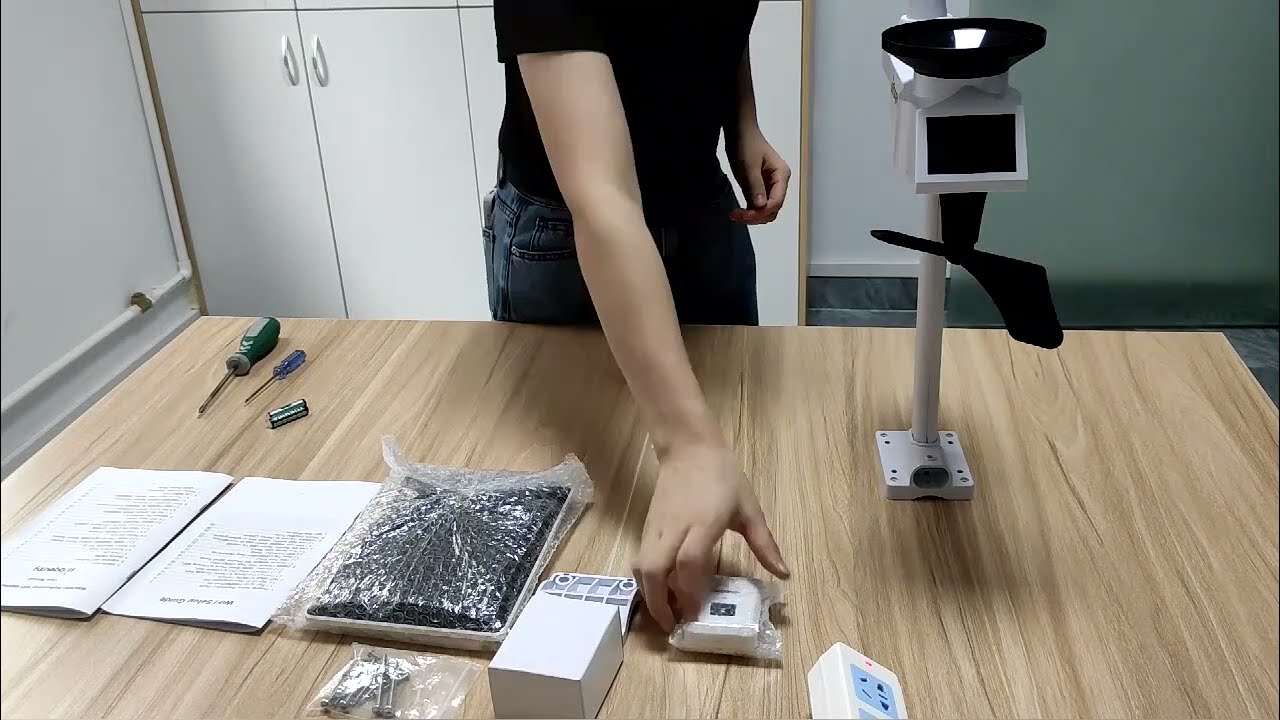
Urageuxy WS0330U Weather Station WiFi Setup and Connect to Weather Underground and Weather Cloud
Автор: UCTECH
Загружено: 2021-09-24
Просмотров: 4323
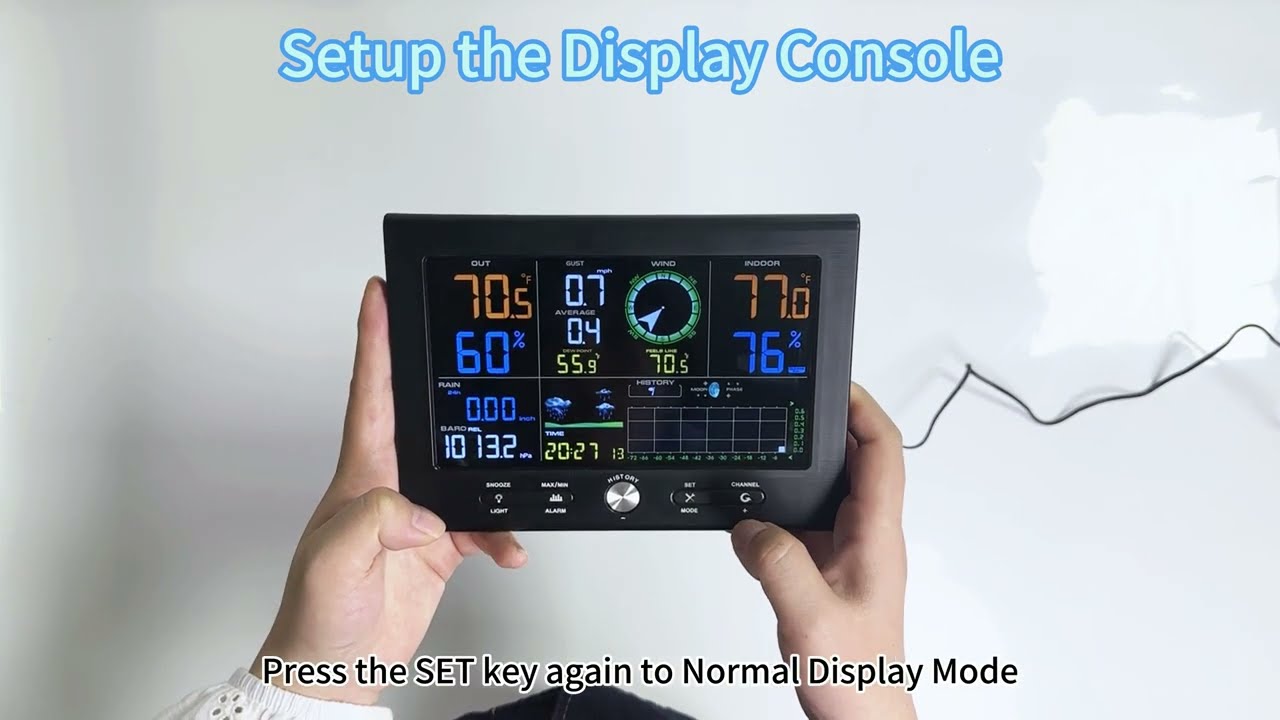
Описание:
Wireless WiFi Weather Station Upload and Sync to Weather Underground and Weather Cloud. (View Amazon Link: https://amzn.to/3nWaza4) - Pls contact [email protected], If you have any more questions or problems.
WiFi Setup of Display Console
1. Register in wunderground.com and weathercloud.net if you don't have the weather server account.
2. Creat a new device and input the basic information, choose any model type or "others" for your model, it's no effection on final data uploading.
3. Record the weather station Device ID and Key, this will be the key factor of weather data uploading into the weather server.
4. Power Up the display console with an adapter, the WiFi icon will start flashing.
5. Open your WLAN/WiFi List on your laptop, and select the "weatherhome" wifi to connect.
6. Once the "weatherhome" wifi is connected, input the "http://192.168.5.1" into any internet browser and the WiFi setting page shows up.
7. Fill in your 2.4 router information, Weather underground and weather cloud station ID and Key, and other blanks.
8. Click the "Save" and the Status spot will show the connected IP successfully. And go back to your Weather underground and weather cloud accounts to check the online data uploading later.
Troubleshooting:
1. Make sure the console is plugged into AC power. The console will not connect to WiFi when powered by batteries only.
2. The "Weatherhome" wifi is no need of any password in connection. Check your router's firewall if you can't connect to the weatherhome wifi.
3. Make sure your modem WiFi settings are correct (network name, and password) on the wifi setting page.
4. The console only supports and connects to 2.4GHz routers. If you own a 5 GHz router, and it is a dual-band router, you will need to select 2.4GHz in operation.
Повторяем попытку...

Доступные форматы для скачивания:
Скачать видео
-
Информация по загрузке: