Set Alarm Notifications Plans in KE2 SmartAccess - Video 140; Refrigeration Monitoring & Control
Автор: KE2Therm
Загружено: 2024-07-02
Просмотров: 382
Описание:
For more information please visit our website at http://www.ke2therm.com
I’m Patricia with KE2 Therm Solutions, one of the most beneficial features of Smart Access is the alarm notification capability, and the ability to establish an alarm plan.
Here’s how
First, Login to Smart Access, if you have more than one site, select the site you want, on the left. I only have access to KE2 TEST.
On the dashboard we see the connected devices.
You can modify all the devices at the same time or individually. To select more than one device, use the plus icon in the lower right corner.
Enable…then you can Select all, Toggle, or Deselect all.
Click on all the devices you wish to have the same alarm schedule,
then click one of the selected device’s alarm status bars.
Select Alerts, there are two options, Plan Default & Plan Critical.
Plan Critical generally includes High and Low Temp, Panic Button, & Portal Disconnect. We can select additional alarms here, but the alarms selected under the critical schedule will deliver in real-time.
So most users prefer to select non-critical alarms be sent on the Plan default which is generally set to deliver an alarm summary a few times a day.
Under the Plan Default button, you can see that our selected alarms from the critical plan are shown here as well, they will also be sent with the alarm summary plan.
Once we have the other alarms selected that we want. We hit save and are returned to the dashboard.
To further customize your alarms, click one of the alarm bars…note they are still selected as a group.
Then from the drop down choose edit plans.
This brings you to the Alert Plans menu.
The top bar switches between your Critical alarms and your Summarized alarms. So if we look at the Critical alarms you see that it is set for 24-7 real-time notifications.
If we click to see the default schedule, we see that the alerts summary of non-critical and critical alarms is set to deliver at 9:00 am, 12:00 pm, 3:00 pm and 6:00 pm.
Clicking the drop down allows you to add or remove scheduled notifications.
We can modify the default schedule, by clicking on a day of the week to clear it, then either clicking or dragging within the column.
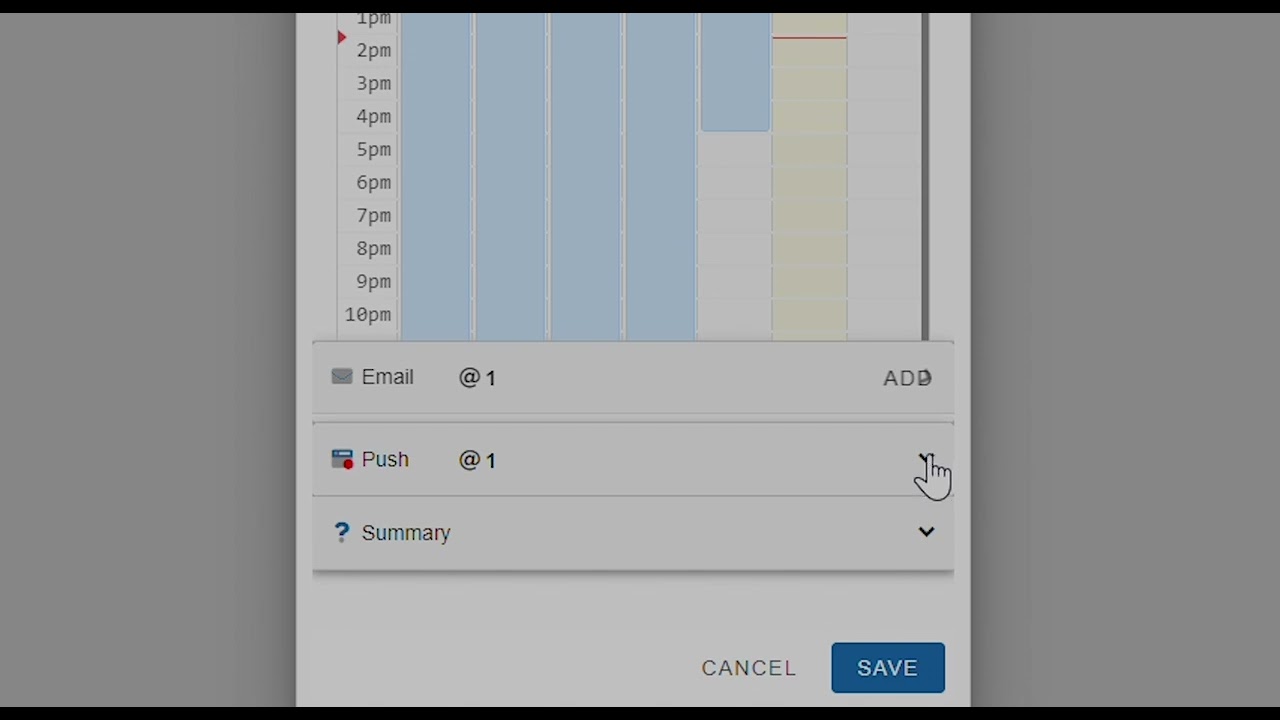
Below this we see the Email bar, we need to click the add.
The email of the person logged in is auto populated, but can be changed, and additional emails can be added.
Below this is Push Notifications, which you setup the same way as the Email feature. The notification will automatically pop up in the right of your screen for about 10 seconds.
And then the summary tab. When you click on this you see a summary of your settings.
Click save and return to the dashboard.
If we click the alarm bar and now choose Mask Unselected, this allows us to
Temporarily suspend a non-critical alarm, and show all clear. This might be used if a service call is setup for the following week, and you don’t need future alarm notifications.
Now look at the top of the dashboard, click the alarms tab.
This shows a summary of the alarms and devices at this site.
Shaded spots indicate an alarm occurred. You can click the individual spot to see the alarms, or select a range of dates by clicking and dragging and clicking again on your end date.
So, with February selected, we see toward the bottom of the page that the C-store freezer had 92 alarms.
Clicking the drop down gives us further detail on the type of alarm and the exact time.
If we click the alarms column header the alarms are then sorted by type
We encourage you to, at a minimum, setup alarms for High and low Air Temperature, and Portal Disconnect.
But, please consider setting other alarms as well. For example, while some people consider, High or low superheat alarms as a nuisance, it is really an indicator of a possible critical alarm down the line.
That wraps up our review of Smart Access alarm notifications, for more information on Smart Access, please visit our website, or contact our technical support team.
And be sure to subscribe for notification of new videos as they are released.
Повторяем попытку...
Доступные форматы для скачивания:
Скачать видео
-
Информация по загрузке: