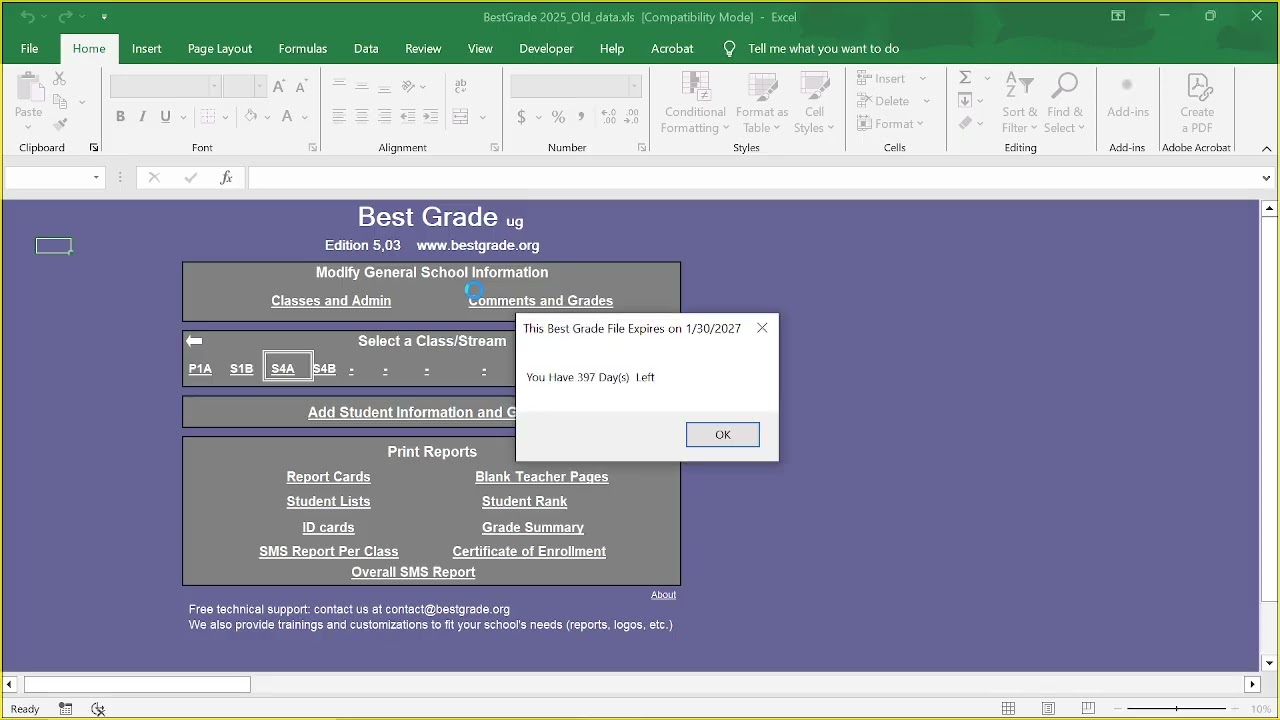
How to Add School Logo & Student Passport Photos in Best Grade Software
Автор: Daniel Schier
Загружено: 2026-02-20
Просмотров: 17
Описание:
Headline:
Professionalize your school reports! In this video, we show you how to upload your Official School Logo and Student Passport Pictures into the Best Grade software to create high-quality, branded summaries.
About This Video:
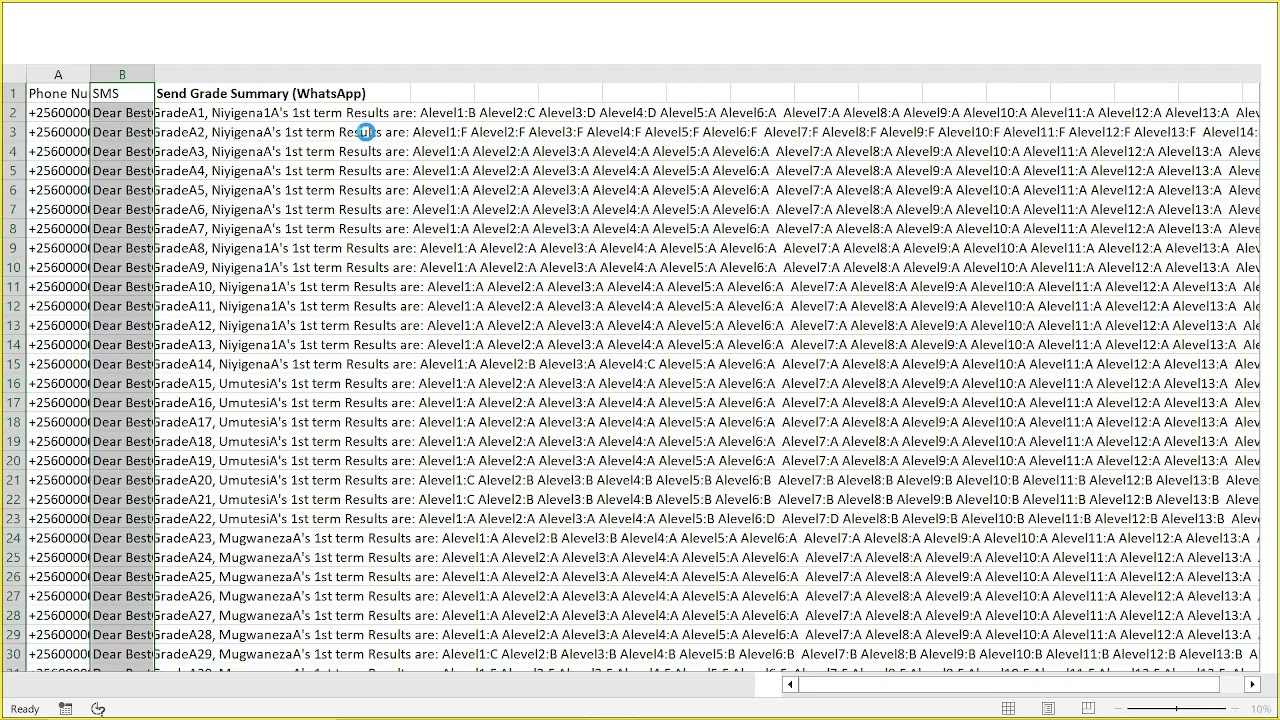
Adding visual identity to your reports not only looks professional but also helps in accurately identifying students when generating grade summaries. This tutorial covers the setup process required before you export your data to bulk SMS platforms, ensuring your digital and physical records are perfectly synced.
What You Will Learn:
• ✅ School Branding: How to upload and resize your school logo in the System Settings.
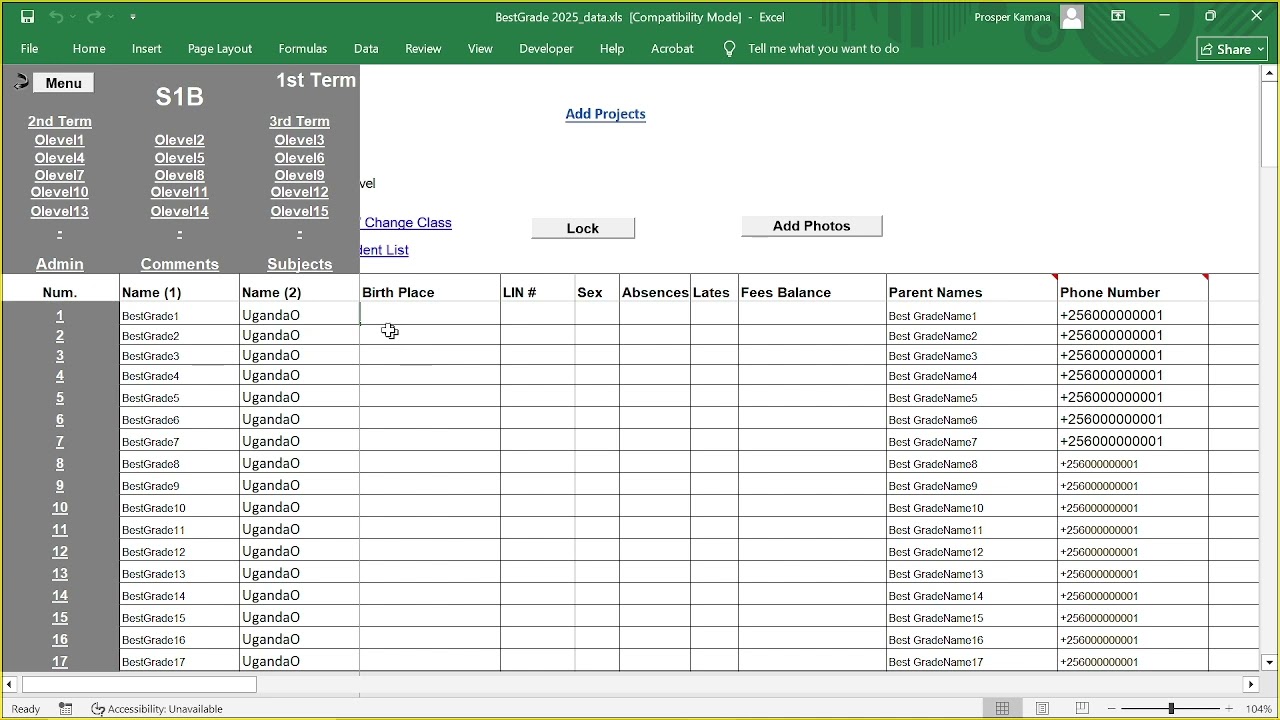
• ✅ Individual Uploads: Adding passport pictures to specific student profiles.
• ✅ Bulk Uploading: Using the bulk upload feature to save time when adding photos for an entire class.
• ✅ Report Preview: How these visuals appear on Grade Summaries and Report Cards.
• ✅ Export Readiness: Preparing the finalized report (with student identifiers) for your Bulk SMS platform.
🕒 Timestamps:
0:00 - Introduction to Best Grade Media Features
1:10 - Uploading the School Logo (Dimensions & Formats)
2:45 - Adding Student Passport Photos (Individual Method)
4:20 - Using the Bulk Photo Upload Tool
6:05 - Verifying Photos in Student Grade Summaries
7:30 - Formatting Tips for External Bulk SMS Export
9:00 - Troubleshooting Image Upload Errors
Key Features Mentioned:
• Best Grade Media Manager
• Student Profile Database
• Report Generation Module
Don't forget to:
👍 Like this video if you found it helpful.
🔔 Subscribe for more Best Grade software walkthroughs and administrative tips.
💬 Comment below if you need help with a specific part of the software!
#BestGrade #SchoolManagementSystem #SchoolLogo #StudentPhotos #EdTechTutorial #SchoolAdministration
Повторяем попытку...
Доступные форматы для скачивания:
Скачать видео
-
Информация по загрузке: