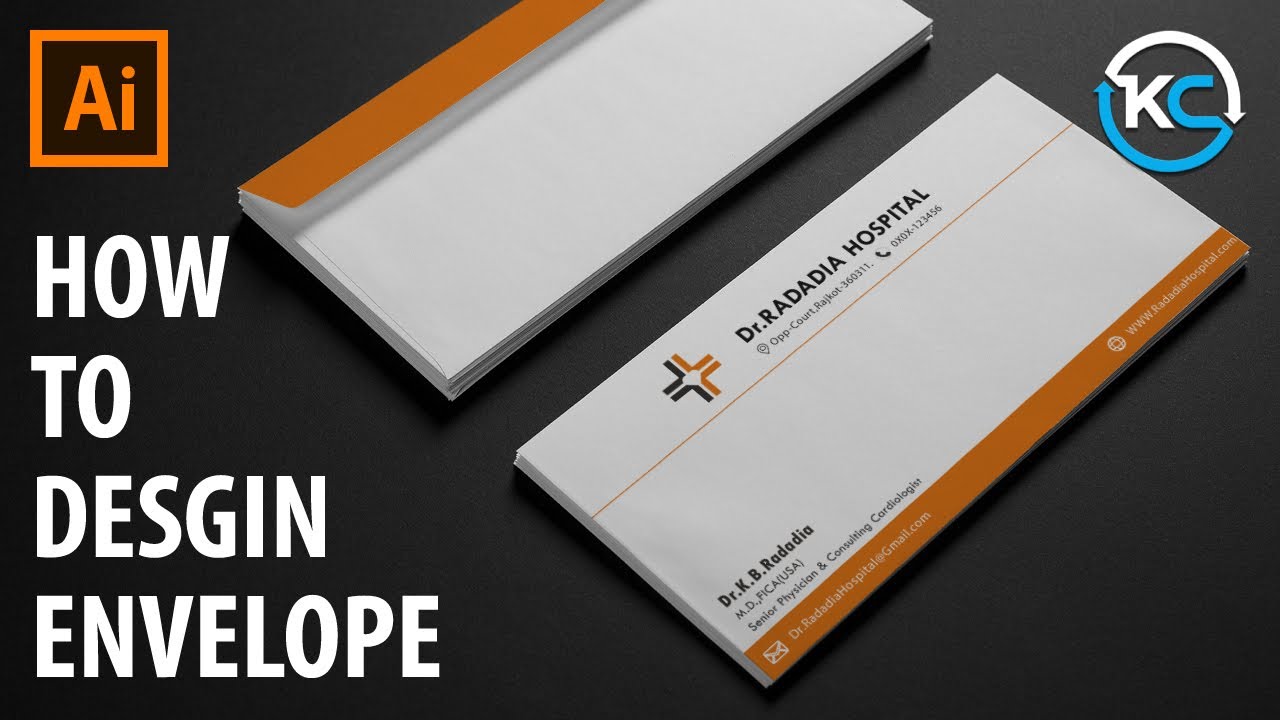
How to Design a Corporate Business Envelope for Letterhead Using Adobe illustrator CS5
Автор: Photoshop Design and Photo editing Tutorials from HowTech
Загружено: 2013-04-04
Просмотров: 77114
Описание:
The rectangle tool in Illustrator can be used to design proper corporate envelopes that can be sent out carrying the company's letterheads
Don't forget to check out our site http://howtech.tv/ for more free how-to videos!
/ ithowtovids - our feed
/ howtechtv - join us on facebook
https://plus.google.com/1034403827176... - our group in Google+
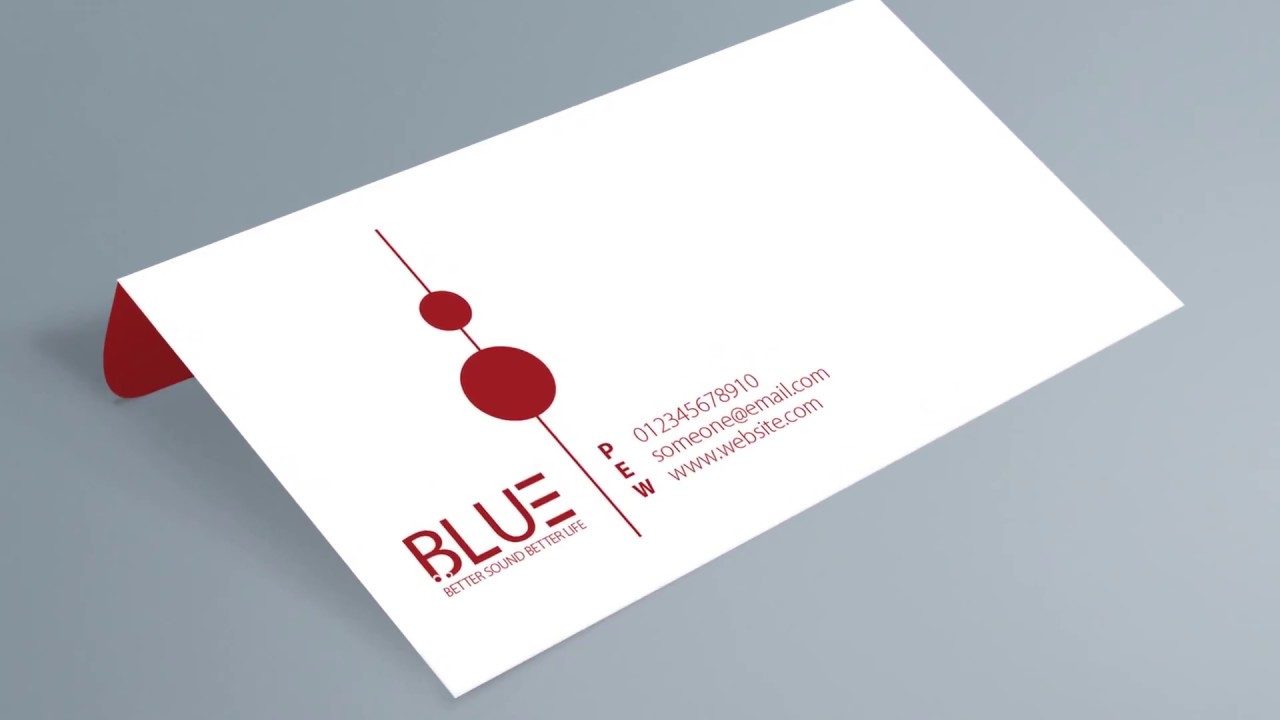
We all know how important first impressions are and that is why direct mail envelopes play such an important role in building your brand identity. Features such as colors, textures, cut-outs and layouts contribute to creating a lasting impression about your company. You can easily create a corporate envelope for your business in software like Illustrator and Photoshop. In this Adobe Illustrator tutorial, you will learn how to develop a layout for an envelope and ready a printable file for it in Illustrator.
Follow the steps below to learn how to design corporate business envelopes for letterheads using Adobe Illustrator.
Step # 1 -- Create a rectangle
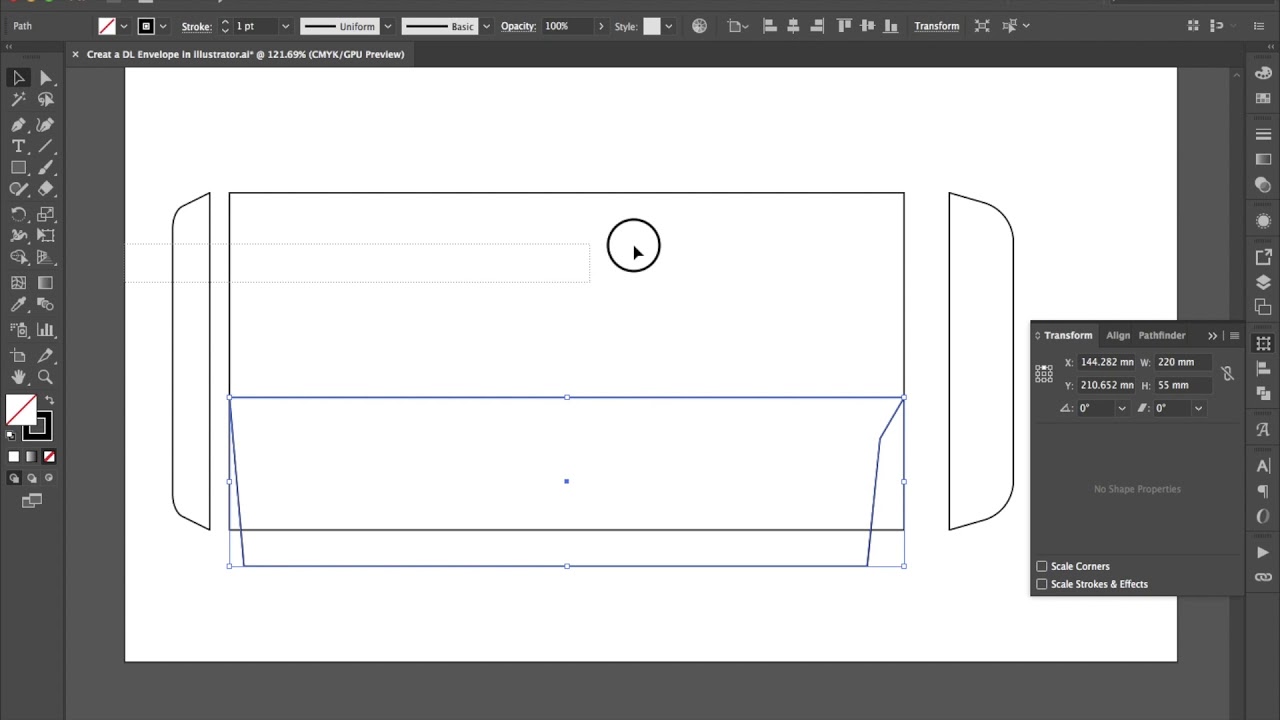
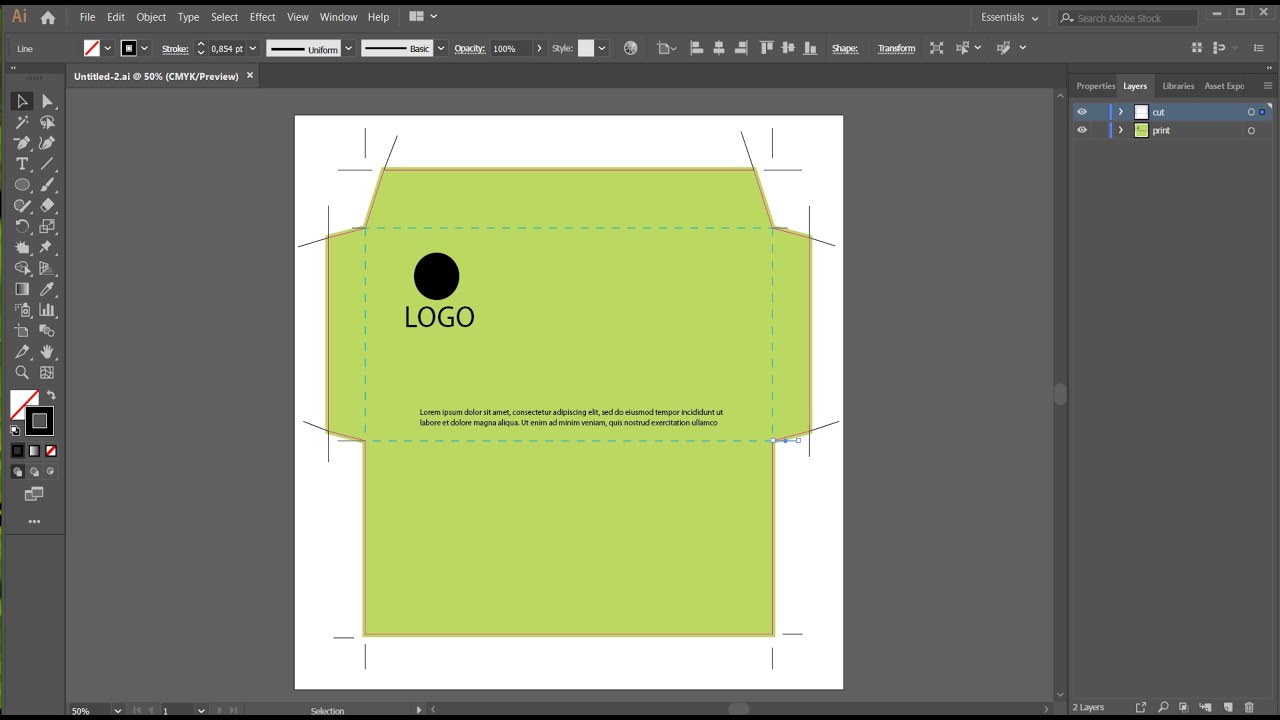
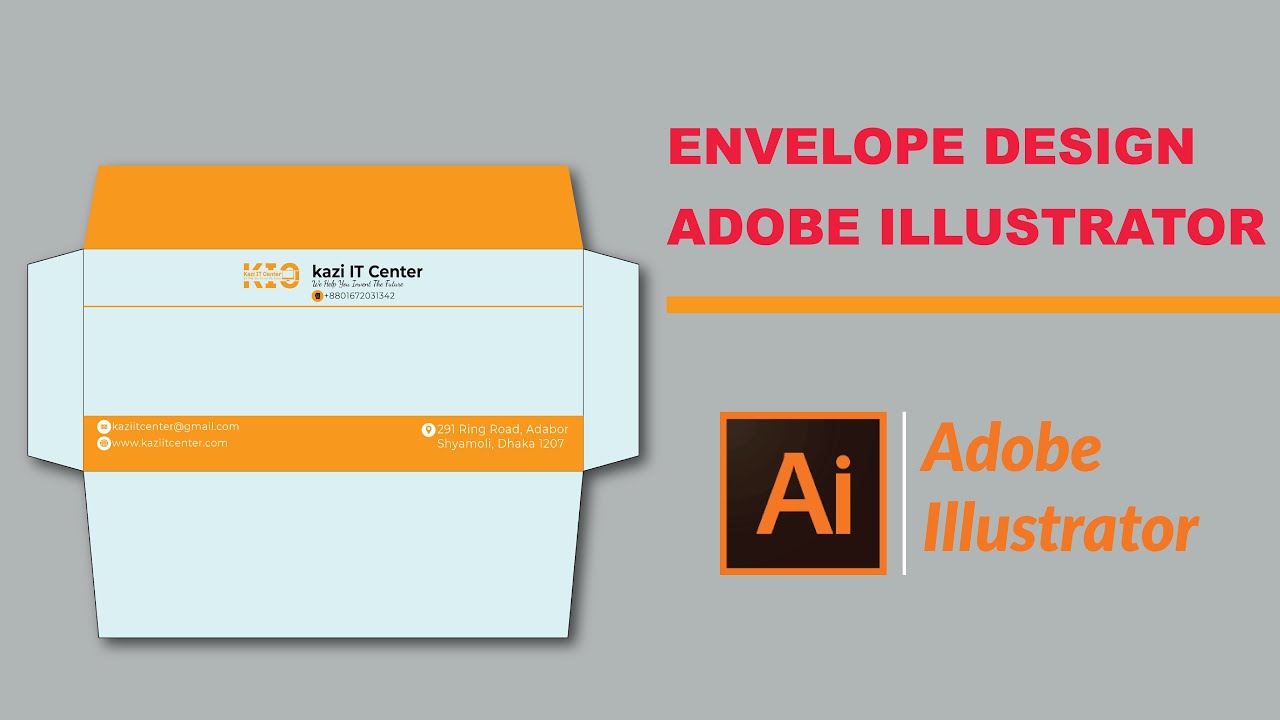
Launch Adobe Illustrator and open a new document. The document size should be larger than A4. We are using the A3 size for this tutorial. Now select the rectangle tool and set the dimensions to "9.5 inches" width and "4.125 inches" height. There are many different sizes for the envelope but this is the most commonly used one. You can use any other size for the envelope as per your requirement. This rectangle will be at the back side of the envelope.
Step # 2 -- Place another rectangle
Now we will make a copy of the rectangle by pressing "Alt" then placing it just above the rectangle box to create the front side of the envelope.
Step # 3 -- Create dotted line
We will then select the front side and go to stroke panel. We will change the stroke style to "dash". These dotted lines are only to indicate the folding part of the envelope. They will not be visible after printing.
Step # 4 -- Create a safety area
Now we will draw margin lines of 0.25 inches on all sides of the rectangle to create a safety area for the text.
Step # 5 -- Place logo and name
Once done, we will copy the logo and name of the company and place it on the top left corner of the box. The placement of the logo can vary with the design and layout. Remember to place your logo within the margin lines.
Step # 6 -- Insert the details
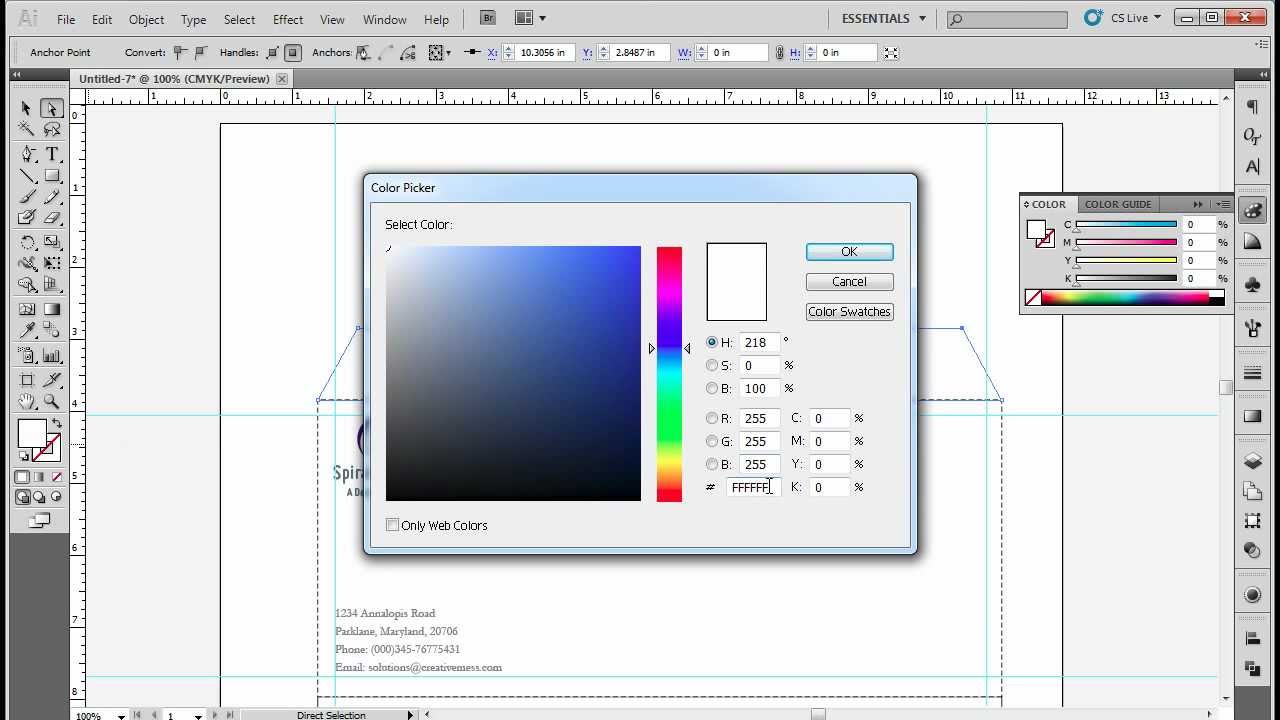
Now we will use type tool to insert the contact details of the company. Use "Garamond" font at point size 12 for the details and place it at the bottom left corner of the front side within the margin lines. Change its color to "7B808A".
Step # 7 -- Create the flap
Once the front and back side of the envelope is done, the last step to create a corporate envelope is to make the upper flap. Use the rectangle tool to draw a rectangle of a "9.5 inches" height with a "1 inch" width. Place this rectangle just above the front side.
Step # 8 -- Tilt the corners
The sides of the flaps need to be tilted to an angle so use direct selection tool to tilt the upper two corners of the flap to "45 degrees".
Step # 9 -- Change the color
Now fill the flap with "0C80B8" color. You can also leave the flap in white color or use any other color which matches your company's logo and color theme.
Step # 10 -- Create the side flaps
Once the upper flap is done, we will draw the side flaps of the envelope which are used to stick the side together. We will use rectangle tool to draw a box of "0.25 inches" width by "4.125 inches" height. Then use the direct selection tool to tilt the corners to "45 degrees". Place the flap on both sides of the front side of the envelope.
Step # 11 -- Reduce the size
In the end, select the back side of the envelope and reduce the sides a bit and adjust its placement. This will help to fold the flap easily. The envelope is ready to be printed. You can make more business envelopes in the same way.
• How to Save Image with a Transparent Backg...
Повторяем попытку...
Доступные форматы для скачивания:
Скачать видео
-
Информация по загрузке:




![Леонид АГУТИН - ЛУЧШИЕ ПЕСНИ 2025 [СБОРНИК] @ХитЗаХитом](https://imager.clipsaver.ru/lAWkb8GArIw/max.jpg)
![Chicago Soul | Marvin Gaye Inspired 1970s Soul — Mercy & Grace [Unreleased Album]](https://imager.clipsaver.ru/YTytykkOygg/max.jpg)