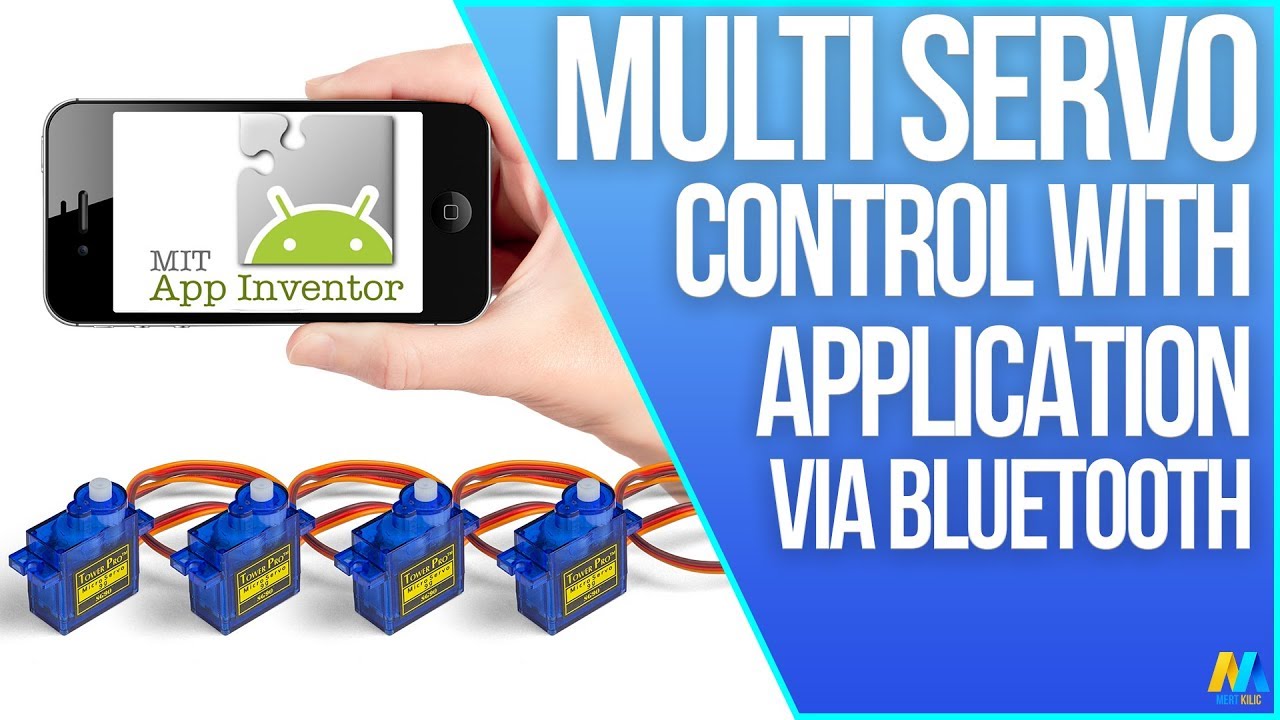
Multi Servo Motor Control via Bluetooth Using Android App | Arduino and App Inventor
Автор: Maker 101
Загружено: 2016-12-17
Просмотров: 215562
Описание:
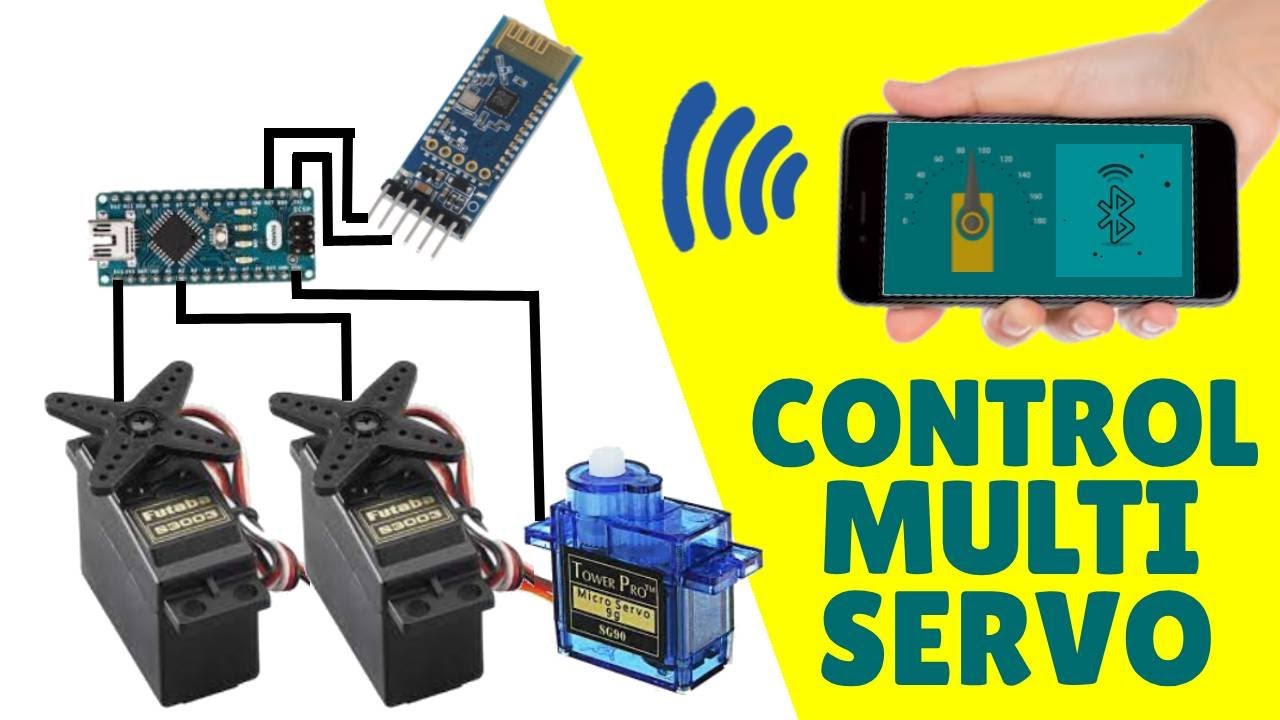
In this tutorial, we will learn how to use multi-servo with an Android application. We will control 4 pcs servo motor with a Smartphone.
You can implement your robotic arm projects with reference to this tutorial. Of course we will use external battery / power when doing this.
Required Hardware:
Arduino Board :
https://goo.gl/UyGYeF
https://amzn.to/2LZr6t4
HC-06 Bluetooth Module :
https://goo.gl/thjwVL
https://amzn.to/3avtRM6
Servo Motor x4:
https://goo.gl/iOkPgu
https://amzn.to/3avwe1N
Jumper Wires:
https://goo.gl/EGTafY
https://amzn.to/3doetmT
Breadboard :
https://goo.gl/yCa8hX
https://amzn.to/3qxLxwmBattery
Recommended Items:
Use Your Muscles in Project - https://amzn.to/3wdL45C
37 Sensor & Module Packages - https://amzn.to/3m66WeQ
Try this Robot Arm - https://amzn.to/3fq8DCl
Best Resin 3D Printer - https://amzn.to/39tY8KB
Arduino Compatible Kits - http://bit.ly/2J2AFF7
Banggood Spring Sale - https://bit.ly/3slMbOn
Connections:
The external battery VCC / GND connect to the breadboard
The Arduino GND connect to the breadboard's GND input
The servo connections we use in this project are as follows;
Orange Input - Signal Input
Red Input - Power Input (VCC)
Brown Input - Ground Input(GND)
The Servo1 VCC and GND connect to the breadboard's VCC / GND inputs
The Servo1 Signal connect to the Arduino Digital PWM 3
The Servo2 VCC and GND connect to the breadboard's VCC / GND inputs
The Servo2 Signal connect to the Arduino Digital PWM 5
The Servo3 VCC and GND connect to the breadboard's VCC / GND inputs
The Servo3 Signal connect to the Arduino Digital PWM 6
The Servo4 VCC and GND connect to the breadboard's VCC / GND inputs
The Servo4 Signal connect to the Arduino Digital PWM 9
The Bluetooth module attach to the Breadboard
The Bluetooth VCC connect to the Arduino 3.3V
The Bluetooth GND connect to the Arduino GND
The Bluetooth TX connect to the Arduino Digital Pin 10
The Bluetooth RX connect to the Arduino Digital Pin 11
About Bluetooth Connection:
After establishing a connection, the LED on the Bluetooth module must be active continuously.
If you get any errors (Device not found, broken pipe, etc.), please check the module connections. If the connections are correct, try connecting to the module a several times. It will be connect.
You must download and install the SoftwareSerial library
https://github.com/PaulStoffregen/Sof...
MIT App Inventor site to create an application.
http://appinventor.mit.edu/explore/
Source Code: https://create.arduino.cc/editor/mert...
Social Media:
/ mertarduino
/ mertarduino
Повторяем попытку...
Доступные форматы для скачивания:
Скачать видео
-
Информация по загрузке: