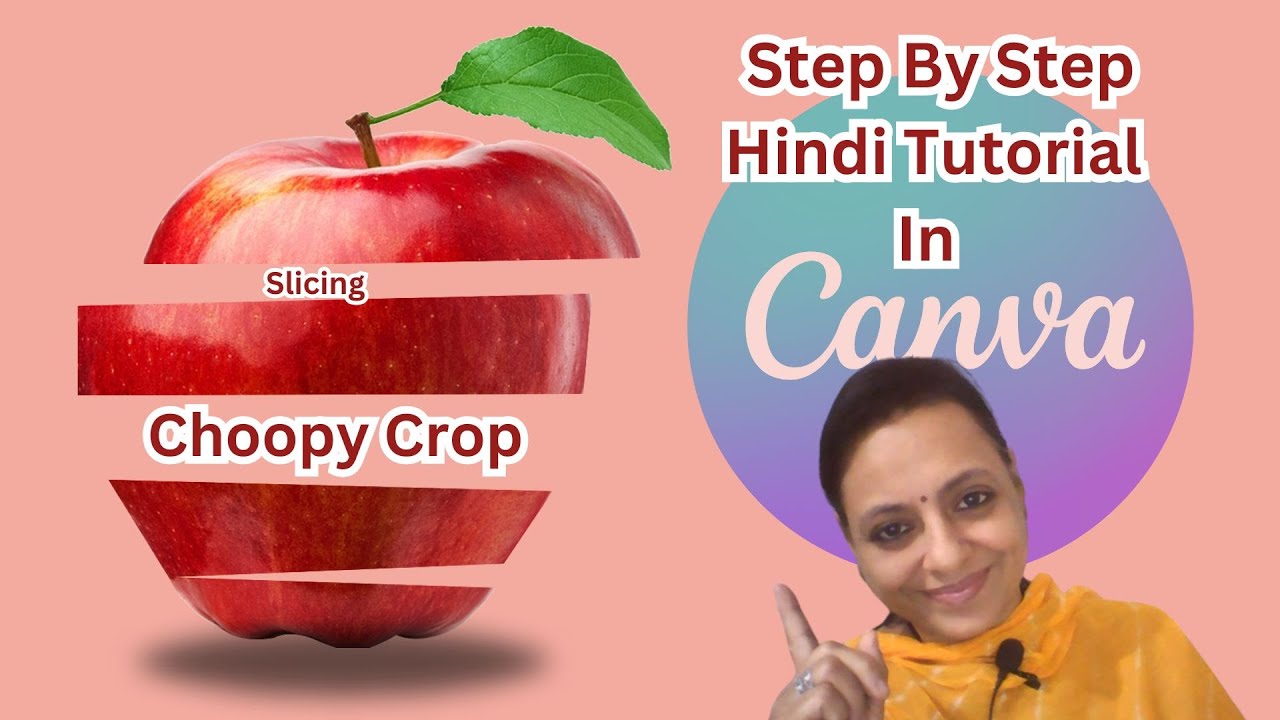
Choppy Crop Tutorial In Canva | Slicing Image Tutorial Canva Hindi Tutorial For Bigners
Автор: JDVM TECH TUTORIALS
Загружено: 2024-09-25
Просмотров: 781
Описание:
Choppy Crop Tutorial In Canva | Slicing Image Tutorial Canva Hindi Tutorial For Bigners
What is Choppy Crop in Canva?
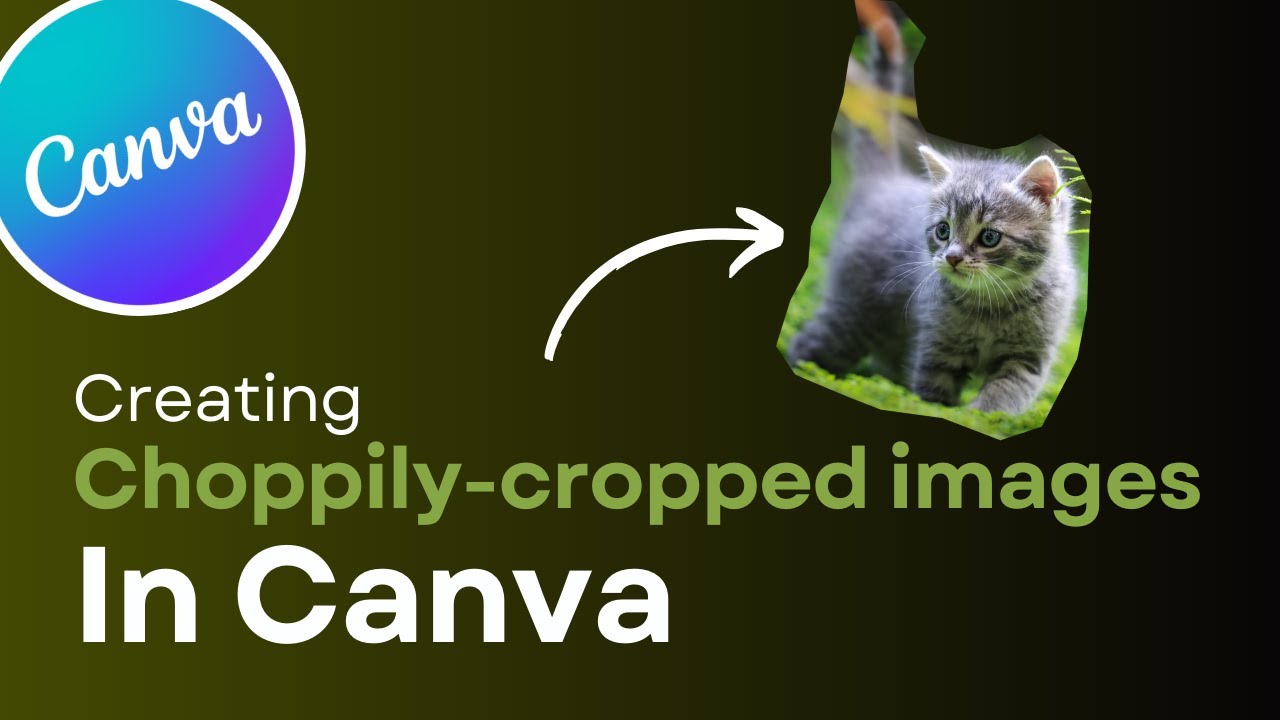
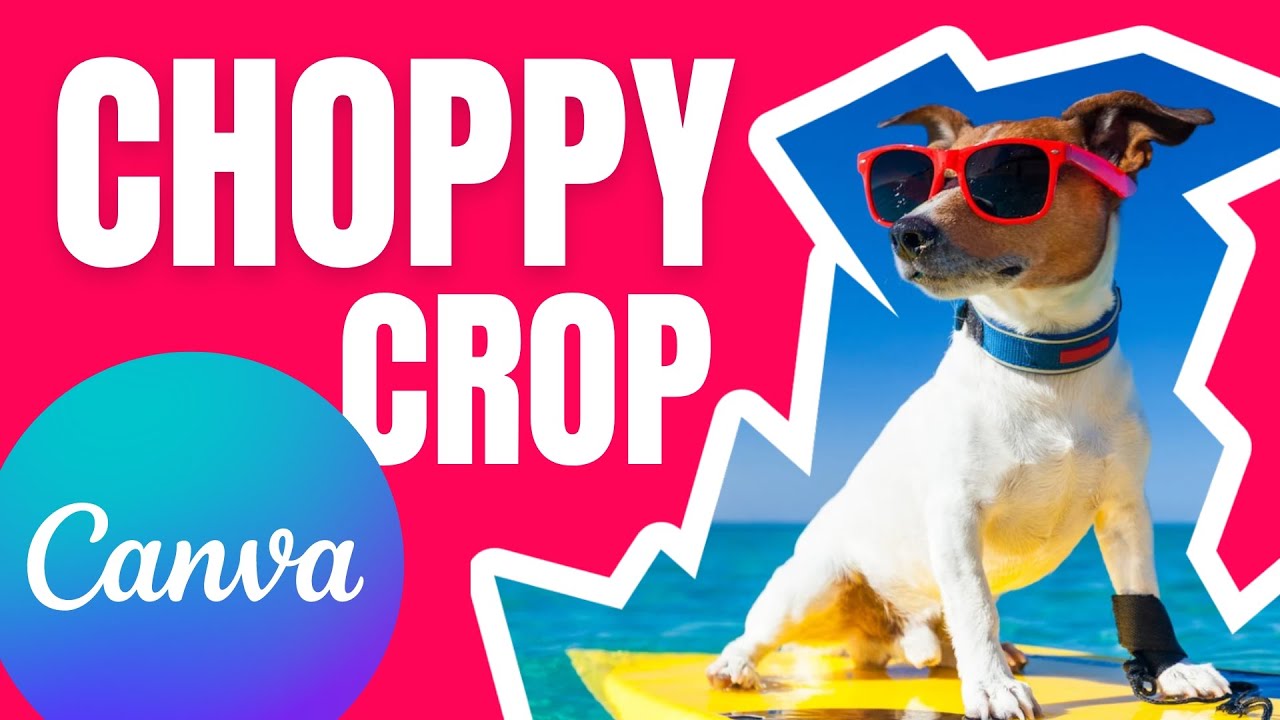
Choppy Crop is a feature or app within Canva that allows you to selectively crop an image in an irregular or "choppy" manner. Instead of a standard rectangular or circular crop, you can define specific areas of the image to keep or remove by drawing a path.
How do I find and use the Choppy Crop tool in Canva?
To use Choppy Crop, you need to go to the "Apps" section in Canva. Search for "Choppy Crop" and select the first option that appears. Once the app is selected, you need to select the image you want to chop.
How do I define the areas to keep or remove with Choppy Crop?
You define areas by clicking on the image to create points. These points form a path. Where the path forms a closed box (all sides connected), that portion of the image will be kept. Where the path leaves a side open, that portion of the image will be removed or erased.
What is the importance of the starting and ending point when using Choppy Crop?
It is crucial to return to the exact point where you started drawing your path to close a box. When you return to the starting point, it signifies the completion of a defined area, and if it forms a closed shape, that section will be selected to be kept in the final choppy crop.
How do I differentiate between the areas I want to keep and the areas I want to remove?
The video tutorial explains that when you draw a path, the larger portions that form a closed box are the areas you want to keep. The smaller portions where the box is not closed (one or more sides are open) are the areas you intend to remove or erase.
What should I be careful about when placing points for Choppy Crop?
You need to be very careful when selecting points. The placement of points determines where boxes will form and where they will remain open. This directly dictates which parts of the image are kept and which are removed. Misplaced points can lead to unintended cropping results.
Can I see a preview of the Choppy Crop before finalizing it?
Yes, as you draw the path and create boxes or open areas, you can see an output or preview of how the choppy crop will look. This allows you to adjust your points and path as needed.
After performing the Choppy Crop, how do I add the result to my design?
Once you are satisfied with the choppy crop based on the preview, you can add the resulting cropped image to your design by selecting the "Add to Design" option.
Contact For Sponsorship :
[email protected]
Whatsapp : +91 8447101257
Other Social Media Links :
---------------------------------------------------------------------------------------------------------------------------------------
Facebook :
/ jdvmtechtutorials
Blog :
https://jdvmrecommendations.blogspot....
Website : www.jdvmwebservices.in
Повторяем попытку...
Доступные форматы для скачивания:
Скачать видео
-
Информация по загрузке:









![Изучите Canva за 25 минут! Как использовать Canva для начинающих [Полное руководство по Canva 2022]](https://imager.clipsaver.ru/J0jE0OsF1zo/max.jpg)

