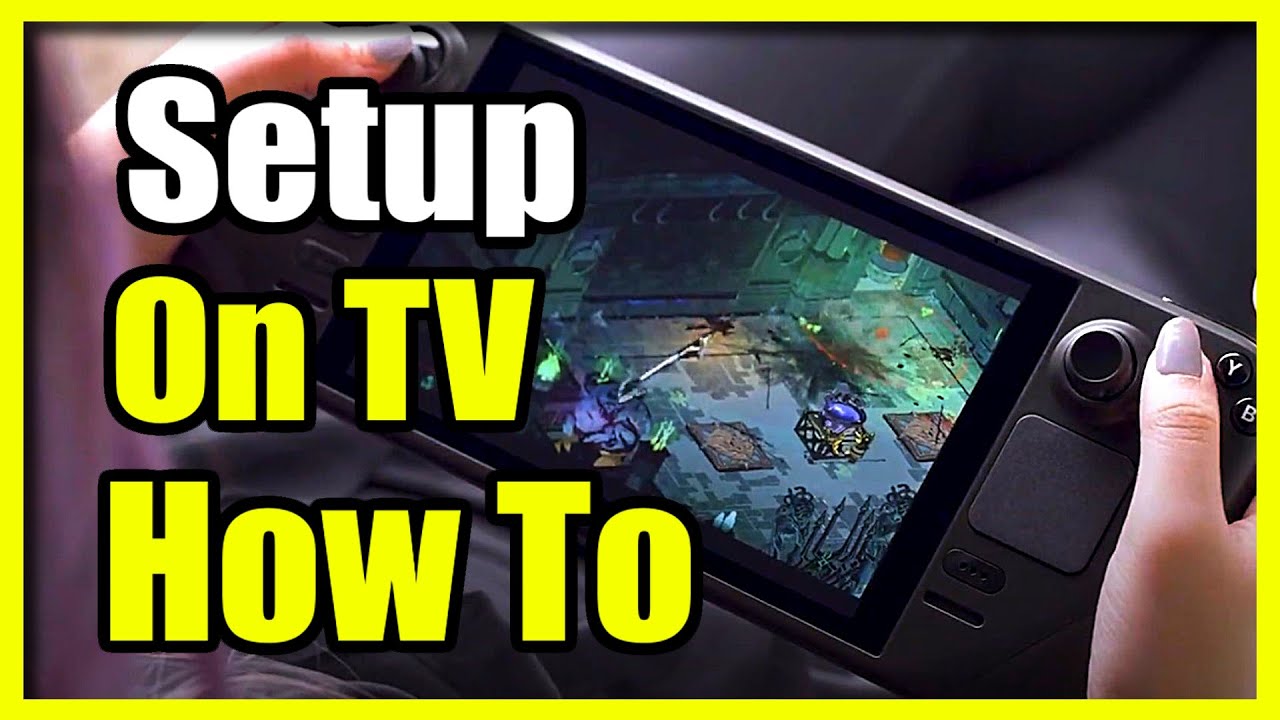
How to Connect to TV with Steam Deck & Dock (HDMI or Display Port)
Автор: YourSixTech
Загружено: 2025-03-01
Просмотров: 15521
Описание:
To connect your Steam Deck to your TV using the official Steam Deck Dock, follow these steps:
Step 1: Set Up the Dock
Connect the Dock to Power:
Plug the provided power adapter into the dock's power port and connect it to a power outlet. The dock needs to be powered on for it to work correctly.
Connect the Dock to the TV:
Use an HDMI cable to connect the dock to your TV.
Plug one end of the HDMI cable into the HDMI port on the dock.
Plug the other end into an available HDMI port on your TV.
Step 2: Connect the Steam Deck to the Dock
Place the Steam Deck in the Dock:
Align the Steam Deck with the USB-C port on the dock.
Gently insert the Steam Deck into the dock, making sure it is securely seated.
Step 3: Switch TV Input
Select the HDMI Input on Your TV:
Use your TV remote to switch to the HDMI input where the dock is connected.
This is usually done by pressing the Input, Source, or AV button on your TV remote.
Step 4: Configure Display Settings (if needed)
Access Display Settings:
On your Steam Deck, press the Steam button to open the Steam menu.
Go to Settings - Display.
Adjust Resolution and Scaling:
Ensure the resolution and scaling settings are adjusted to fit your TV’s display for the best visual experience.
...
Twitter: https://twitter.com/YourSixStudios?la...
Twitch: / yoursixstudios
Discord: / discord
Instagram: / yoursixstudios -
((( Subscribe to my LIVE STREAMING )))
((( Gaming Channel "YourSixGaming" )))
/ @yoursixgaming ...
((( Subscribe to my ADVENTURE CHANNEL )))
((( Travel, Cameras & More "YourSixAdventures)))
/ @yoursixadventures
Повторяем попытку...
Доступные форматы для скачивания:
Скачать видео
-
Информация по загрузке: