How to enable Ludimos AI, generate reports and view feedback on Ludimos cricket coaching platform
Автор: Ludimos
Загружено: 2020-08-13
Просмотров: 489
Описание:
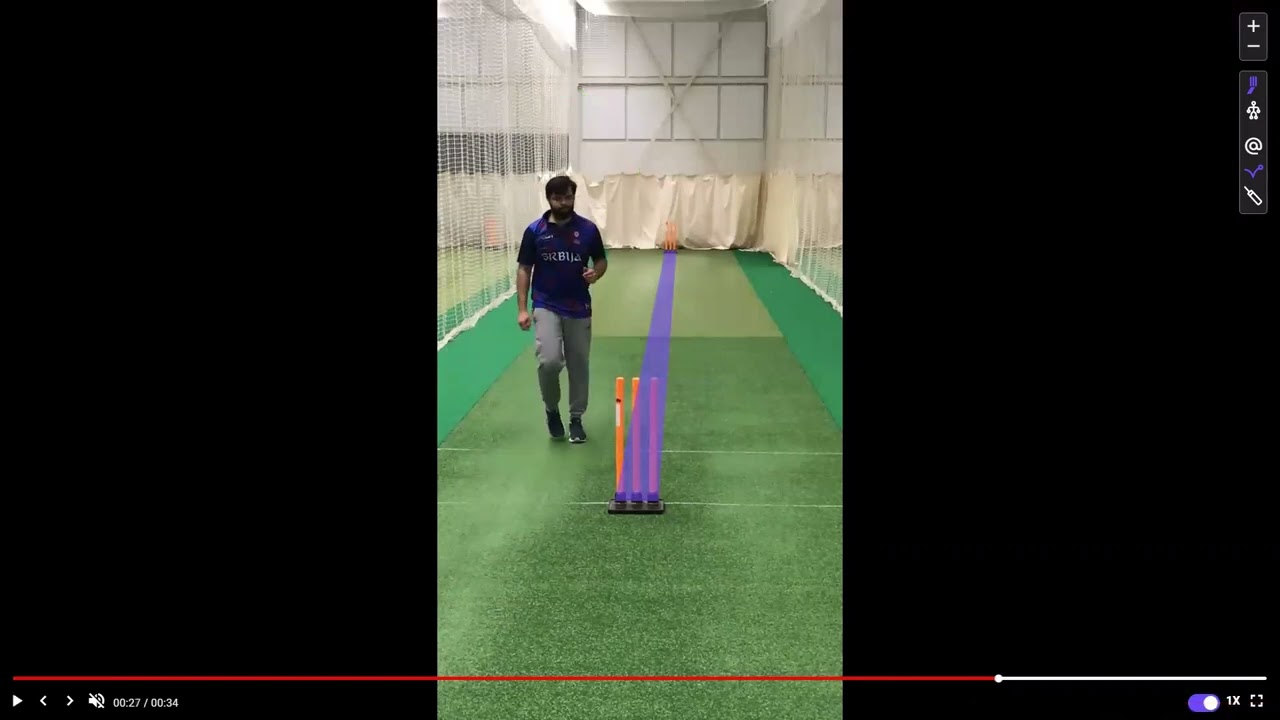
As a coach providing feedback, when reviewing videos from the “Unreviewed Videos” or “Training session” tabs, click the player video that is to be analysed. This will bring you to the Video Detail Page.
From the Video Details Page you can play the video by selecting the play icon or clicking on the video itself. You can pause a video by using the space bar on your keyboard, clicking on the video or clicking the pause icon. You can additionally move across the video time line, by clicking along or dragging the cursor to a preferred time. The audio, mute functionality and volume can be controlled with the audio icon and volume slider bar.
You can speed up or slow down the video on the video dashboard, or also by using the up and down arrows on your keyboard. Use the full screen icon to enhance your visuals. When a video is paused on a frame, you can rock and roll between frames with the minus/plus one icons, or with the left and right arrows on your keyboard.
For the use of Ludimos AI, use the “Skip Pauses” toggle to skip all unnecessary noise, leaving you only relevant action points. Leave the “Skip Pauses” off if you wish to watch the entire uploaded video and hear all of its audio captured.
As a coach, when you have identified an action for analysis, click the “Add Feedback” button. How to provide feedback is covered in the Feedback video of this navigation series.
Every time feedback is provided on a video, the provided text, diagrams, voice notes and drills will be provided along a timeline of feedback. When a coach or player selects one of these feedback cards, the user will be taken to the correct frame of feedback on the video itself. As a player and coach you can delete the feedback card, edit your textual feedback or reply via text on a particular feedback card that was created by you as a player or coach. Players can reply with text to a coaches' feedback.
As a coach, when clicking on the “Filter” drop down, you can filter the feedback cards according to the category you have assigned that particular feedback card. These are the same feedback categories created by an owner or admin under settings. How you assign feedback categories is covered in the Feedback video of this navigation series.
As a coach you can Generate a pdf report of the that particular video, by clicking “Generate Report”. This report will contain the logo of your organisation, player name, date of the report, all the feedback categories, as well as the time in seconds on the video when textual and visual feedback was provided by the coach for that category. The coach who provided the feedback will also display on this report.
Повторяем попытку...

Доступные форматы для скачивания:
Скачать видео
-
Информация по загрузке: