How to Set Up Apple Pay in Wallet on iPhone (Step-by-Step Tutorial)
Автор: GuideWise
Загружено: 2025-11-05
Просмотров: 192
Описание:
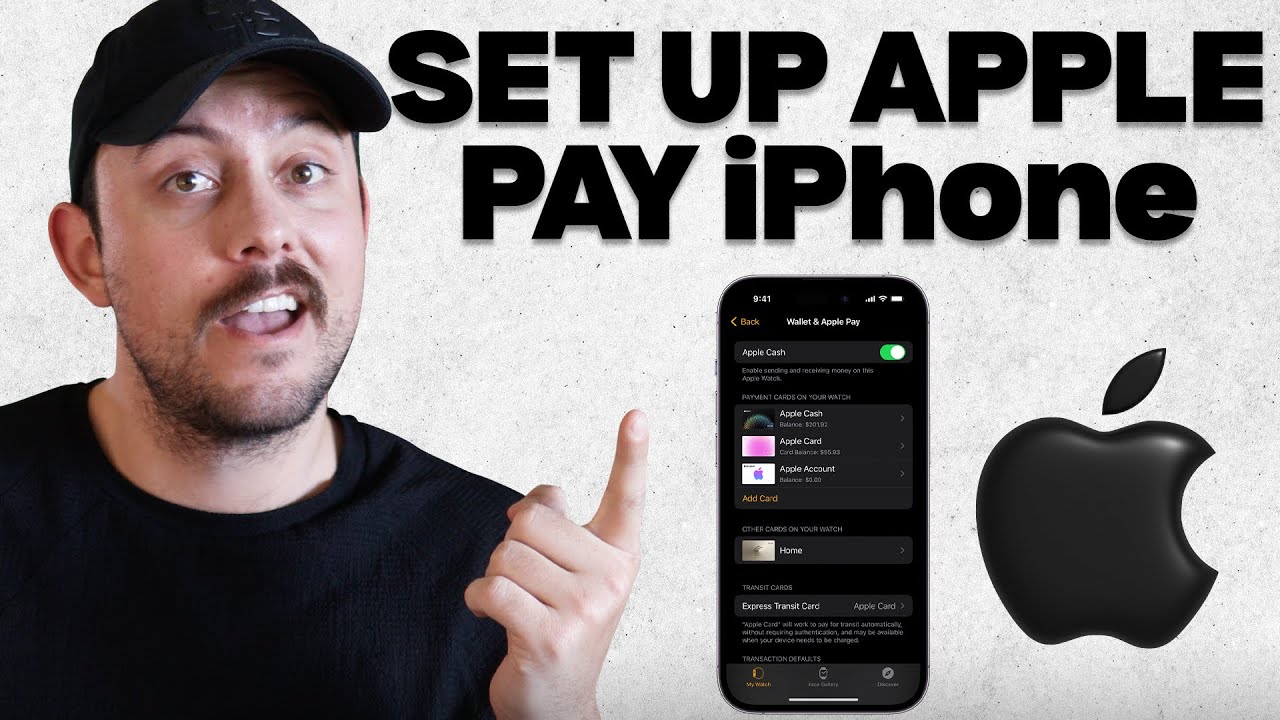
In this video, I’ll go over how to set up Apple Pay in the Wallet app on your iPhone step by step. You’ll learn how to add a debit or credit card, scan card details, and verify them safely inside the Wallet. I’ll explain how to activate Apple Pay for secure payments and connect it to your Apple Watch for easy use. This guide shows how to make Apple Pay work for daily purchases, online checkouts, and tap-to-pay stores.
Be sure to watch this video all the way as I cover how to open the Wallet app, press the plus icon, and enter your card information correctly. I’ll also walk through verifying your card by code or call and setting a default payment method for Apple Pay. You’ll see how to manage multiple cards in your Wallet and use Apple Pay for contactless transactions anywhere it’s supported. By the end, you’ll know how to make fast, private, and secure payments using your iPhone and Apple Watch.
Apple Pay in the iPhone Wallet app makes paying easier and safer without carrying physical cards. It stores your debit and credit cards securely, letting you use Face ID or Touch ID to confirm purchases instantly. You can use Apple Pay for in-store shopping, apps, and Safari payments across your devices. Setting it up once in the Wallet app keeps your transactions quick, simple, and protected every time you pay.
If you want to see more tutorials, check out our other videos:
How to Set Up Apple Pay on iPhone (Step by Step Tutorial)
• How to Set Up Apple Pay on iPhone (Step by...
Subscribe to our channel for easy-to-follow tutorials, tips, and tricks! GuideWise is here to help you learn new skills, solve problems, and make life easier.
Thank you for watching and have a great day!
– Brett
#ApplePay #iPhoneWallet #iPhoneTutorial
Timeline:
0:00 - Introduction
0:10 - Opening Wallet App and Pressing Plus Icon
0:20 - Selecting Debit or Credit Card
0:29 - Holding Card Near iPhone
0:37 - Entering Card Details
0:44 - Clicking Next and Agreeing to Terms
0:55 - Verifying Card via Code or Call
1:12 - Choosing Default Card Option
1:21 - Adding Card to Apple Watch
Disclaimer: Some of the links above may be affiliate links, which means that if you click on them, I may receive a small commission. The commission is paid by the retailers at no cost to you, and this helps support our channel and keep our videos free. Thank you! All information in our videos is compiled from online sources and our own experience, and we encourage you to do your own research. We appreciate your support!
Повторяем попытку...
Доступные форматы для скачивания:
Скачать видео
-
Информация по загрузке: