How To Enable / Disable Long Press App Icon To See Notifications On Samsung Galaxy S23's
Автор: WebPro Education
Загружено: 2023-08-25
Просмотров: 23480
Описание:
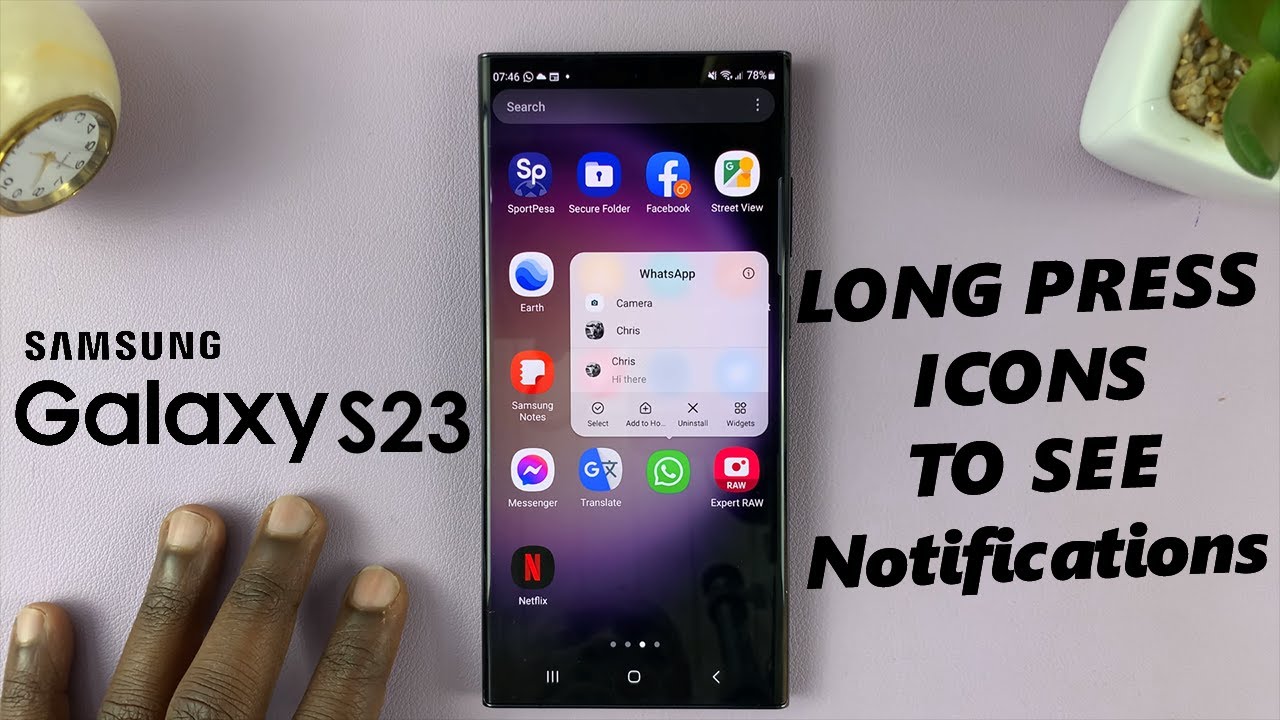
Learn how to enable or disable the long press app icon to see notifications on Samsung Galaxy S23's. This applies for the Samsung Galaxy S23, S23+ and S23 Ultra.
Are you looking to master the art of managing notifications on your brand new Samsung Galaxy S23? Look no further! In this comprehensive tutorial, we'll guide you through the steps to enable or disable the long press function on app icons, allowing you to effortlessly preview your notifications without even opening the app.
Our expert presenters will demonstrate the process using clear visuals and user-friendly explanations. Plus, we'll provide insights into why this feature can be a game-changer for your daily smartphone use.
#samsunggalaxys23 #samsunggalaxys23plus #samsunggalaxys23ultra #samsunggalaxys23series #samsunggalaxys23ultra5g
Enable / Disable Long Press App Icon To See Notifications On Samsung Galaxy S23, S23+ and S23 Ultra
Enable Long Press App Icon Notifications
Enabling the long press app icon notifications feature on your Samsung Galaxy S23 is a straightforward process. Follow these steps:
Begin by unlocking your Samsung Galaxy S23 using your preferred method (PIN, pattern, fingerprint, etc.).
Navigate to your device's settings by swiping down from the top of the screen and tapping the gear icon or by locating the settings app in the app drawer.
In the settings menu, scroll down and select "Home screen".
Look for the "App icon badges" option. Tap on this option and make sure the toggle button is on. This will reveal all the other greyed out options as well.
Find the option for "Notifications on app icons" and enable it, by toggling the button next to it to the ON position.
Once you've enabled "Notifications on app icons", you'll now be able to long-press on an app to see the notifications and their contents.
Disable Long Press App Icon Notifications
If you find that the long press app icon notifications feature isn't to your liking, you can easily disable it:
Follow the first two steps outlined above to access your device's settings.
As before, locate the "Home screen" option in the settings menu.
Look for the "App icon badges" option and make sure the toggle button is on.
Find the option for "Notifications on app icons" and disable it, by toggling the button next to it to the OFF position.
Once you've enabled "Notifications on app icons", you'll now be able to long-press on an app to see the notifications, but not their contents.
Galaxy S23 Ultra DUAL SIM 256GB 8GB Phantom Black: https://amzn.to/3IneO8x
Galaxy S23 Ultra DUAL SIM 256GB 8GB Green: https://bit.ly/3xagLyr
----My Gear for YouTube videos----
Main Camera (iPhone 13 pro): https://amzn.to/3GZztve
Tripod: https://amzn.to/35acqRa
Cell Phone Tripod Adapter: https://amzn.to/3v3wFuI
Lights: https://amzn.to/3vkoGK7
As full disclosure, I use affiliate links on this channel and purchasing through these links earns me a small commission. The price you pay will be the same!
Website: https://www.webproeducation.org
Facebook: / webproeducation.org
Twitter: / webpro_e
Instagram: / webproeducation
Повторяем попытку...
Доступные форматы для скачивания:
Скачать видео
-
Информация по загрузке:


