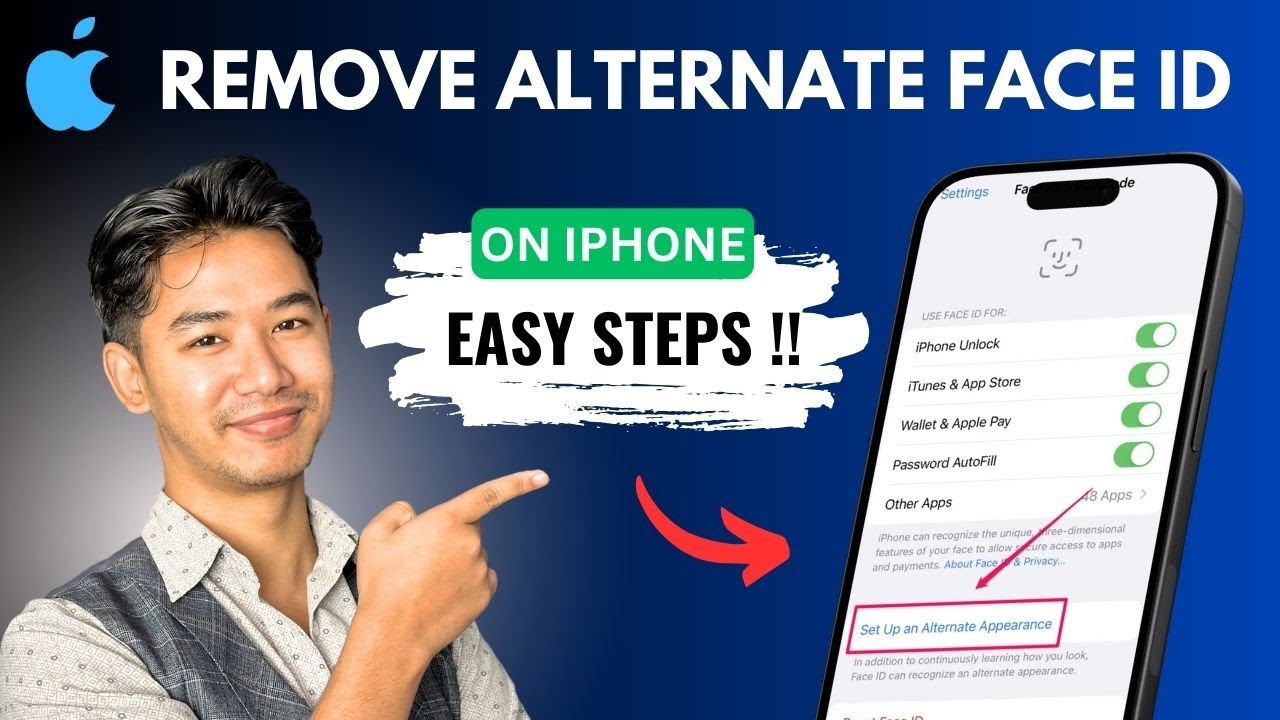
How To Remove Alternate Face ID On iPhone
Автор: 4kEasyGuide
Загружено: 2026-02-01
Просмотров: 40
Описание:
☕ If this video helped you, consider supporting me by buying me a coffee: https://coff.ee/bimalbasnet
This video explains the process for removing an alternate or resetting all stored Face ID data on an iPhone. The setting is secured within the Face ID & Passcode menu.
First, open the Settings app and navigate to "Face ID & Passcode." You will be prompted to enter your device passcode to proceed. Once inside, scroll down to the section labeled "Face ID." Here, you will see an option that says "Reset Face ID." Tapping this button will completely erase all registered facial data, including any alternate appearances you have set up. After resetting, the system will guide you through the setup process again if you wish to enroll a new face. This is the only method to remove a specific alternate appearance, as iOS does not allow for deleting individual faces separately.
Timestamps:
0:00 - Introduction
0:09 - Opening Face ID & Passcode Settings
0:18 - Entering Your Passcode
0:27 - Locating the Reset Option
0:34 - Resetting and Re-adding Face ID
0:42 - Conclusion
Hashtags:
#HowToRemoveAlternateFaceIDOniPhone #FaceID #iPhoneSecurity #Biometrics #TechTutorial #AppleSettings #iOSGuide #Privacy
DISCLAIMER: This Channel "4kEasyGuide" is not the Official Support of the content provided & Does Not Promote Any illegal content, all contents provided by This Channel are meant for EDUCATIONAL purposes only. The Channel doesn't own any logos or websites displayed on videos and thumbnails.
Повторяем попытку...
Доступные форматы для скачивания:
Скачать видео
-
Информация по загрузке: