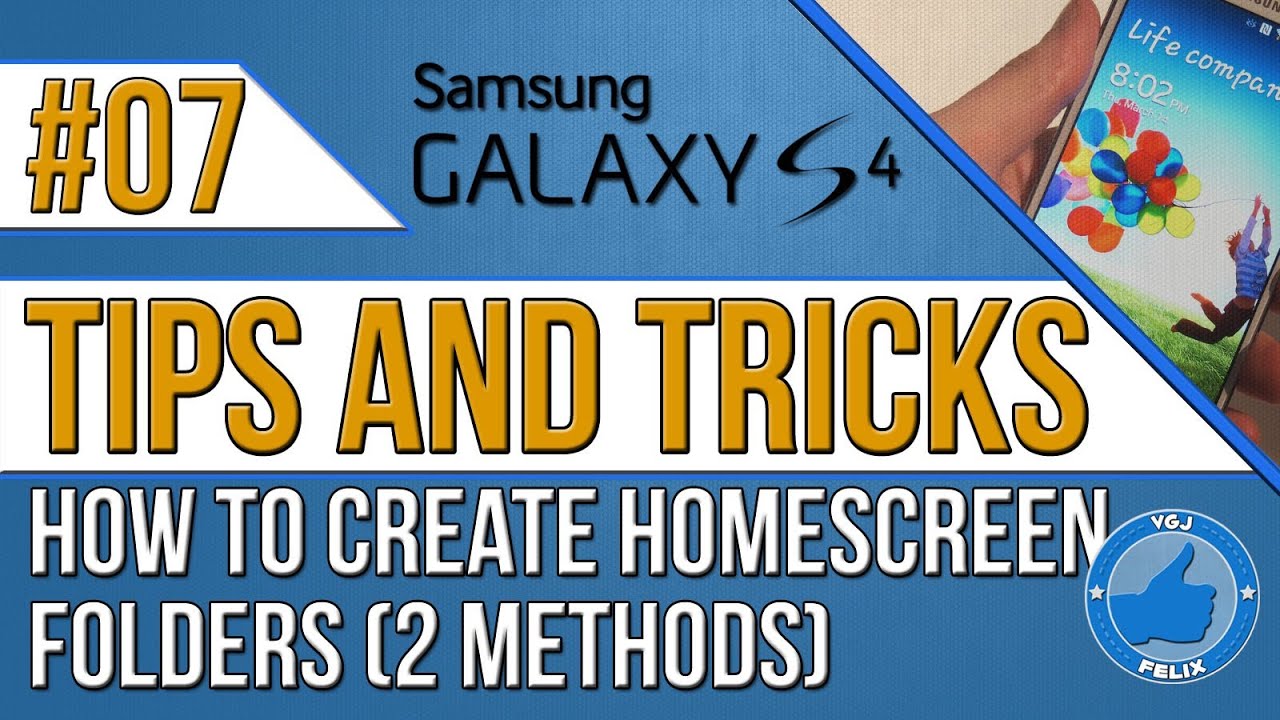
Samsung Galaxy S4 Tips and Tricks #7: How to Create Folders
Автор: Video Gadgets Journal (VGJFelix)
Загружено: 2013-07-23
Просмотров: 4289
Описание:
For more Samsung Galaxy S4 Tips and Tricks, check out the full playlist: http://tinyurl.com/kj97qm9
You will soon find that your homescreen fills up with applications as you download apps for the Googleplay Market Store. Thankfully you can sort these into folders so you can better manage them and here's how to do it with Samsung Galaxy S4 default software.
If you long press on one of the applications you can pick it up and move it about the screen. If you drag it over another application it will simply push it to one side. At the moment these are all individual icons. If you long press on an empty part of the screen you get a few options and one of these is to create a folder. If you press on that and name the folder you will create a blank folder with no applications in it like this.
Now I have a folder in the top left hand corner of the homescreen called social and all I need to do to put applications into that folder is long press on an application icon to pick it up, drag it into that folder and then drop it on top. In this example I have dragged two of my Facebook Applications and a twitter app into the social folder.
Another way to create a folder is to long press on an application and drag it to the top left hand corner of the homescreen where there will be a create folder option. So now I have created an email folder. And just like applications you can long press on the folder to move it around the screen.
You can access the folder by simply tapping on it and then if you want to remove applications, again long press on the icon you want to pick up and then drag it outside of the folder. So now I have removed the twitter application from the folder, I will continue to remove applications which will leave me with a blank social folder once again.
That's how to create and manage folders using the default Samsung software, but many of you will download different launchers and the more common way to create folders is to simply long press on an application and then drop it on another application which will automatically create a folder -- like this demonstration in the Nova launcher. When I dropped an application on top of another it automatically created a folder. When I dragged the application out of the folder it automatically disbands as demonstrated.
And finally, if you try to drag a folder on top of another folder you'll simply move them out of the way.
/ vgjfelix
/ vgjfelix
/ vgjfelix
https://plus.google.com/u/0/102060949...
Nexus 7 Full Review: • Видео
Asus Transformer Prime Full Review: • ASUS Transformer Prime: The Full Review
Surface RT Full Review: • Microsoft Surface RT - The Full Review
VGJFelix Video App: http://tinyurl.com/bn5rfd3
Useful playlists:
All iPad videos: • iPad
All Surface RT videos: • Surface RT Videos
All my Nexus 7 videos: • Google Nexus 7
All my Asus Transformer Prime videos: • 163 Asus Transformer Prime Videos and We'r...
:)
Повторяем попытку...
Доступные форматы для скачивания:
Скачать видео
-
Информация по загрузке:







![Galaxy S9 Tips, Tricks, Features and Secrets - The Ultimate Guide [200 Tips]](https://image.4k-video.ru/id-video/tHWz1xgCmDQ)


