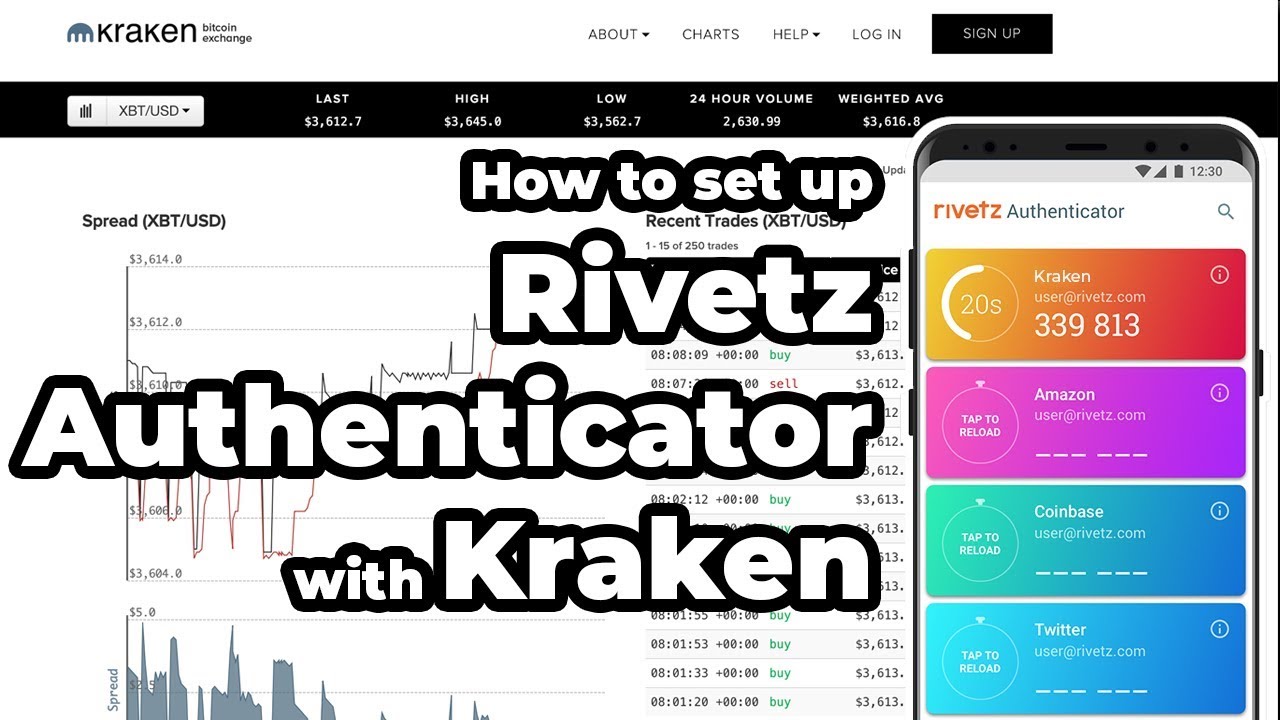
How to set up Kraken 2FA with Rivetz Authenticator
Автор: Rivetz Corp.
Загружено: 2019-01-22
Просмотров: 631
Описание:
This video shows how to pair Two-Factor Authentication using Rivetz and Kraken crypto currency exchange.
Rivetz Authenticator creates Two-Factor Authentication codes for your important accounts and backs them up so you won’t get locked out.
Enhanced Security
Generates codes in the Trusted Execution Environment -- like a smart chip in your mobile device
Monitors the state of your mobile device and disables code generation when it changes
Displays codes in the Trusted User Interface -- a shield against spyware*
Functions completely offline, within your device -- we never see your keys, codes, or even backups
User-controlled Encrypted Backup
Backs up all your services to an encrypted file that you control
Secures your backup with a 12 or 24-word Recovery Phrase
Restores services to new or additional devices effortlessly
Rivetz performs Device State checks for changes to your hardware or operating system before displaying your 2FA codes. Rivetz Authenticator creates encrypted backups, allowing you to recover your accounts if your device is lost, stolen, or otherwise unusable, like that time you dropped it in the toilet.
To install the Rivetz App and Rivetz Authenticator, please follow the instructions below:
Rivetz App
1. Open the Google Play Store app on your mobile device
2. Search for and install the Rivetz App
3. Open the Rivetz App and tap the left arrow near the top of the screen
4. Select “Activate Developer Tools” and tap “Accept”
5. Congratulations - you’re connected to the Rivetz Network
Authenticator
6. Open the Google Play Store app on your mobile device (you're here right now!)
7. Search for and install “Rivetz Authenticator”
8. Open Rivetz Authenticator and tap “Accept”
9. Agree to our Terms of Service and Privacy Policy
10. You’re good to go!
► Music Credit: Mt. Drei
Track Name: "Wednesday"
Music By: Mt. Drei @ / mtdrei
Original Upload HERE - / wednesday
Official Mt. Drei SoundCloud Page: / mtdrei
License for commercial use: Creative Commons Attribution 3.0 Unported (CC BY 3.0) https://creativecommons.org/licenses/...
Music promoted by NCM https://goo.gl/fh3rEJ
Disclaimer: The creative commons music featured in this video has been modified and adapted.
Повторяем попытку...
Доступные форматы для скачивания:
Скачать видео
-
Информация по загрузке: