How to Split Screen in Windows 11 (Side by Side & Multiple Windows)
Автор: FixLab
Загружено: 2026-11-14
Просмотров: 131
Описание:
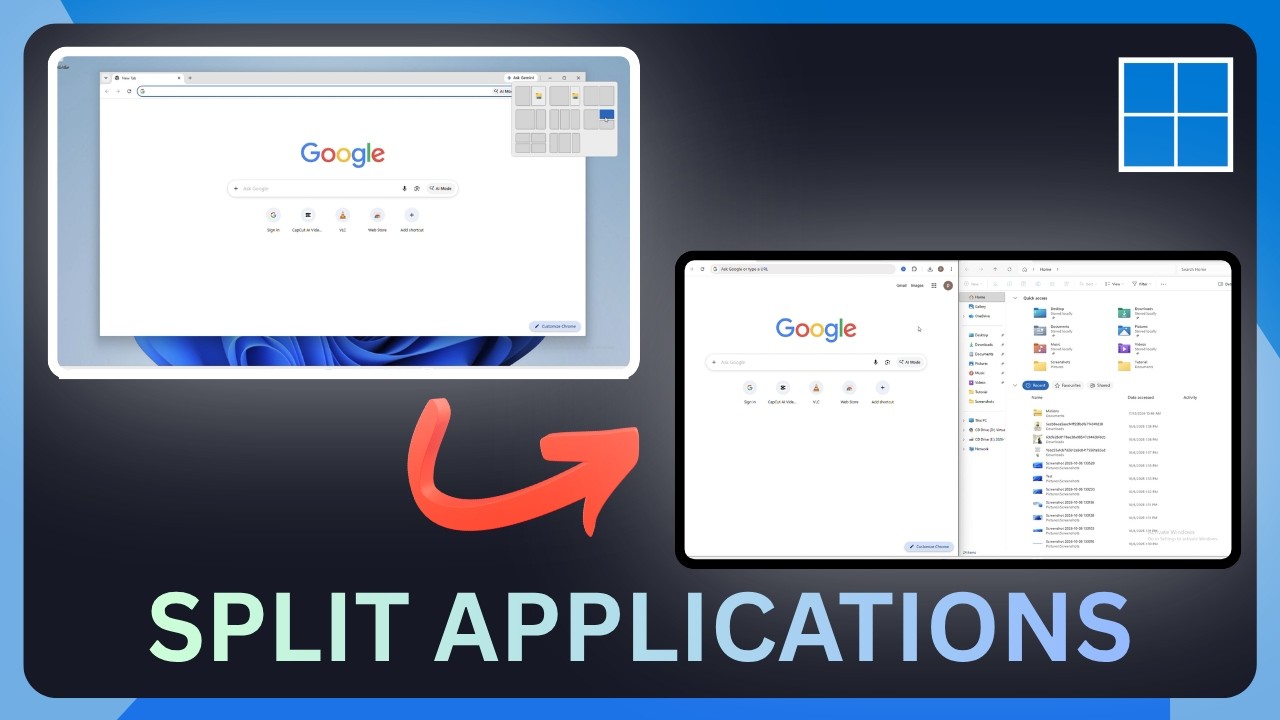
Learn how to split screen in Windows 11 and use two or more windows side by side! In this step-by-step tutorial, I'll show you how to use Snap Layouts and keyboard shortcuts to split your screen and multitask more efficiently.
If you want to have two windows open at the same time, Windows 11 makes it easy with its built-in Snap feature.
In this tutorial, you'll learn:
How to split your screen using Snap Layouts.
How to put two windows side by side.
How to use keyboard shortcuts to split your screen.
How to arrange multiple windows on your desktop.
How to resize your split-screen windows.
*Keyboard shortcuts used in this tutorial:*
Windows Key + Left Arrow – Snap a window to the left.
Windows Key + Right Arrow – Snap a window to the right.
Windows Key + Z – Open Snap Layouts.
Whether you want to multitask, compare documents, browse the internet while working, or use multiple applications at once, this Windows 11 split-screen tutorial will show you exactly how to do it.
If this tutorial helped you, don't forget to like the video and subscribe to FixLab for more easy-to-follow Windows 11 tutorials, computer tips, and technology how-to guides.
#Windows11 #SplitScreen #Windows11Tutorial
Повторяем попытку...
Доступные форматы для скачивания:
Скачать видео
-
Информация по загрузке: