Panorama » Connecting to WiFi and Pairing the 20|20 to Panorama
Автор: Precision Planting Product Support
Загружено: 2024-02-22
Просмотров: 1221
Описание:
Panorama from Precision Planting allows you to easily view maps, input summaries, and agronomic data from a Gen 3 20|20 in the Panorama phone or web app. Once the devices are connected, data transfer happens automatically.
How to connect the DBM to WiFi using the Gen 3 20|20:
1. Choose “Setup” from the bottom right of the screen.
2. Select “Settings.”
3. Select “Panorama.”
4. Click the “Connected Network” box to choose your WifFi network and enter the password.
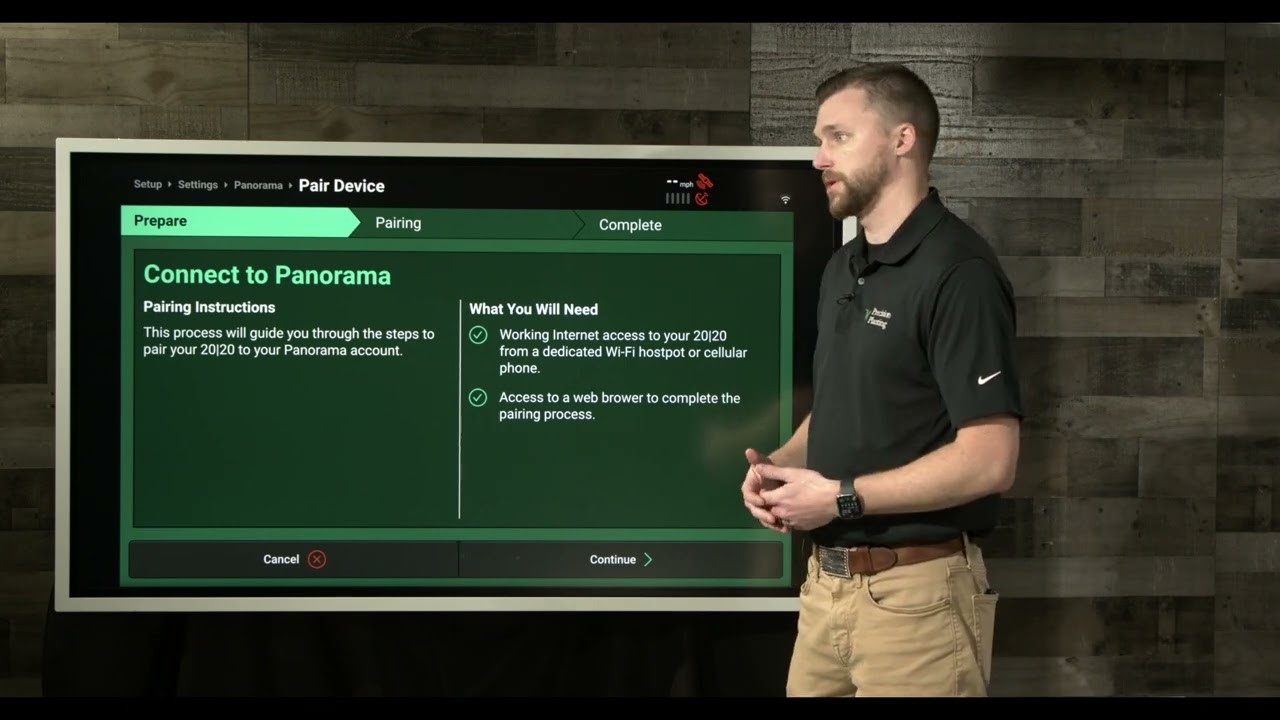
How to pair Panorama to a Gen 3 20|20:
1. Choose “Setup” from the bottom right of the screen.
2. Select “Settings.”
3. Select “Panorama.”
4. Select “Pair Device” at the bottom.
5. Read the instructions and click “Continue.”
6. Use the camera on your smartphone to take a picture of the QR code and open the link. Remember this pairing code.
7. The link should open to the Panorama website where you need to be logged into your account.
8. Choose “manage operations” at the top of the screen.
9. Select “Devices” from the panel on the left.
10. Enter the pairing code from the 20|20 and choose your operation.
11. Select “done.”
See all your 20|20 farming data on your phone, computer, or platform of your choice through the Panorama data analysis software.
🌱 Learn more about Panorama from Precision Planting here » https://www.precisionplanting.com/pro...
Повторяем попытку...
Доступные форматы для скачивания:
Скачать видео
-
Информация по загрузке: