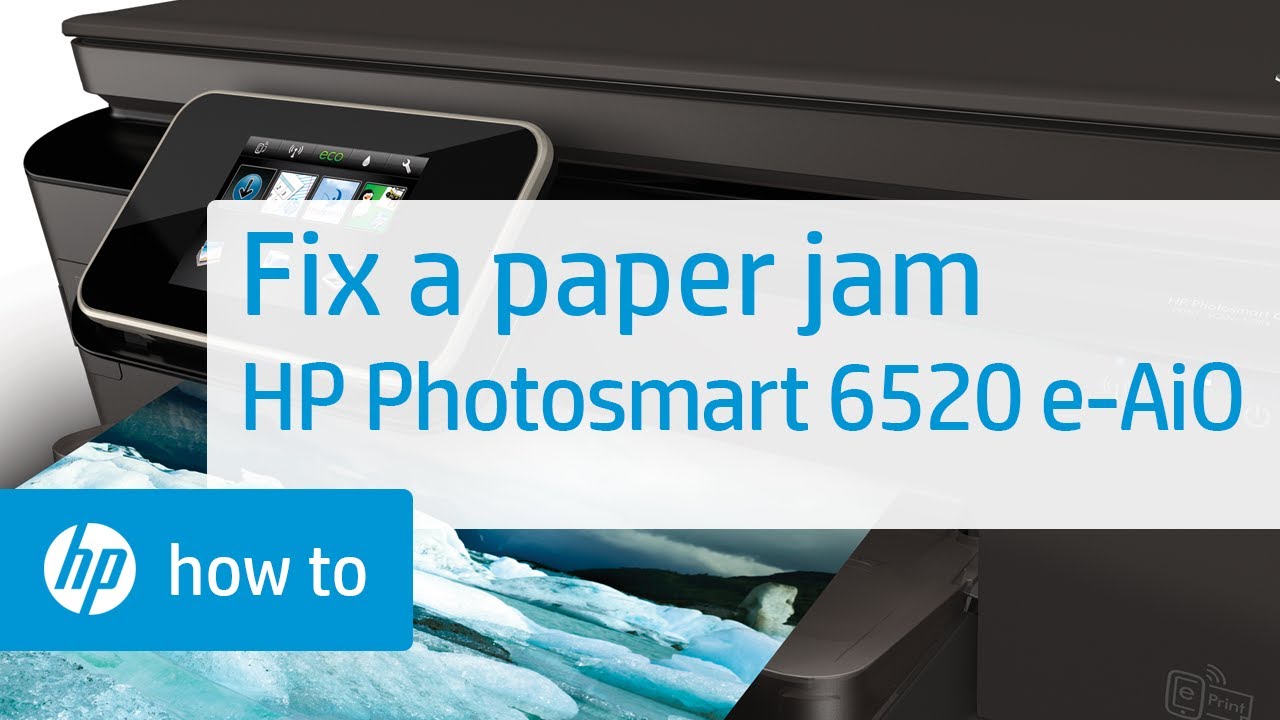
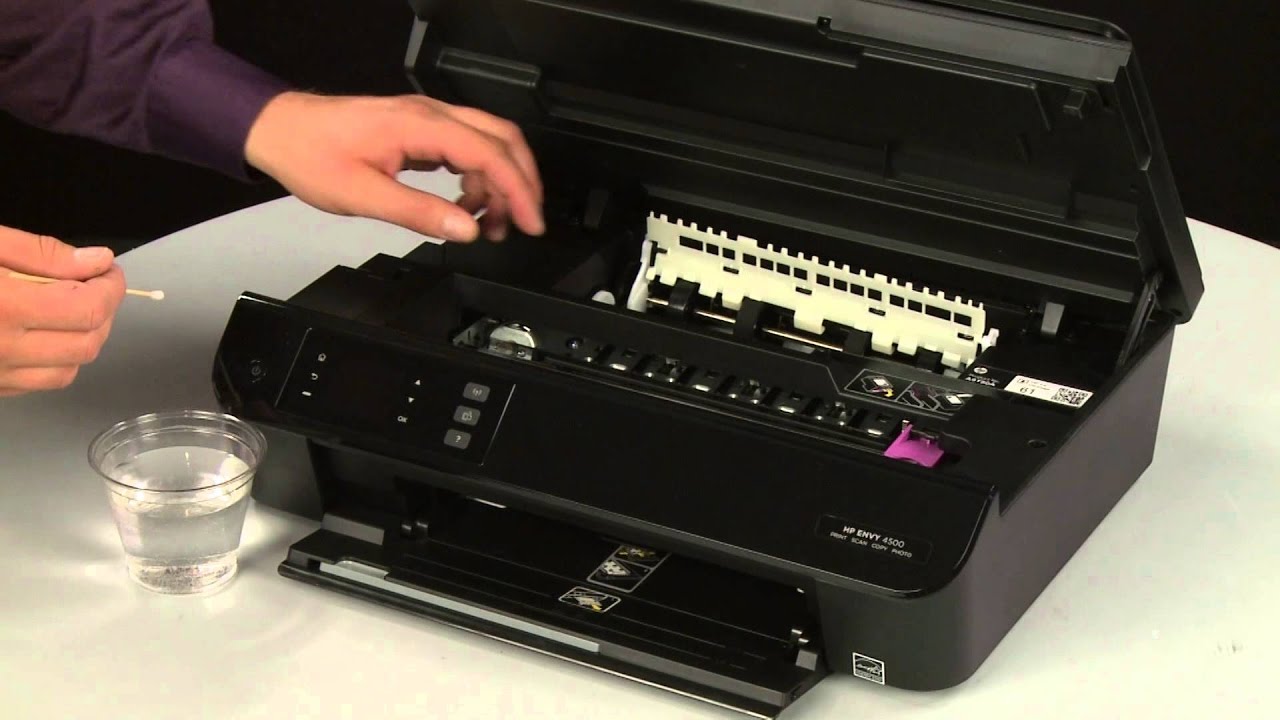
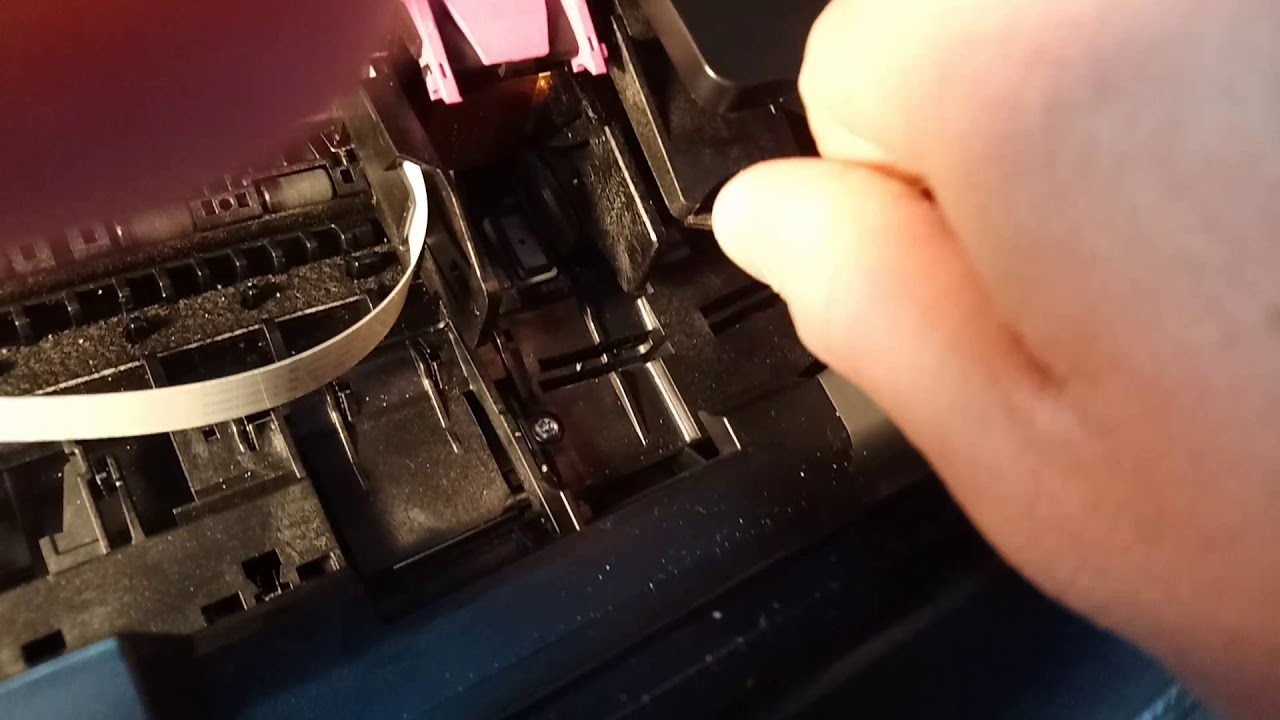
Fixing a Carriage Jam | HP Photosmart 6520 e-All-in-One Printer | HP
Автор: HP Support
Загружено: 2013-06-21
Просмотров: 132477
Описание:
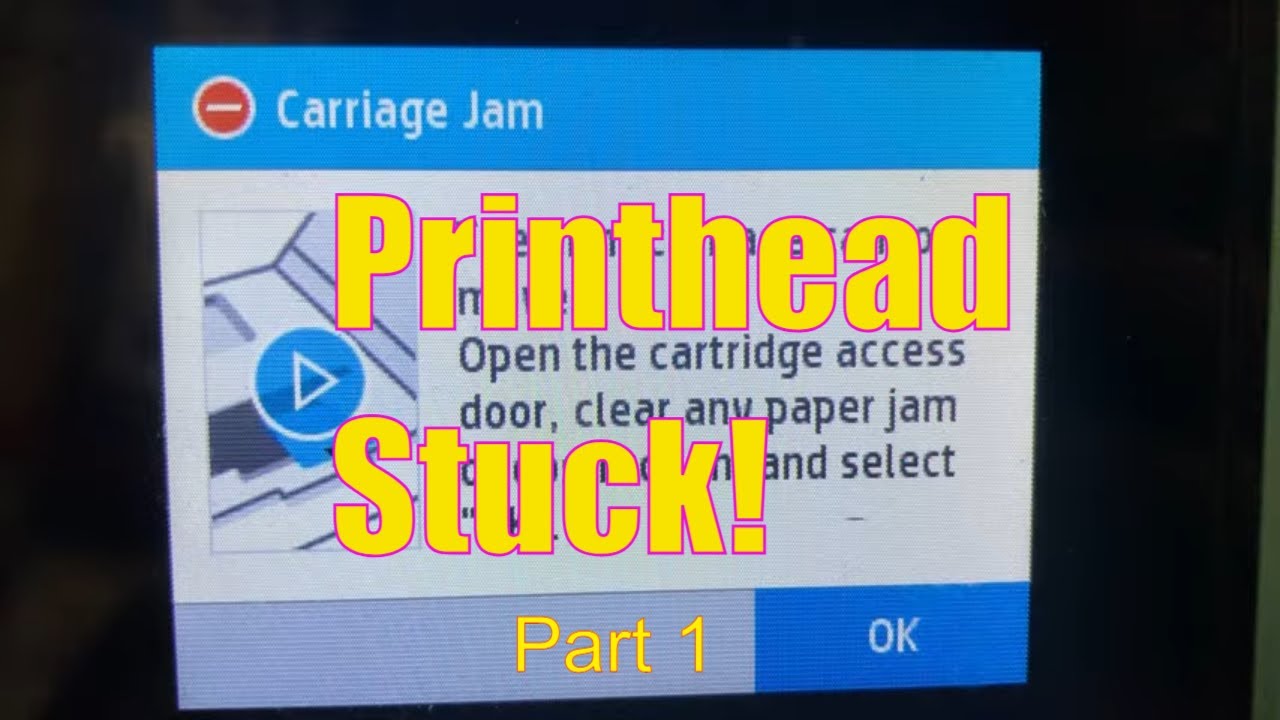
Learn how to fix your HP printer when the ink carriage jams and a Carriage Jam error message displays on the printer's control panel or on your computer.
Chapters:
00:00 Introduction
00:14 Reset the printer
02:05 Clear any paper jams
06:52 Make sure the carriage can move freely
10:00 Make sure cartridges are properly vented and seated
12:29 Plug the printer directly into a wall outlet
13:53 Service the printer
The steps shown also apply to the HP Deskjet Ink Advantage 6525 e-All-in-One Printer and the HP Photosmart 6525 e-All-in-One Printer.
More support options for your HP device are available at http://hp.com/support.
Continue the Conversation:
http://hp.care/SupportForums
http://hp.care/FacebookSupport
http://hp.care/TwitterSupport
#HP #HPSupport #HPPhotosmart6520e-All-in-OnePrinter
SUBSCRIBE: / hpsupport
SHOP NOW: http://store.hp.com/us/en/
About HP:
HP Inc. creates technology that makes life better for everyone everywhere – every person, every organization, and every community around the globe. Through our portfolio of printers, PCs, mobile devices, solutions, and services, we engineer experiences that amaze.
Connect with HP:
Visit HP WEBSITE: http://www.hp.com
Like HP on FACEBOOK: / hp
Follow HP on TWITTER: / hp
Follow HP on INSTAGRAM: / hp
Follow HP on LINKEDIN: / hp
This video was produced by HP.
Fixing a Carriage Jam | HP Photosmart 6520 e-All-in-One Printer | HP
Повторяем попытку...
Доступные форматы для скачивания:
Скачать видео
-
Информация по загрузке: