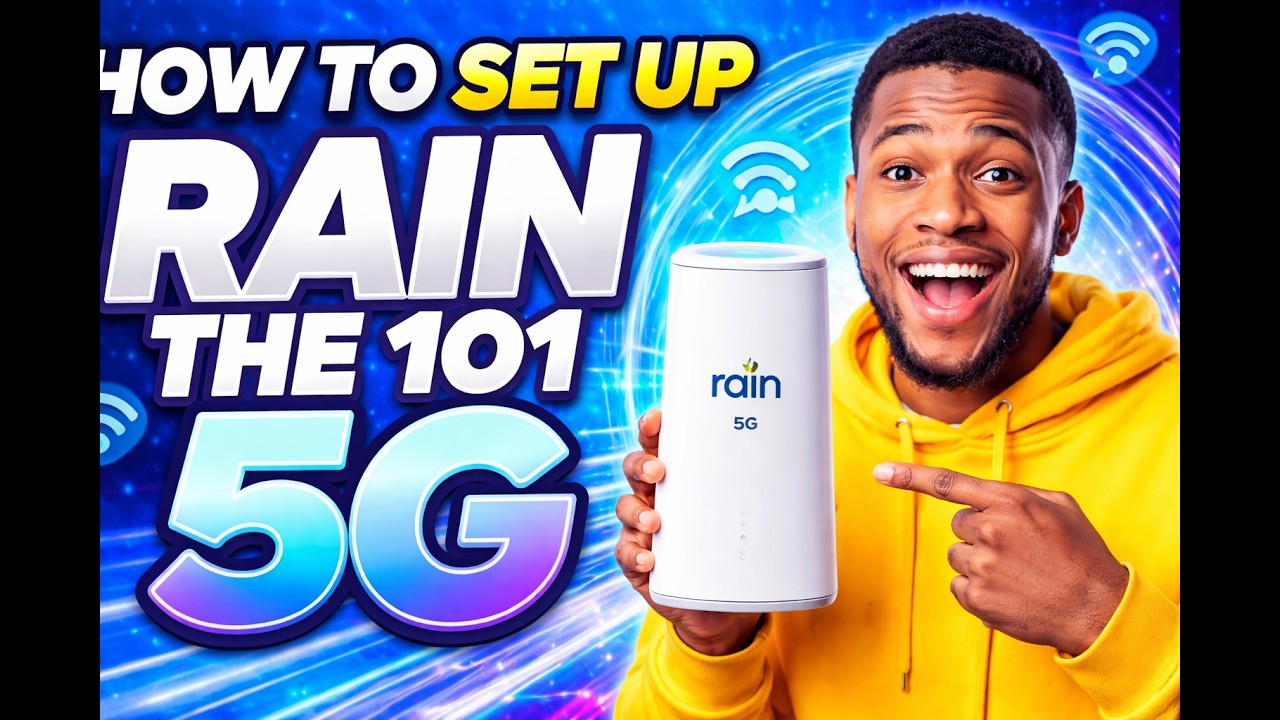
How to set up Rain the 101 5G
Автор: Lom Media
Загружено: 2026-01-11
Просмотров: 3838
Описание:
Here’s how to set up your Rain the 101 5G (a 5G smart Wi-Fi home router included with a rainOne plan) so you can get online:
📦 What You’ll Need
Your Rain the 101 5G router (comes with a built-in Rain 5G SIM).
Power cable and any antennas included in the box.
A phone, tablet, or laptop to connect to Wi-Fi.
A rainOne plan activated and in range of 5G home coverage. Check coverage first on rain’s website.
🔌 Step-by-Step Setup
1. Open the Box & Position the Router
Unbox the Rain the 101 5G unit.
Attach any external antennas if they came with the unit.
Place the router in a spot with good signal — ideally near a window facing outdoors (5G signals travel best with fewer obstructions).
2. Power It Up
Plug the router into power using the provided adapter.
Turn it on (if there’s a power button).
Wait a few minutes for it to boot and connect to the Rain 5G network using its built-in SIM.
3. Connect a Device
On your phone or laptop, open Wi-Fi settings.
Find the Wi-Fi SSID (network name) printed on the underside or back of your router.
Enter the Wi-Fi password (also on the label).
You should now be connected to the router.
4. Access the Router Settings (Optional)
If you want to change your network name, password, or other settings:
Open a web browser on a connected device.
Go to the router’s admin page — usually an address like 192.168.1.1 (check your manual).
Log in with the default username/password (often printed on the router).
Update your SSID/password under Wireless settings.
You can also change advanced settings like Wi-Fi channels or guest networks here if needed.
5. Optimize for Best Signal
Use the signal strength indicator on the router’s touch display (if it has one) to find the best spot in your home.
Try placing the router higher up and clear of large metal objects.
🧠 Tips
5G coverage varies by location — if you don’t see 5G speeds, it may be due to weak signal or limited coverage in your area.
If you have weak coverage, place the router near a window facing the nearest cell tower direction.
If the router doesn’t connect automatically to internet after powering up, check your rainOne plan status in the MyRain app or customer portal.
Повторяем попытку...
Доступные форматы для скачивания:
Скачать видео
-
Информация по загрузке: