How To Change Your Discord Activity Status
Автор: Champ Picks
Загружено: 2025-09-14
Просмотров: 327
Описание:
How To Change Your Discord Activity Status
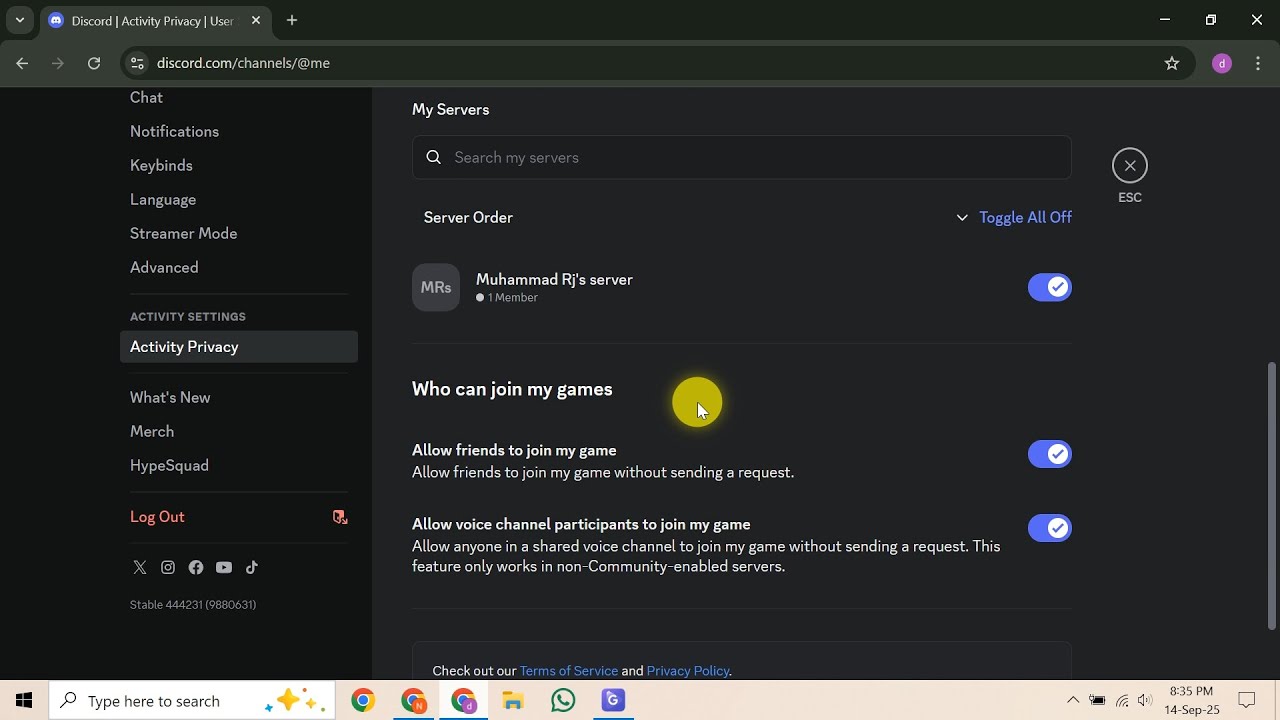
Looking for How To Change Your Discord Activity Status? In this video, we'll guide you through mastering your Discord online presence, ensuring you can quickly adjust how you appear to others. Discover the straightforward steps to customize your status, whether you're signaling availability, focusing on a game, or browsing privately without interruption. We start by showing you exactly how to change your basic online status on Discord, covering essential options like Online, Idle, Do Not Disturb, and Invisible. You’ll learn to navigate to your profile avatar in the lower-left corner of your desktop or web app, clicking it to reveal these choices and selecting the one that best suits your current vibe. Next, we dive into how to set a custom status on Discord, allowing for highly personalized messages and fun emojis. This section details accessing the "Add Status" or "Set a custom status" option from that same pop-up menu, where you can easily type your desired message and choose its duration – from preset times to "until I clear it" – giving you full control over how your unique status is displayed. Finally, we tackle the all-important "Activity Status," which automatically broadcasts what game or application you’re currently using. We'll walk you through accessing User Settings by clicking the gear icon, specifically navigating to "Activity Settings" and then "Activity Privacy," to enable the crucial "Display current activity as a status message" toggle. This ensures Discord effectively detects and proudly displays your current application or game. We also cover what to do if a specific game isn't automatically detected, guiding you on how to manually add it under "Registered Games." By the end of this comprehensive tutorial, you'll be a master at managing your Discord presence, able to effectively communicate your availability and activities. Learn to easily update your status on Discord and make the most of your online interactions.
#DiscordStatus #ChangeDiscordStatus #DiscordTutorial #DiscordOnlinePresence #CustomDiscordStatus
Повторяем попытку...
Доступные форматы для скачивания:
Скачать видео
-
Информация по загрузке: