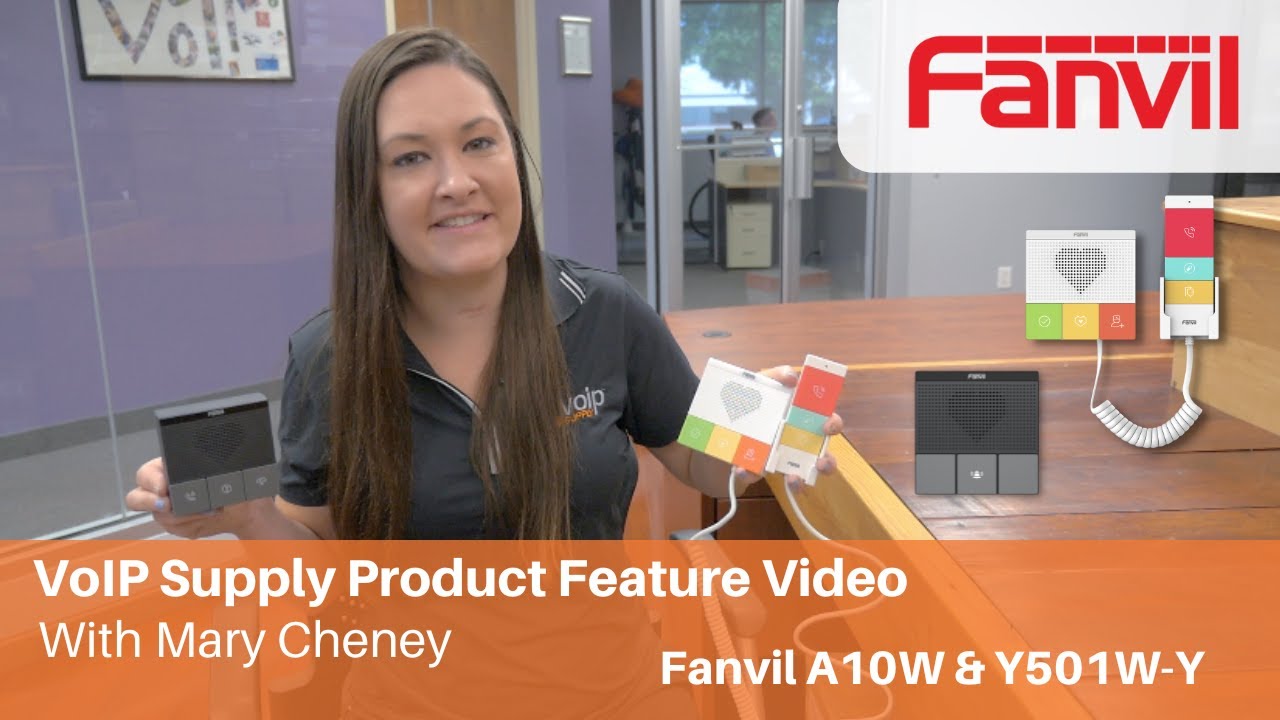
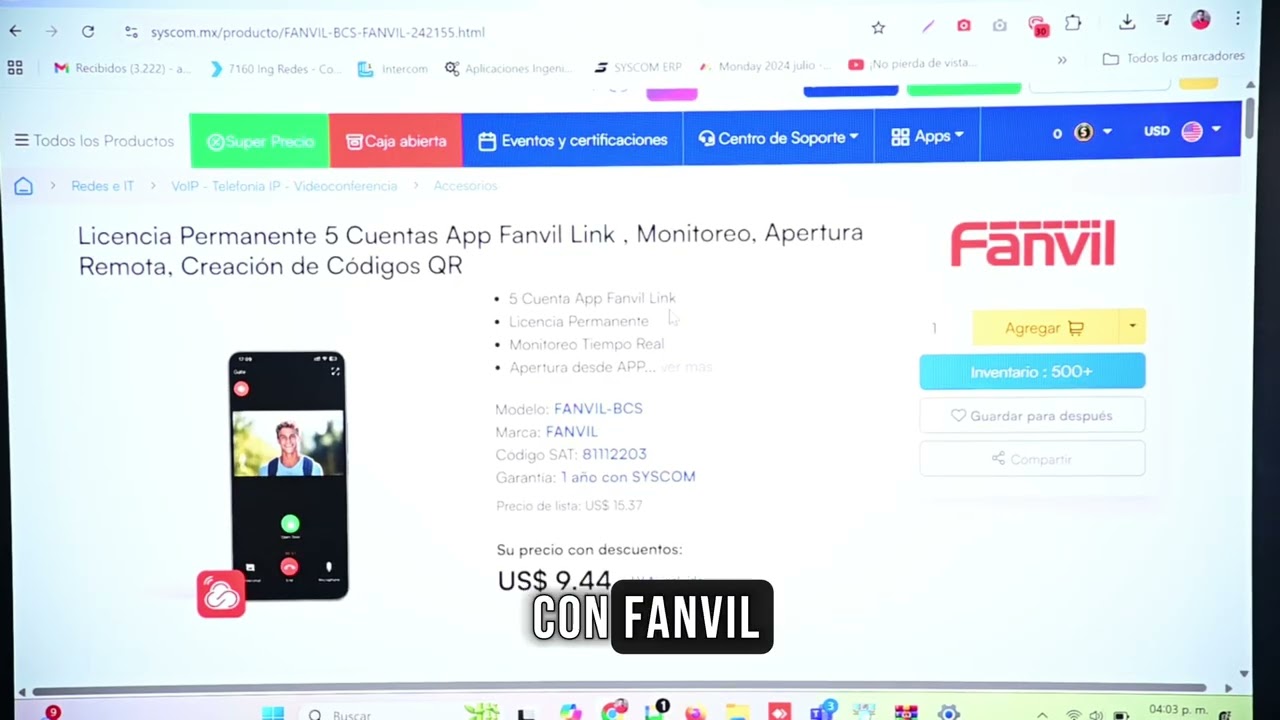
Fanvil Link Mobile Phone Application Demo FCMS | VoIP Supply
Автор: VoIP Supply
Загружено: 2025-01-16
Просмотров: 1577
Описание:
We have everything you need for VoIP!
https://www.voipsupply.com/?utm_sourc...
Learn about Favil FCMS here:
https://www.voipsupply.com/manufactur...
We are an Authorized Distributor of Fanvil! Become a reseller through VoIP Supply today!
https://www.voipsupply.com/fanvil-res...
See ALL Fanvil Products here:
https://www.voipsupply.com/manufactur...
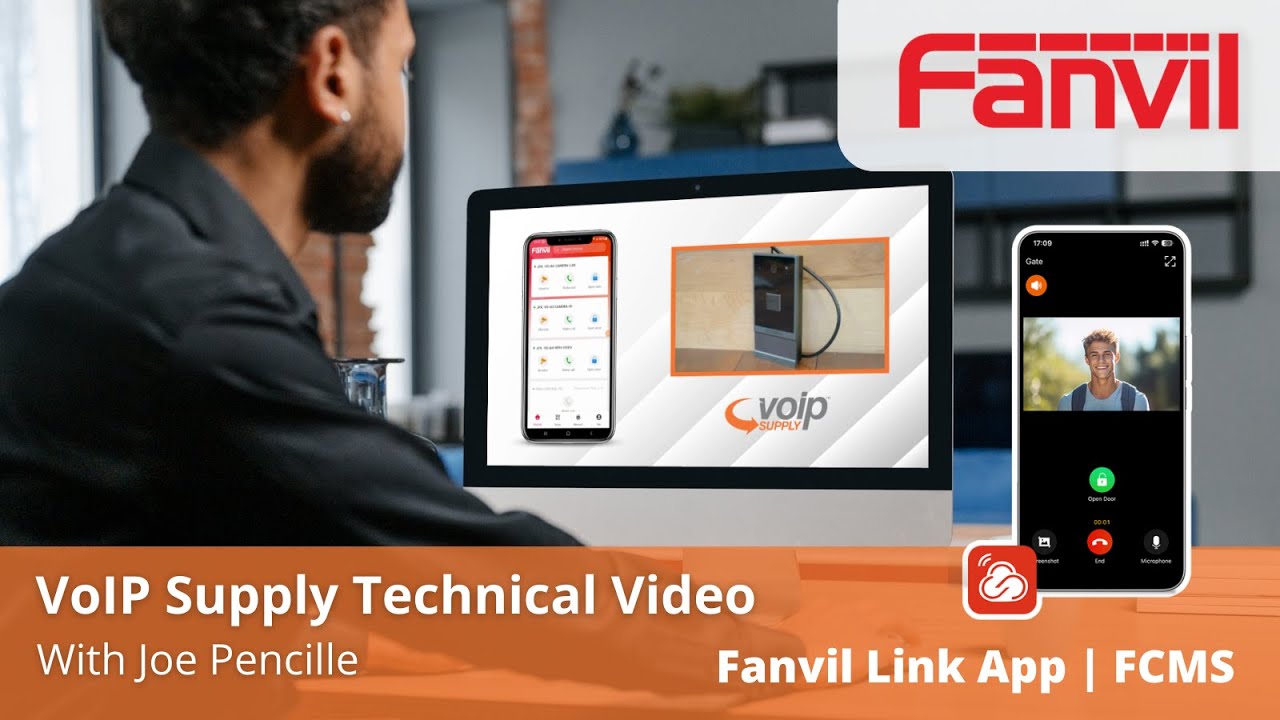
The next generation of IP device monitoring is here with the Fanvil Link Mobile Application! Now, you can monitor, control and interact with your fanvil devices on the go from your mobile phone! How does it work? Tune in and get an in-depth walkthrough of this exciting new addition to the Fanvil portfolio!
Joe:
Hi, this is Joe, senior voice-over IP engineer for VoIP Supply. Today I'm going to show you how to add a device to the Fanvil Mobile Link application. I'm going to go ahead and show you how to first log into the application. You're going to create a user on the Fanvil Cloud Management System first through the PC or Mac. Once you have the user added, go ahead and log into the application. Make sure you agree with the user license each time. And once you're logged in, you can see the devices that I've added. For demonstration purposes, we're going to work with the Fanvil i62 video door phone, and you're able to monitor the device, make a call to the device, and interact with the two relays that the device has physically installed.
I'm going to show you on the Fanvil i62. You can click on monitor. And as you can see, this shows the front of VoIP Supply in the lab. You can take a screenshot once you interact with the door application. You can open the door, relay one, and then relay two. Now also with the application, you're able to make a call to the device. Hi, this is Joe.
Speaker 2:
Hi, this is Joe.
Joe:
Looking further into the application, you can add keys. Click on add. You're going to name the key. This is for VoIP Supply access, and I want to customize how many times I actually am able to interact. You're going to choose the device, check the box, and press okay. Click on the device, and then you can set the reputation period for this purpose daily. And then you can put a start date and an end date. And this gives you access or denial basically to interact with the door.
Moving on, you can also show the records, of the interaction that was done with a device. You can see that I was able to interact with the camera through the application. Here you can see the calls that I made to the device. Next over on me, this shows the account information that I created through the Fanvil Cloud Mobile Management system. Shows my ID, shows my mobile number. Now the message center is where you're able to see any updates or notifications that are coming directly from Fanvil. This shows that there is a Fanvil Cloud Management System, maintenance notice. Authorization, this is where you can add a PIN code or the door password. Unlock the door.
Here's where you would add the card. You're going to name the card. Enter the card number, whatever the card number or the fob might be. Save that, and then select the device. For this purpose, I'll just say all three of them, confirm. And then it adds all three devices. Some of the door stations have Bluetooth unlock, and then also there's facial recognition that you can add. And then I was able to add my face. And then with the family management, you can add up to five sub-users off the main account. This is basically where you're going to make up their username and add their email address, it has to be a valid email address, and then their actual mobile number. Because what'll happen is they'll send a message, SMS message to them, and then also it'll email them to activate with the QR code for the login.
Next, you have a notification center. Now these are the application notifications, so this actually goes into your phone, internal settings. So just make sure that if you do want to receive notifications that is enabled and active. Help and feedback, this is if you want to read about any of the knowledge base articles and any common questions that they might ask. And they have the answers right there for you. And then you can also submit your own feedback to them. Terms and policies, that's very self-explanatory. And then you have about the application. Currently, I'm running version 1.1.5. The application is up-to-date. And I'm going to go ahead and log out of the device.
#VoIP #Telecom #mobileapp
@FanvilOfficial
Follow us on Social Media!
VoIP Supply LinkedIn / voip-supply
VoIP Supply Facebook / voipsupply
VoIP Supply X https://x.com/voipsupply
Повторяем попытку...
Доступные форматы для скачивания:
Скачать видео
-
Информация по загрузке: