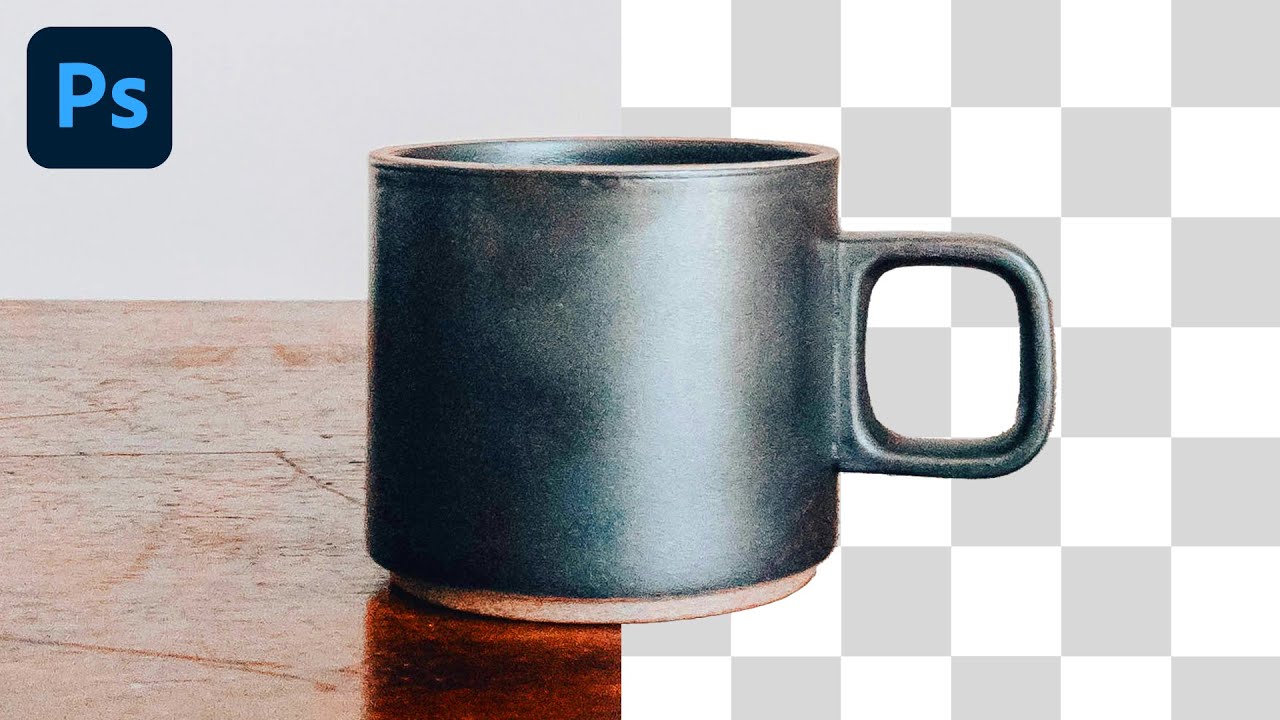
3 Ways to create a one color image | PhotoShop Tutorial
Автор: Kelly Barkhurst: DesignerToFullstack
Загружено: 2023-01-24
Просмотров: 12719
Описание:
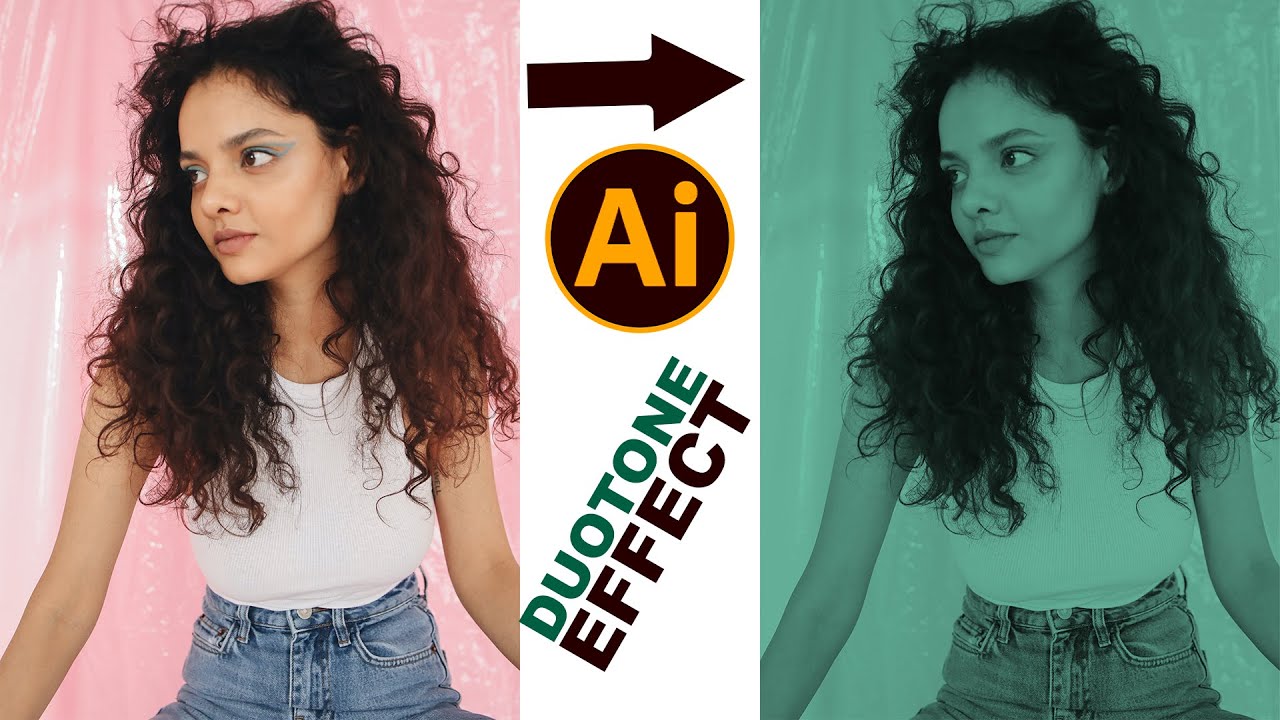
*Want to easily add a single color to your photos in Adobe Photoshop? * In this tutorial, I’ll show you three professional techniques to colorize images, whether you’re working with brand colors or just experimenting with creative looks. We’ll be using a WVU stock image in blue and gold as an example, but these methods work for any image or color.
*Techniques covered: *
-- Turn your image into Black & White and use Tint
-- Convert to Grayscale and use Monotone/Duotone
-- Use a Solid Color Layer with your desaturated image above it, and adjust Luminosity, Opacity, and Brightness/Contrast
*Timestamps: *
0:00 – Intro & Overview
0:01 – Unlocking the Image for Editing
0:01 – One Color Image Technique 1: Black & White + Tint (#eaa00 for WVU Gold)
0:00:41 – Adjusting Saturation & Finishing Technique 1
0:00:54 – One Color Image Technique 2: Desaturate + Grayscale + Duotone
0:01:28 – Adjusting Levels & Monotone Color for Technique 2
0:01:55 – One Color Image Technique 3: Solid Color Layer + Luminosity Blend
0:02:41 – Adjusting Opacity, Brightness & Contrast for Technique 3
0:03:07 – Wrap Up & Summary
-----
This video shows three techniques to easily colorize an image in Adobe Photoshop:
1) Turn your image into a Black and White image and use Tint
2) Grayscale your image and use Monotone or Duotone
3) Create a solid color layer and place the image above it; adjust with luminosity layer blending and opacity/brightness/contrast.
Details about Option 1
If necessary, unlock your image. Then go to Image - Adjustments - Black and White. Check the box for Tint. Click the Swatch square to the right of the checkbox and select your color. In this same module, you can adjust your saturation, too. Click “Okay” to finish.
Details about Option 2
Image - Adjustments - Desaturate. Then change the color mode to grayscale. Now can you choose Duotone, so go back to Image - Color Mode and select Duotone. In the Duotone modal box, you can change your color selections and make your image a single color (monotone). You can change the lightness by adjusting Levels or other settings.
Details about Option 3
In this technique, you will make a solid fill color layer. You will place your image, desaturated, above the fill color in your layers. Change the blend mode of your image to “Luminosity” and then adjust the opacity of the layer. You can also adjust your Brightness and Contrast of the image layer.
--------
Read more about these techniques on the blog:
https://designertofullstack.com/ways-...
#photoshoptutorial #graphicdesigner #graphicdesigntutorial
Повторяем попытку...

Доступные форматы для скачивания:
Скачать видео
-
Информация по загрузке: