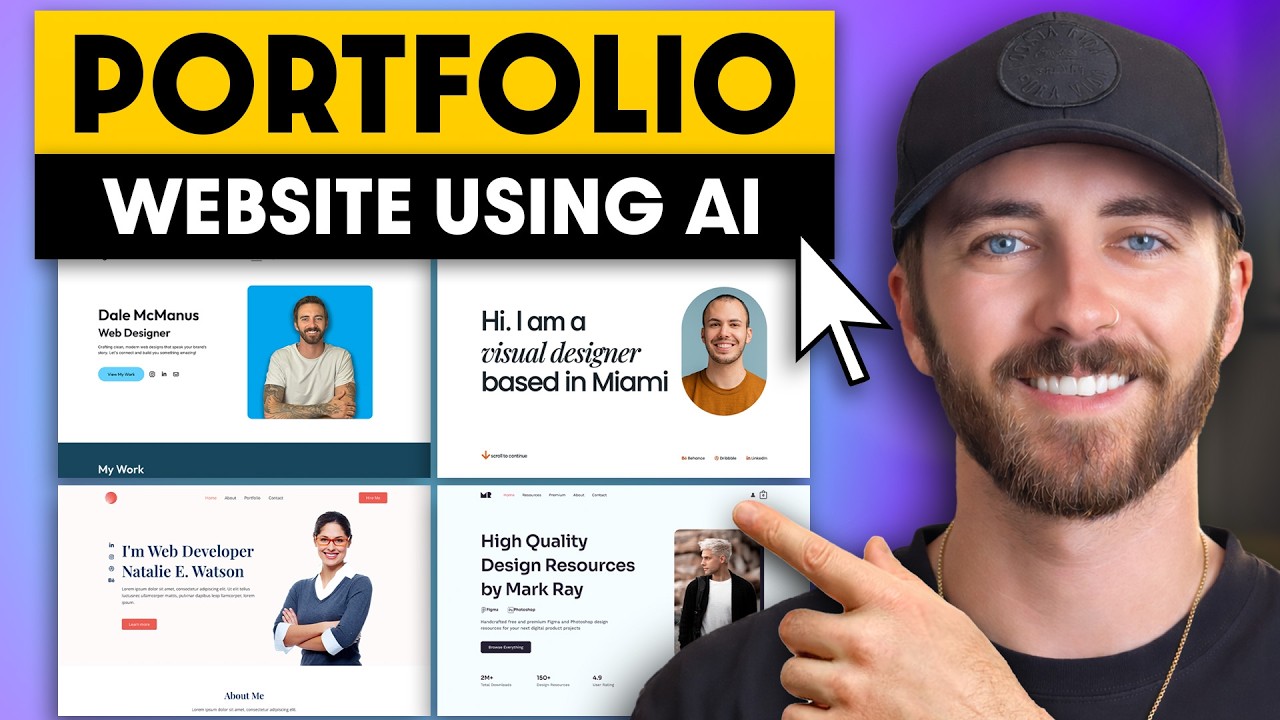
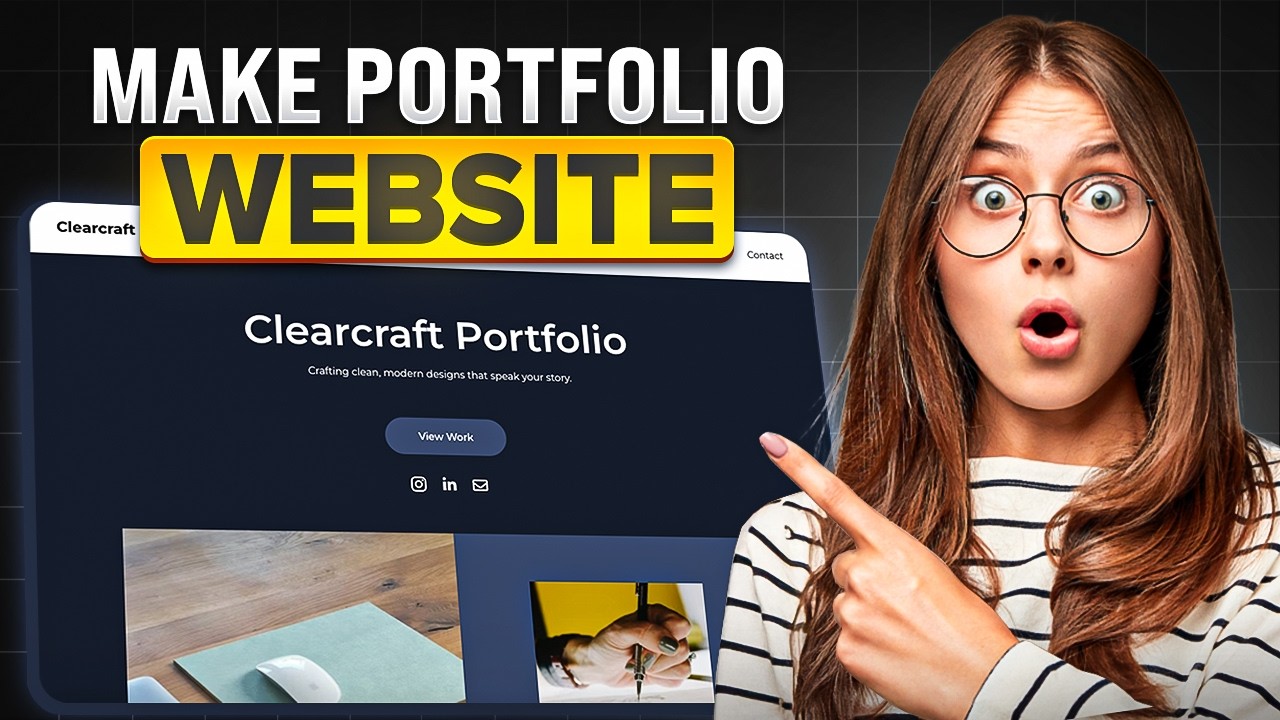
How To Make a Portfolio Website Using AI (2026) 🔥 Step-by-Step
Автор: WP Cupid Blog - WordPress Tutorials
Загружено: 2026-02-17
Просмотров: 94
Описание:
How To Make a Portfolio Website Using AI (2026) Step-by-Step
Link to Hostinger: https://wpcupidblog.com/go/hostinger Coupon Code: WPCUPID
Disclosure: We receive a commission from Hostinger if you use our link, which adds ZERO cost to you and can only SAVE you money.
In this complete tutorial, I show you how to create a professional portfolio website using Hostinger’s AI Website Builder — without coding, without WordPress setup, and without hiring a designer.
By the end of this video, you’ll have:
• Hosting set up
• A free domain connected (on annual plans)
• An AI-generated portfolio website created in minutes
• Your site customized using simple drag-and-drop editing
• And your portfolio is published live on the internet
This method is perfect for freelancers, designers, photographers, developers, creatives, and anyone who wants a clean, modern portfolio website built fast.
What You’ll Learn in This Video:
• How to choose the right Hostinger plan
• How to apply the coupon code for the biggest discount
• How to register your free domain
• How to use the AI Website Builder
• How to generate a portfolio site automatically
• How to customize text, images, sections, and layout
• How to edit header, footer, and contact forms
• How to optimize your site for SEO
• How to publish your website live
Recommended Plan:
If you're just building a portfolio website, the Premium plan works great.
If you plan to sell services or accept payments, the Business plan is the better choice.
If this tutorial helped you, make sure to like the video and subscribe for more step-by-step website tutorials.
Thanks for watching!
Get the Biggest Hostinger Discount.
👉 Exclusive Hostinger Discount Link:
https://wpcupidblog.com/go/hostinger
👉 Use This Hostinger Coupon Code at Checkout: WPCUPID
You’ll get up to 85% off hosting PLUS an additional 10% off with the coupon code.
Chapters:
00:00 Introduction
00:44 Get the Hostinger Discount
01:02 Portfolio Website Preview
01:37 Hostinger Plans Explained (Premium vs Business vs Cloud)
03:51 Apply Coupon Code & Choose Billing Term
04:20 Choose & Register Your Domain
04:59 Complete Checkout & Access Dashboard
05:33 Create a Website in Hostinger
06:11 Choose Website Builder (Not WordPress)
06:26 Connect Domain or Use Temporary Domain
06:53 Let AI Generate Your Portfolio Website
08:51 AI Website Preview & Version History
09:34 Enter Website Builder Editor
10:18 Customize Text & Headline
11:14 Replace Images with Your Portfolio Work
12:02 Edit Sections & Layout
12:46 Add & Drag Elements
13:08 Customize Buttons
13:43 Add New Sections (Projects, Testimonials, CTA)
14:08 Edit Contact Form
14:46 Customize Header, Logo & Footer
16:04 Preview & Publish Your Website
16:23 Global Styles (Fonts & Colors)
16:40 Manage Pages & Navigation
17:09 SEO Settings & Optimization
17:31 Advanced Settings & Integrations
18:03 Final Result & Outro
Subscribe To Our Channel: / @wpcupidblog
Let's Stay Connected
X: https://x.com/wpcupid
Facebook: / wp-cupid-644671312372625
Business Inquiries: [email protected]
Music Used In Video:
This Feeling - Atch / atch-music
Creative Commons — Attribution 3.0 Unported — CC BY 3.0
Free Download / Stream: https://bit.ly/atch-this-feeling
Music promoted by Audio Library • This Feeling – Atch (No Copyright Music)
Check out our website for more web hosting tutorials:
https://wpcupidblog.com/
#portfoliowebsite #aiwebsitebuilder #hostinger
Повторяем попытку...
Доступные форматы для скачивания:
Скачать видео
-
Информация по загрузке: