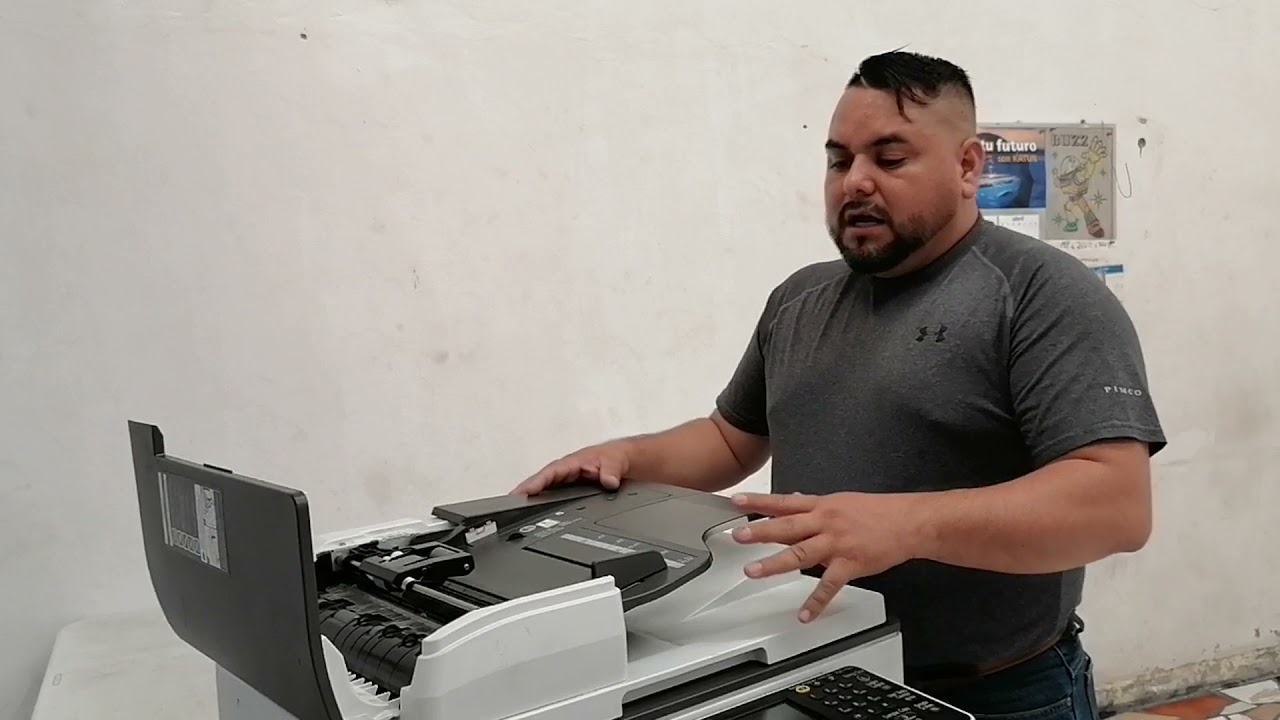
How to improve copy quality on Ricoh Aficio MP
Автор: Bassonia Tv
Загружено: 2022-04-07
Просмотров: 7717
Описание:
How to improve copy quality on Ricoh Aficio MP
How do I make my Ricoh printer print darker?
In the [Change User Settings] dialog box, on the [Misc.] tab, select the [Print as bitmap] check box. See Adjusting Print Quality. On the [Printer Configuration] tab, set [Adjust Color Density] to [Darker] or [Lighter], and then print.
How do I calibrate my Ricoh printer?
Auto Color Calibration
Press the [User Tools / Counter] key.
Press [Maintenance].
Press [Auto Color Calibration].
Press [Start]. ...
Press [Start Printing] and a test pattern is printed. ...
Place the test pattern on the exposure glass and press [Start Scanning].
How do you print in color on Ricoh?
Image result
Ricoh
At the Windows Manage your device screen, click Printer properties.
Click Preferences.
From the Color Mode dropdown, choose either Color or Black and White.
Click OK to save.
To improve copy quality on a Ricoh Aficio MP multifunction printer, you can take several steps to optimize settings and perform maintenance. Here are some tips to enhance the copy quality:
Check Toner Levels:
Ensure that the toner cartridges have sufficient toner. Low toner levels can lead to faded or inconsistent copies.
Clean the Scanner Glass and Document Feeder:
Dust or dirt on the scanner glass or document feeder can affect the copy quality. Clean these areas with a soft, lint-free cloth.
Adjust Copy Settings:
Access the copy settings on the printer's control panel or through the print driver on your computer. Adjust the following settings as needed:
Image Quality: Increase the image quality or resolution for sharper copies.
Density: Adjust the copy density to make copies darker or lighter.
Paper Type: Select the appropriate paper type to optimize copy output.
Calibration:
Some Ricoh Aficio MP models have calibration or adjustment functions. Check the user manual for your specific model to see if calibration options are available.
Use Quality Paper:
Use high-quality paper that is recommended for your printer. Inferior paper may cause copy issues, such as smudging or poor image quality.
Check for Firmware Updates:
Periodically check for firmware updates for your Ricoh Aficio MP model. Updating the firmware can improve overall performance, including copy quality.
Replace Consumables:
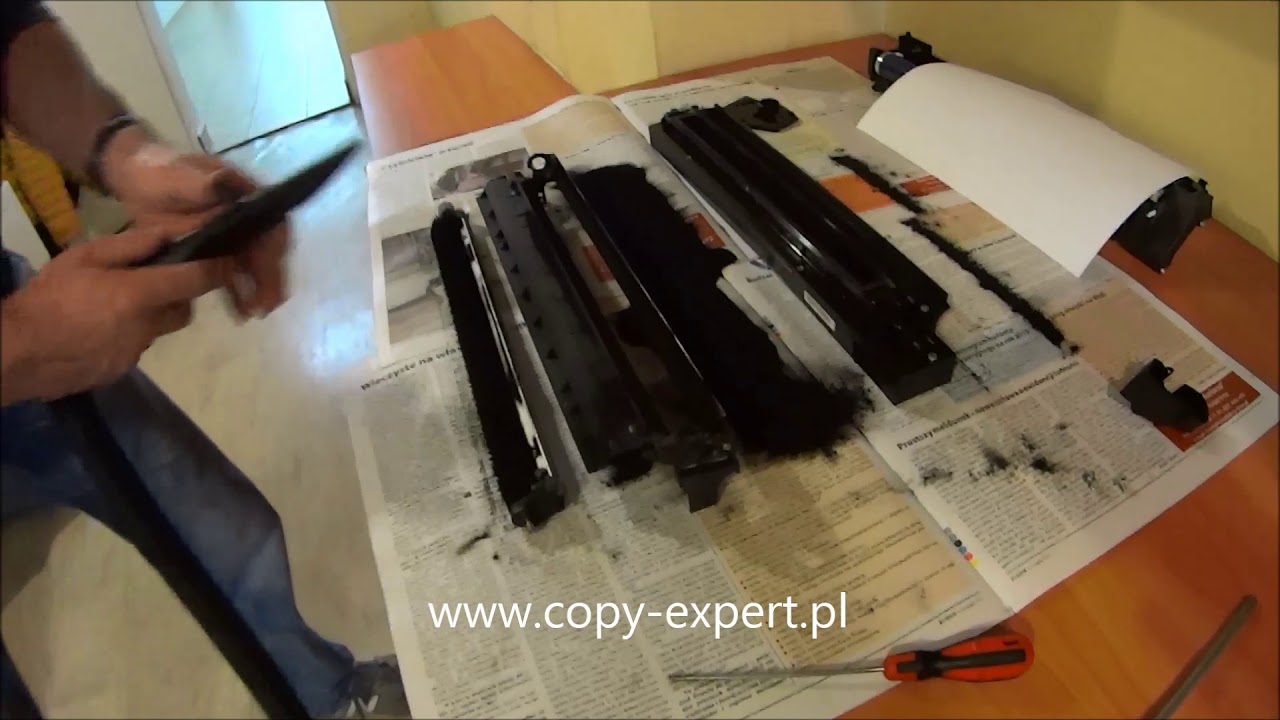
If the copy quality remains poor despite cleaning and adjusting settings, consider replacing consumables such as toner cartridges and drum units.
Perform Maintenance:
Regularly perform maintenance tasks recommended by the manufacturer, such as cleaning the printer's interior, replacing worn parts, and performing periodic maintenance.
Test Different Settings:
Experiment with different copy settings to find the best combination for your specific copying needs. Test the settings on sample documents before making multiple copies.
Contact Support:
If copy quality issues persist and you have tried all the above steps, consider contacting Ricoh's customer support or seeking assistance from an authorized service center. They can provide further guidance and diagnose any potential hardware issues.
Remember to consult the user manual for your specific Ricoh Aficio MP model for detailed instructions and recommendations on optimizing copy quality. Regular maintenance and using genuine Ricoh supplies can significantly improve the performance and longevity of your multifunction printer.
Повторяем попытку...

Доступные форматы для скачивания:
Скачать видео
-
Информация по загрузке: