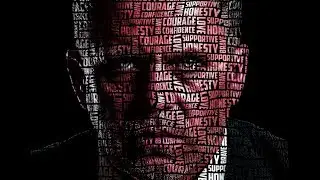
WORD CLOUD TEXT PORTRAIT EFFECT IN PHOTOSHOP | PHOTOSHOP EFFECT | PHOTOSHOP TUTORIAL
Автор: Deep Shah
Загружено: 2019-07-05
Просмотров: 27361
Описание:
Learn how to create this word cloud portrait text effect in Photoshop | Learn how to create text portrait effect in Photoshop | Text portrait effect in Photoshop | Photoshop text portrait effect in Photoshop | Text effect | Text manipulation | Photoshop effect | Photo manipulation | Photoshop tutorials | Photoshop tutorial | Photoshop CS 6 |Photoshop CC | Photoshop tutorial CS6 | Photoshop tutorial CC
Download Photoshop :- https://prf.hn/l/OVRDLJm
Equipment I use :-
Primary Laptop :- https://amzn.to/3BLqADZ
Secondary Laptop :- https://amzn.to/3wryYWo
Mouse :- https://amzn.to/3zsnuCH
Stock image download :-
https://unsplash.com/photos/qzDF5PNEWKc
Bebas Neue font download link :-
https://www.dafont.com/bebas-neue.font
Steps on how to create text portrait effect in Photoshop :-
1. So the first step is to select the model in the image using Quick selection tool and then click on Refine edge to select the hair of the model properly and then click on Ok ,after that click on Add layer mask icon to remove the background from the image.
2. After that click on Create new layer icon to create a new layer and then bring that layer below the model layer and make the foreground color as white and then fill the layer with white color using paint bucket tool and then make the model layer active and then press CTRL + J to create a duplicate of the layer and then make that layer active.
3. Now go to filter and then click on blur and then select Gaussian blur over there and then set the radius as 2px and then click on Ok and after that click on Create new fill or adjustment layer icon and select Black & White over there and then click on same icon and select Levels over there and then adjust the highlights to make the perfect contrast image.
4. Now go to File and select Save As over there and then give the name as Displace map and format as PSD and then click on Save ,now after that delete all the layers just keeping any model layer and then white layer below it and then again go to File and select Save As over there and then give any name over there and the format as PSD and then click on Save.
5. Now hide the model layer and then make the white layer active and then turn the foreground color to black and then fill the layer with black color using the paint bucket tool and then make select the Horizontal type tool and then select any font of your choice and then set the foreground color to white and then set the appropriate font size.
6. After that using the tool drag and create a box and the then fill it with any random text and then click on Toggle the character panel icon and then set the appropriate line space , after that select some random words from the paragraph and then change their size and style to emphasis them and then copy the text and then click on tick icon.
7. Now again using the tool drag a vertical rectangle and then paste the text in it and then place it properly using the move tool and then press CTRL and select the earlier text which will give you a selection of the layer of that text and then press CTRL + J to create a duplicate of the text and then place it properly using the move tool and then press CTRL + T and rotate it and place it properly so like this fill the entire document.
8. After that select any text layer and then click on Add layer style icon and select Blending optns over there and then click on drop shadow over there and then set the following :-
Blend mode : Multiply , Opacity : 100% , Distance : 10px, Spread : 5% , Size : 10px and then click ok and then right click on the layer and select Copy layer style over there and then paste that layer style on every text layer layer and then select the top text layer and then press SHIFT and select the bottom text layer which will give you a selection of the two layers and all the layers in the btwn and then press CTRL + G to merge into single group.
9. Now we need to make the size of the group smaller so that space available will be small so for that press CTRL + T and then reduce the size of the group and then click on tick icon and then press CTRL + J to create a duplicate of the group and then move it using move tool and then like this fill the whole document .
10. Now hide the black bg layer and then press CTRL + SHIFT + ALT + E to merge all the groups into a single layer and then hide all the groups and unhide the black layer and model layer and then make the model layer active and then change the blending mode to Multiply.
12. Now do this for 2 3 word and then hide both black layer and model layer and then press CTRL + SHIFT + ALT + E to merge all text layer into one and then unide both black and portrait layer and hide all text layer just keeping the merged one active and then make the mask of the portrait active and then press ALT and drag mask to the text layer .
Social media links :
1. Instagram :- / deepshah37
2. Facebook page :- / deep-shah-123817734988736
Повторяем попытку...

Доступные форматы для скачивания:
Скачать видео
-
Информация по загрузке: