Create custom keyboard shortcuts in Microsoft Word (365)
Автор: Hector Mendoza
Загружено: 2025-07-08
Просмотров: 222
Описание:
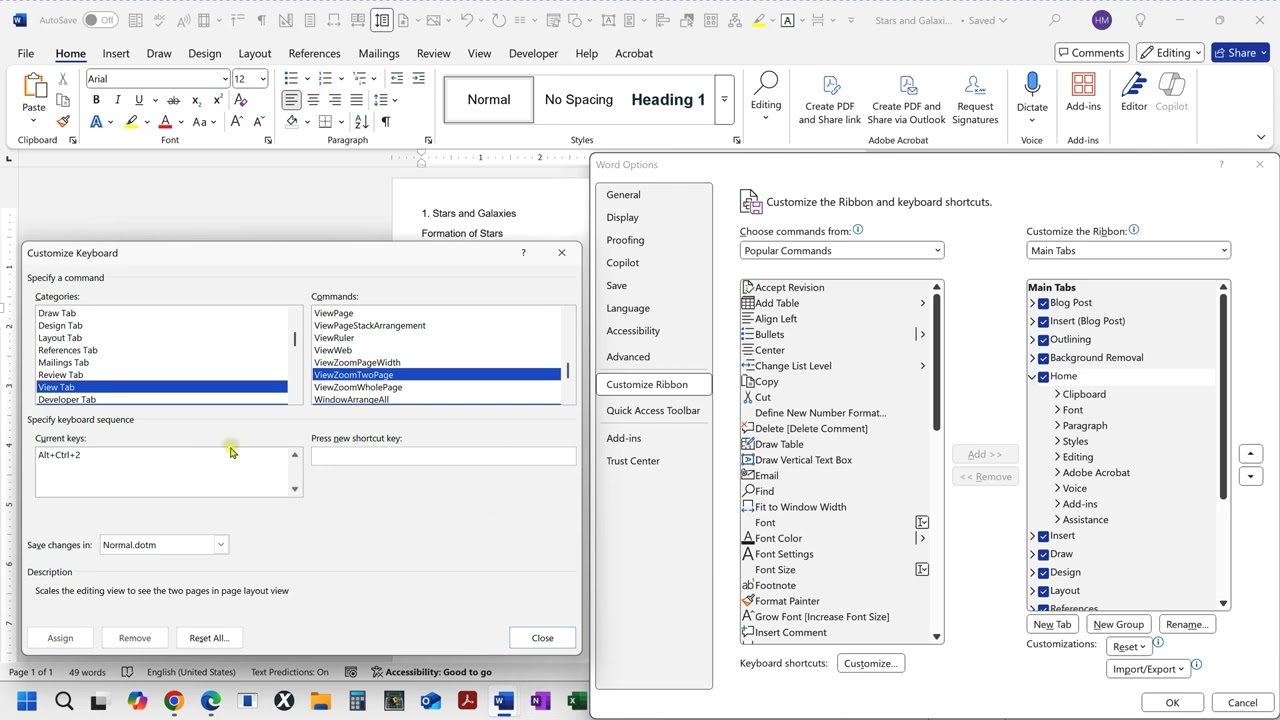
Create custom keyboard shortcuts in Word for various commands, macros, styles, or even frequently used symbols. To do this, you can access the "Customize Keyboard" feature within Word's options, where you can assign specific key combinations to these actions.
Here's how to create custom keyboard shortcuts in Word:
1. Open Word Options: Navigate to File - Options.
2. Access Customize Ribbon: Select "Customize Ribbon".
3. Customize Keyboard: Click the "Customize..." button next to "Keyboard shortcuts".
4. Choose a Category: In the "Categories" list, select the category containing the command, macro, or style you want to customize.
5. Select the Command: In the "Commands" list, find and select the specific item you want to assign a shortcut to.
6. Assign the Shortcut: In the "Press new shortcut key" box, press the desired key combination (e.g., Ctrl+Shift+A).
Assign and Save: Click "Assign" to save the shortcut and then "Close" to exit the options.
Повторяем попытку...
Доступные форматы для скачивания:
Скачать видео
-
Информация по загрузке: