How to connect ESP8266 and Arduino with Google Assistant and Google Home App without IFTTT - Part 1
Автор: ElectroFun
Загружено: 2020-06-25
Просмотров: 53900
Описание:
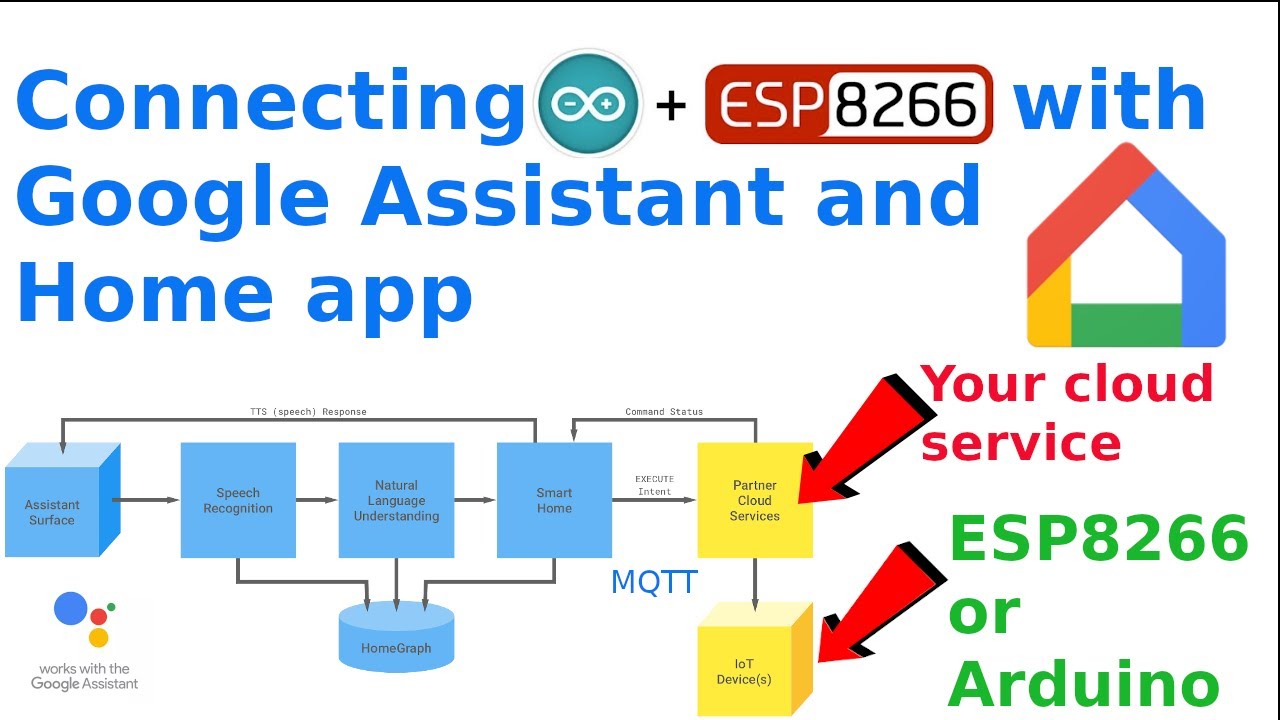
This video shows how to connect ESP8266 and Arduino devices with Google Home and Google Assistant without third party like IFTTT.
This video shows how to deploy your own cloud application that interfaces with Google Smart Home (alternative of service gbridge.io) and how to connect as many devices as you want using a front-end app. Then you can connect with MQTT your IOT devs like ESP8266/Arduino/ESP32.
Instructions
Clone project https://github.com/electrofun-smart/m...
Clone this project at your machine.
git clone https://github.com/electrofun-smart/m... (instructions also available at read.me)
Use IDEA (recommended Intellij) to import and build the project.
Install Google Cloud CLI SDK in your machine
Create a Smart Home Action Project
Go to https://console.actions.google.com/ click on a New project and add a project name and click Create Project.
Click Smart Home and Start building.
Then add a name of your Smart Home action, in the Display Name, it will show latter in Android app Google Home as a brand service, then click Save.
Click on Actions at left Menu
Enter the URL for fulfillment, don forget to change the url with your project id, e.g. https://your_project_id.appspot.com/smarthome, click Save.
From the left menu click on Account Linking.
Under Client Information, add anything on the client ID and secret, it will not be used on this sample.
The Authorization URL is the hosted URL of your app with '/fakeauth' as the path, e.g. https://your_project_id.appspot.com/fakeauth
The Token URL is the hosted URL of your app with '/faketoken' as the path, e.g. https://your_project_id.appspot.com/faketoken
Then click Save
On the top navigation menu under Test, click on Talk to 'Display name', to begin testing this app. Obs. An error will be returned but this is enough to have the service available o Google Home for test and personal use.
Credentials and API enabling
You must setup account credentials.
Navigate to https://console.cloud.google.com/apis...
Select Create Credentials and create a Service account key
Create the account and download a JSON file. Save this file at you cloned project in the resource location at src/main/resources/smart-home-key.json.
Enable cloud billing in the project https://console.developers.google.com...
Note: you need to create billing account with a valid credit card, usually G offers 300USD to be used in G Cloud applications. If your project will not have too much requests on G end-points the cost is very low per month. But be carefull, I recommend also that you set limits to avoid surprises.
Enable Home Graph API https://console.cloud.google.com/apis...
Update the java class MyMqtt in the project with your Mqtt credentials (I used this broker https://shiftr.io/)
Connect to Firebase
Open your project in the Firebase (https://console.firebase.google.com/), click on the left menu in Database and Create Database.
Start in production Mode, choose the cloud firestore location is better for you, click Done
Click on Rules and edit as code below for allow statements and click on Publish
allow read;
allow write: if false;
Configure a users collection with a default user and a few default fields that match exactly:
Click Start Collection add users, click Next. Documment Id add 1234 and Save. Below 1234 click on Add field and add the 3 fields below where first 2 as String and homegraph as boolean.
users\
1234
fakeAccessToken: "123access"
fakeRefreshToken: "123refresh"
homegraph: false
*Deploying the project
Open a terminal or Intellij terminal, type the command 'gcloud init' (from Google CLI SDK) and follow the options to select your user and project. At first time a url will prompt to complete the user login.
Type command 'gcloud app create' and select the same location as you did for Firestore database. (it must be the same otherwise you will need to re-create the project).
At Intellij open the Gradle box (top right corner) under Tasks and app engine standard environment, double click on appengineDeploy
Your project will be deployed at Google Cloud and the url will be prompt at the end of building.
Double check and update your project if needed at https://console.actions.google.com with url from step above. (Fulfillment URL and Authorization and Token Urls)
Open Google Home app in your mobile, click the '+' sign to add a device. Find your project display name in the list of providers. Log in to your service.
Nothing interesting happens yet because there is no devices created. However if get no errors your backend is working, check the logs as I showed in the vide. Next step video Part 2, I will show how to install frontend application to create devices.
Повторяем попытку...
Доступные форматы для скачивания:
Скачать видео
-
Информация по загрузке: