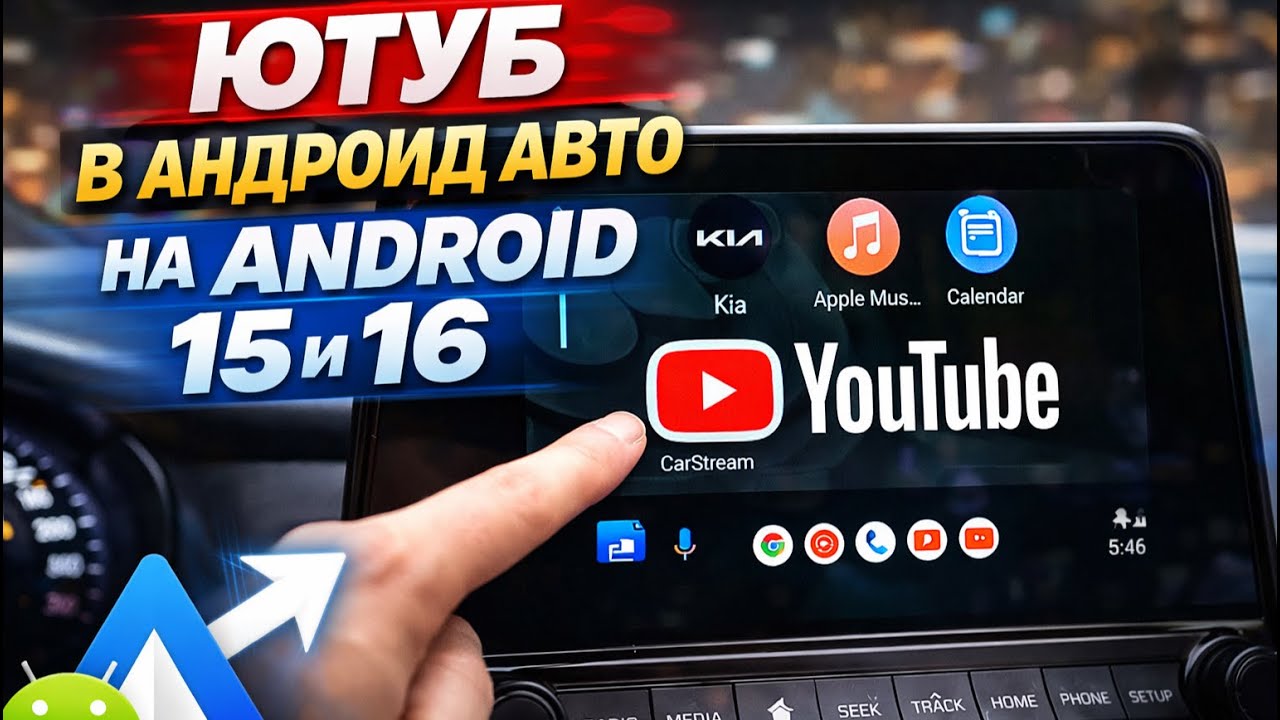
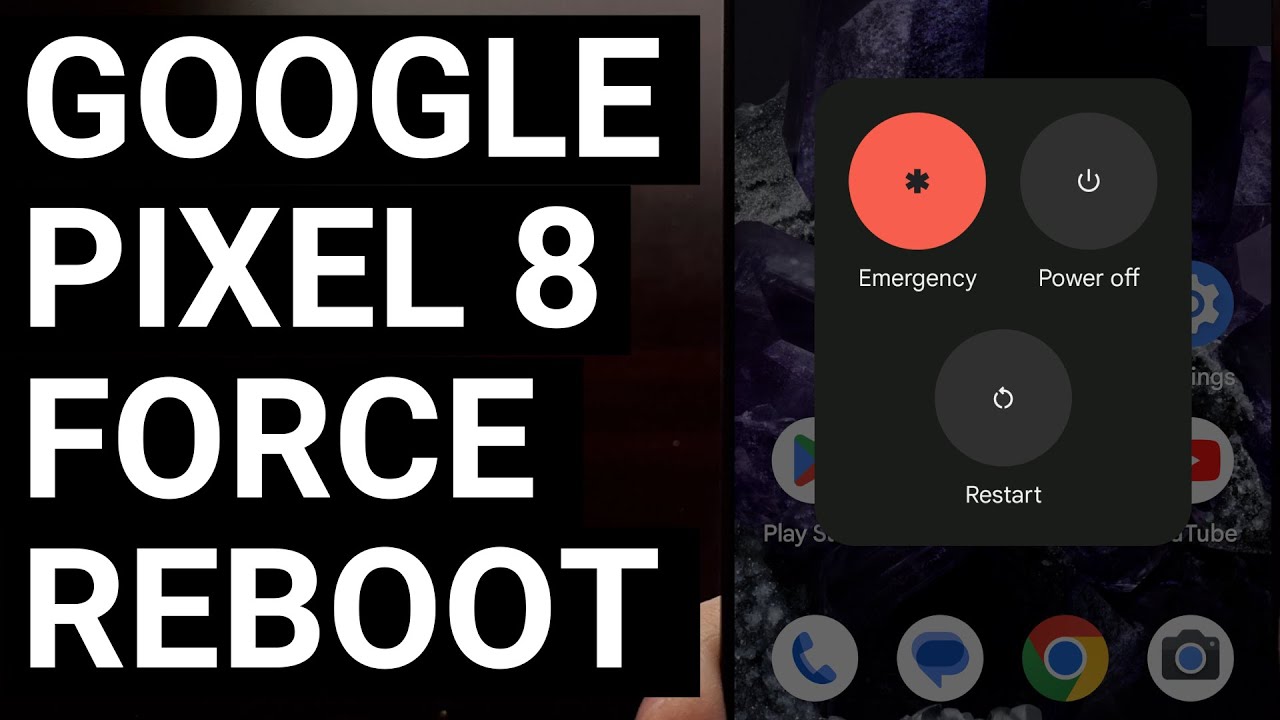
Force the Google Pixel 8 to Shut Off with this Button Combination
Автор: Explaining Android
Загружено: 2023-10-23
Просмотров: 2678
Описание:
If your Pixel 8 or Pixel 8 Pro ever becomes unresponsive then we can make it reboot with a simple button combo.
~~~~~
Hi! Don't forget to like the video, subscribe to the channel, and hit the "Thanks" button on this video, if you can, and join our channel community here - / @explainingandroid
Video Description
~~~~~~~~~~~~~~~~~
I have the Google Pixel 8 here and in today's video I'll be showing you how to force it to shut down and then restart. And you should all be aware that this button combination will also work on the larger Pixel 8 Pro as well.
#android #pixel8 #pixel8pro #googlepixel #googlepixel8 #googlepixel8pro #android14
If everything is running smoothly then you should always be able to bring up the Power menu by pressing and holding the Power button here on the side.
From here, we can turn the smartphone off, reboot it, or begin the process of making an emergency phone call.
But what happens if the software is unresponsive. . .and nothing happens when we press and hold the Power button?
On older Android devices we were always instructed to remove the battery to force the device to reboot. But smartphones and tablets these days do not come with a battery that can be easily removed.
If you have a Samsung Galaxy device then you'll be told to press and hold the Power and Volume Down buttons for 7-10 seconds. However, that doesn't do anything with the Google Pixel 8 series.
Instead, we have two other options that we can try out.
The first, quicker method is to press and hold the Power and Volume Up buttons at the same time.
When both of these buttons are held down at the same time, we will see the Pixel 8 and Pixel 8 Pro turn off in about 7 seconds or so.
But again, there are going to be times when even this doesn't work. So the second option you can try is to just press and hold the Power button for about 30 seconds.
When this is done correctly, it will take longer than the two-button combination method but it has a better chance of working when the software has become unresponsive to the hardware buttons.
I have found that I rarely need to use this these days as Android is usually running well enough to at least let me bring up the Power Menu. But that won't be the case for everyone as there are going to be situations where the software is just completely bogged down.
This would make it seem like the screen is frozen and that nothing happens when you tap or touch on the screen.
Step by Step Tutorial
~~~~~~~~~~~~~~~~~
1. Intro [00:00]
2.
As an Amazon associate, I may earn a commission on sales from the links below.
The Gear I Use
~~~~~~~~~~~~~~~~~
5W "Slow" Charger - https://amzn.to/2OaUMV8
Fast Charger - https://amzn.to/3rtBsC6
MicroUSB Cable - https://amzn.to/38dkpeM
USB-C Cable - https://amzn.to/2OqlTvi
TPU Cases - https://amzn.to/38g9b9w
USB-C to 3.5mm Dongle - https://amzn.to/3rVt7c3
USB-C to 3.5mm DAC - https://amzn.to/3CyksSJ
NVIDIA Shield TV - https://bit.ly/3KA17RV
Повторяем попытку...
Доступные форматы для скачивания:
Скачать видео
-
Информация по загрузке:








![Решена проблема с зелёным экраном на Google Pixel 8 [2025] | Ремонт зелёной линии на Pixel 8](https://imager.clipsaver.ru/QxNGqyKVNZc/max.jpg)