How to Use the Artboard Tool in Photoshop | Hindi
Автор: cg artist all rounder
Загружено: 2025-12-16
Просмотров: 28
Описание:
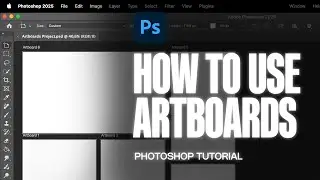
The *Artboard Tool* in Photoshop allows you to create multiple canvases (artboards) within a single document, enabling you to design different layouts, interfaces, or versions of a project without having to create separate files. It’s especially useful for things like web design, app design, or any project where you might need multiple variations of the same concept.
How to Use the Artboard Tool in Photoshop:
1. *Creating Artboards:*
Open Photoshop and create a new document.
In the *New Document* dialog, you’ll see an option to choose **Artboards**. Check the "Artboards" box, and Photoshop will set up a document that allows you to add multiple artboards.
Alternatively:
If you already have a document open, you can convert a current layer into an artboard. Use the *Artboard Tool* by selecting it from the toolbar (it looks like a small icon of a page with a dotted outline) or press `Shift + O` to activate it.
Then, click and drag on the canvas to create a new artboard.
2. *Managing Artboards:*
You can move artboards by selecting the Artboard Tool and clicking on an artboard to drag it.
To resize, simply select the artboard and adjust the size using the handles.
Each artboard acts like a separate workspace. You can apply different designs to each one without worrying about overlap or clutter.
3. *Adding New Artboards:*
With the *Artboard Tool* active, you can click the *New Artboard* button (bottom of the Layers panel) to add additional artboards. Alternatively, drag and drop from the layers palette to create a new artboard.
4. *Artboard Options:*
Each artboard will appear in the Layers panel as a separate layer group. This allows you to have layer sets for different artboards, keeping your designs organized.
Artboards are useful when you need to export multiple designs at once. You can export all artboards at the same time in various formats (JPEG, PNG, etc.).
5. *Exporting Artboards:*
To export all artboards, go to **File Export Artboards to Files**.
This will allow you to select the format, location, and other export settings for each artboard.
Tips:
Artboards work best when you’re designing for different screen sizes or different versions of a project. For example, in web design, you might use multiple artboards for different page layouts or for responsive design (mobile, tablet, desktop).
Each artboard has its own set of guides, rulers, and grids, but you can still apply global guides across all artboards if needed.
You can also use the *Export As* option to export each artboard as its own file.
Limitations:
Artboards are a great tool for organizing designs within Photoshop, but Photoshop’s implementation of artboards doesn’t have the same level of flexibility as Adobe XD or Figma when it comes to designing user interfaces or working with interactive components.
Would you like to go into more detail about specific features or any challenges you're facing with artboards in Photoshop?
आज के वीडियो में, हम देखेंगे कि फ़ोटोशॉप में रंगीन बॉक्स के साथ कैसे काम करें और उन्हें व्यवस्थित करें। यह एक विस्तृत "photoshop tutorial for beginners" है जो आपको "photoshop in hindi" में रंग बदलने और विभिन्न तत्वों को व्यवस्थित करने के चरण सिखाता है। इस "adobe photoshop" गाइड के माध्यम से, आप "photoshop editing" की मूल बातें सीखेंगे और समझेंगे कि "how to use photoshop" को प्रभावी ढंग से कैसे उपयोग किया जाए।
Повторяем попытку...

Доступные форматы для скачивания:
Скачать видео
-
Информация по загрузке:




![[4K FULL HD] Relaxing Water Background | 1 HOUR | Calm Water Wallpaper (No Sound)](https://image.4k-video.ru/id-video/y9PTNTSpGJs)



![Введение в интерфейс Adobe After Effects. Эпизод 2/48 [Adobe After Effects для начинающих]](https://image.4k-video.ru/id-video/O6KRRQm6meY)

