CR-10 Smart Pro Firmware Updating and what may go wrong.
Автор: Trevs Shed
Загружено: 2023-07-01
Просмотров: 7778
Описание:
Download the files.
https://www.creality.com/pages/downlo...
Extract the files.
Display Firmware update.
Put the two folders called DWIN_SET and private on to a micro SD card.
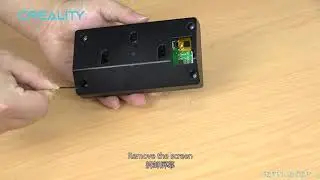
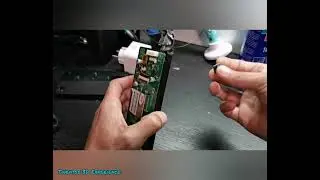
Take the display case apart, with the printer off, put the card in the slot on the display PCB, turn the printer on. The update will happen very quickly. Turn the printer off, remove the card, assemble the display and turn the printer back on...
Main PCB Firmware update.
Put the file called CR-10 Smart ProMarlin2.0.6V1.0.14.bin or similar on to your normal printer SD card, with the printer on, insert the SD in to the card slot on the front of the machine. Turn the machine off and then back on.
If the update completes normally then great. If it doesn't and the machine appears to be stuch with a blank screen, wait 5 minutes, then turn the machine off and back on at the mains switch. try to turn the printer on with the button on the right as normal.
If the printer comes on for a few seconds and then goes off everytime you try to turn it on then try this.
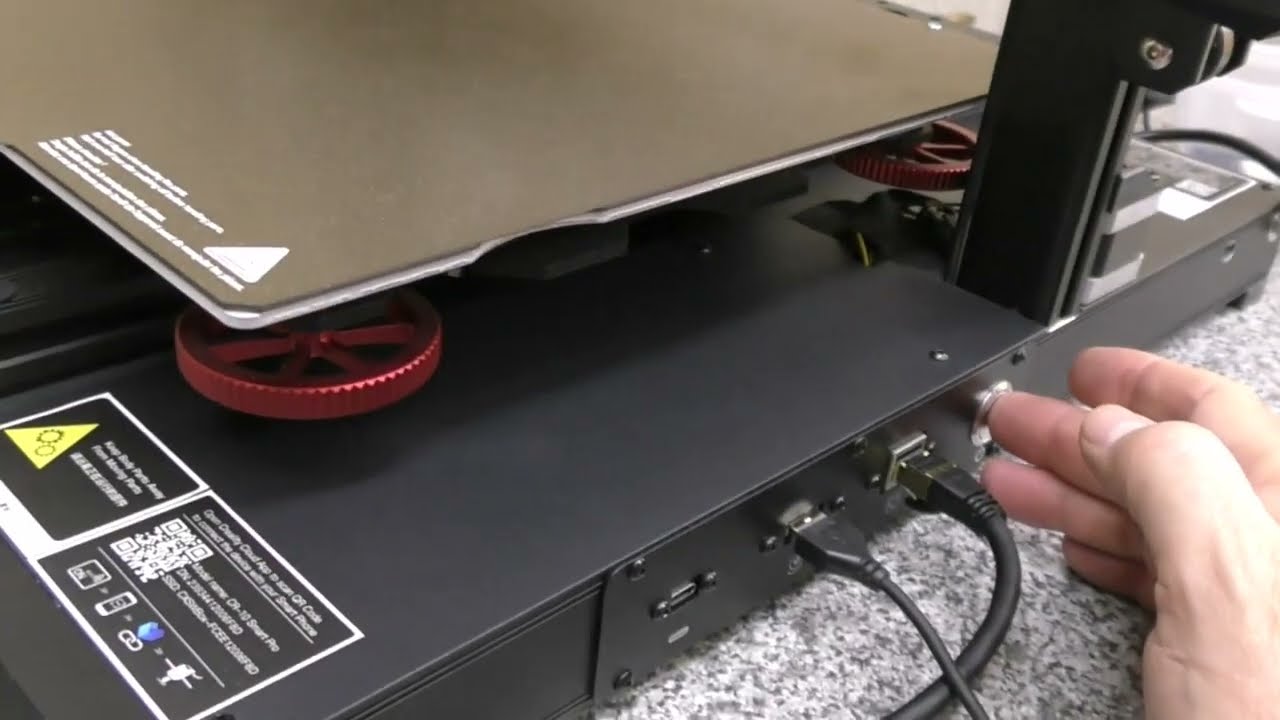
With the SD card still in the slot press and hold the soft on button on the right side of the machine, keep it pressed for as long as it takes for the main menu to eventually appear in the display.
Check the firmware version. settings/about
Turn off and back on and continue with your next print job.
Panic over.
Update the Creality Cloud box that is inside the printer through the Creality Cloud app.
Повторяем попытку...
Доступные форматы для скачивания:
Скачать видео
-
Информация по загрузке: